
Participant
October 16, 2020
Answered

Resizing layer to a specific size in action (not percentage)

  • October 16, 2020
  • 4 replies
  • 7704 views

Hello,


I am trying to create an action to help me edit images for my store. There are several steps to editing each picture, and therefore I decided making an action would be easier to go through everything. 


I have 2 layers, one is the item (without a background)  and one is the background. I would like the item to always have the same width, that way it looks a bit more uniform on the website. However, since they are different objects, before making them the same size, they always have different sizes.


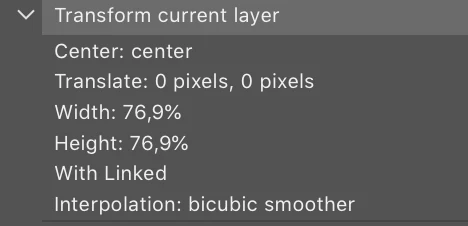
My issue is, when I do the action, and use transform to make the item layer a specific size, it is translated into a percentage. Therefore, the images are resized by a specific percentage, instead of resizing to a specific size, like I wished. The action says "Transform current layer" and then the Width is for example 76,9%. But as you can imagine, different sizes, resized to 76,9% mean different final pixel sizes.


Does anyone know how to make an action that resizes the image always to a specific pixel size and not percentage? 
 

Correct answer rob day

The JS to resize a layer to a specified pixel width would be something like this where the active layer is resized to 500 pixels:


#target photoshop
var pxWidth = 500;

resizePixelWidth(app.activeDocument.activeLayer, pxWidth)


/**
* Resize layer to specified pixel width
* @9397041 the layer to resize 
* @9397041 the resized pixel width 
* @Return void 
* 
*/
function resizePixelWidth(l, pw){
    preferences.rulerUnits = Units.PIXELS;
    var b = l.bounds;
    var w = b[2]-b[0];
    var s = (pw/w)*100;
    l.resize(s, s, AnchorPosition.MIDDLECENTER)
    return 
}

4 replies

Stephen Marsh
Community Expert
Community Expert
June 25, 2025
Stephen Marsh
Community Expert
Community Expert
October 17, 2020

The alternative that does record pixels is to convert the layer to a smart object, then edit the smart object and resize (using fit image, image size etc). Then close and save the smart object to update the layer.


JJMack
Community Expert
Community Expert
October 17, 2020

Stephen that will resize every layer in the document not a particular image layer

JJMack
Stephen Marsh
Community Expert
Community Expert
October 17, 2020

Stephen that will resize every layer in the document not a particular image layer

JJMack
________________


Of course it won't do that!


Only the layer is being converted to a SO, not the entire document.


Layer panel options menu, convert to smart object. Only the active/targeted/selected layer is turned into a SO.


I did test this before posting, you obviously didn't.

rob day
Community Expert
rob dayCommunity ExpertCorrect answer
Community Expert
October 16, 2020

The JS to resize a layer to a specified pixel width would be something like this where the active layer is resized to 500 pixels:


#target photoshop
var pxWidth = 500;

resizePixelWidth(app.activeDocument.activeLayer, pxWidth)


/**
* Resize layer to specified pixel width
* @9397041 the layer to resize 
* @9397041 the resized pixel width 
* @Return void 
* 
*/
function resizePixelWidth(l, pw){
    preferences.rulerUnits = Units.PIXELS;
    var b = l.bounds;
    var w = b[2]-b[0];
    var s = (pw/w)*100;
    l.resize(s, s, AnchorPosition.MIDDLECENTER)
    return 
}
Stephen Marsh
Community Expert
Community Expert
October 17, 2020

Thanks for sharing Rob!


I would advise adding the following line of code before the function (either before or after the first var):

 
var origRulerUnits = app.preferences.rulerUnits;
 
Then add this as the last line, outside the function:
 
app.preferences.rulerUnits = origRulerUnits;


This way the user's original ruler unit values are returned after the layer resize.

JJMack
Community Expert
Community Expert
October 16, 2020

You will most likely need to write a script you can use in your action.  Actions can not use logic and actions record layer transforms as a relative transform to current layer size you record the action on . Also when you transform a layer you should only use a constrained transform like the one in your action where the width and height are resized by the same percentage.  its a simple calculation.  The percentage would be  YourWidthPixel/LayerBowndsWidth*100.


However what you need is a Template for the Web  page you want. Then you can populate your images into the template.   A simple two image collage template.  Free Photoshop Photo Collage and Toolkit 


JJMack