Known Participant
May 21, 2022
Question

Resizing Photo don't work anymore

  • May 21, 2022
  • 4 replies
  • 625 views

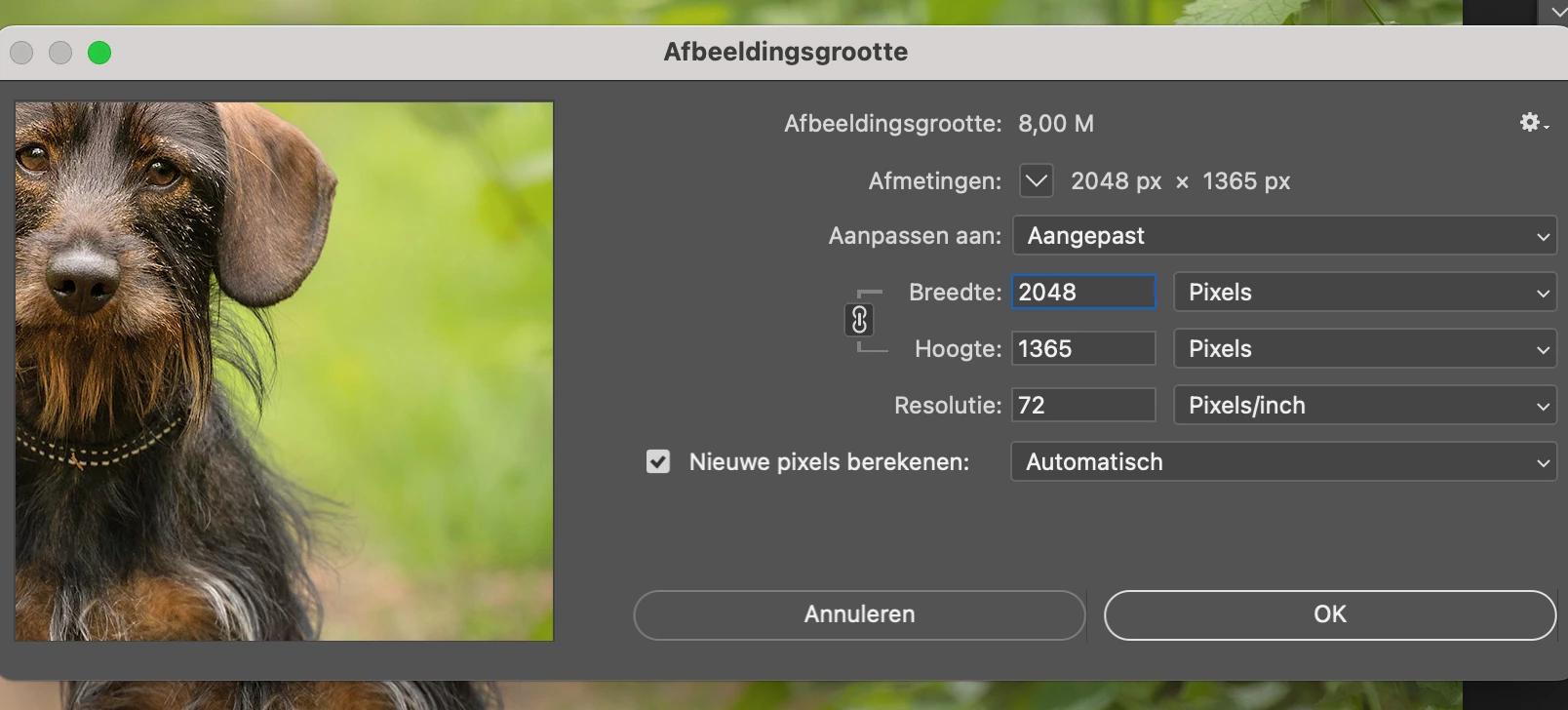
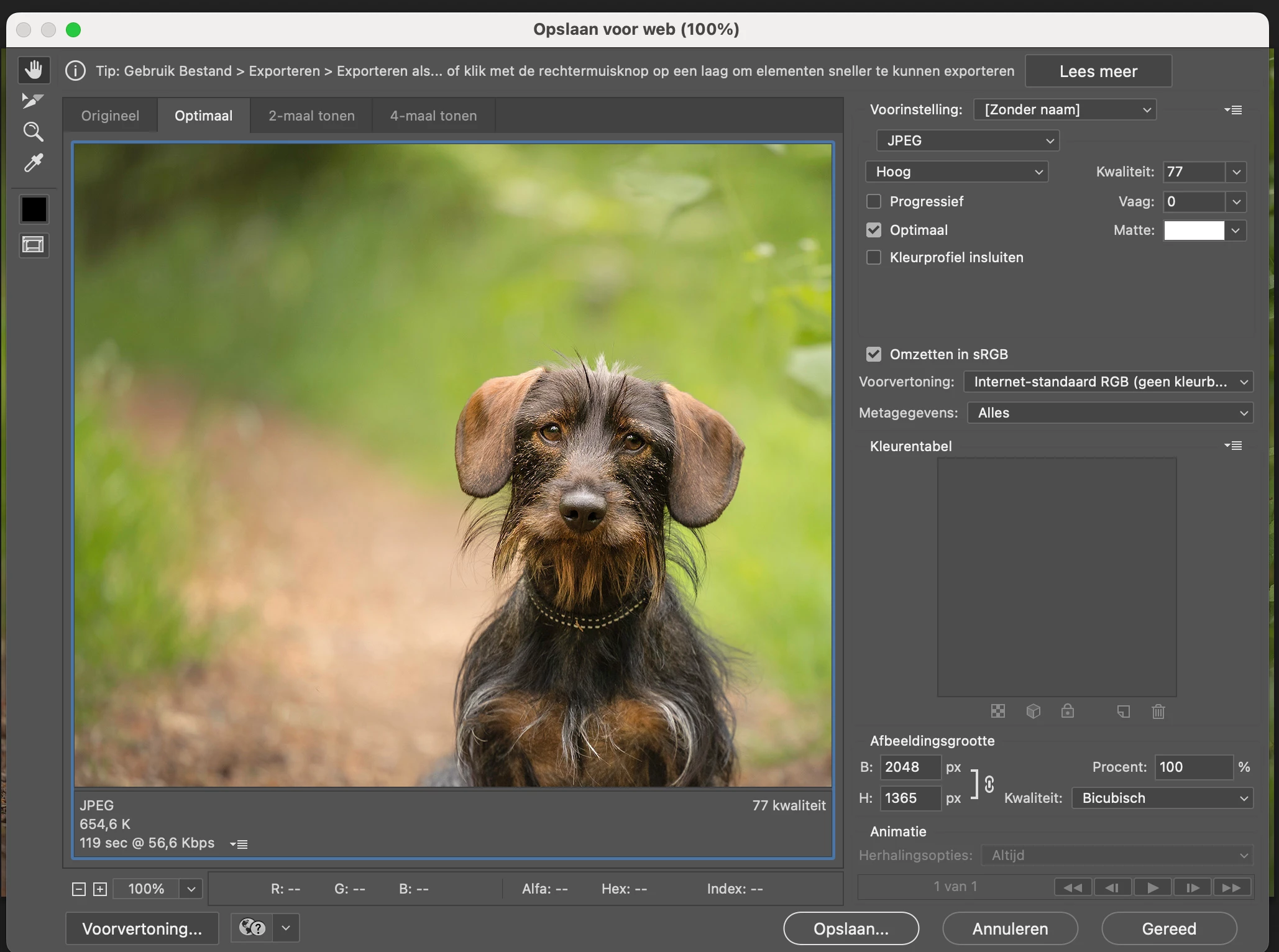
Ik have photoshop 23.3.2 and suddenly I can"t resize my image anymore. Is there something wrong with my settings? Or is this a new problem?

This topic has been closed for replies.

4 replies

Bojan Živković11378569
Community Expert
Community Expert
May 22, 2022

I am not getting it. Can you describe steps you are taking that does not work to resample (resize) image?

Known Participant
May 23, 2022

This is the proces, last week it worked OK 

D Fosse
Community Expert
Community Expert
May 23, 2022

So what exactly is wrong here?


You're reducing the size from 5169 x 3446 pixels, to 2048 x 1365 pixels. Image Size does exactly what it's supposed to do. It works.


So what do you see as wrong here? Be specific. We can't read minds.

D Fosse
Community Expert
Community Expert
May 22, 2022

The resizing itself looks perfectly fine here, the pixel size is correct.


However, there appears to be a display scaling issue here - if these screenshots are both 100% or at least the same scale. It would help if you could provide full-screen screenshots with the original image in Photoshop together with each dialog.


Is this a retina display? In that case the image will natively be smaller on screen than on a traditional display. Photoshop should always display one image pixel represented by exctly one physical screen pixel - in other words "small". All dialogs should do this too.


All other consumer-oriented apps, including the native MacOS apps, will scale images up to 2x linear dimensions when a retina/4K display is detected. This is the industry-standard workaround to ensure the same material can be used regardless of screen technology.

Nancy OShea
Community Expert
Community Expert
May 21, 2022

Legacy Save for Web is obsolete.

Use File > Export > Export As.  Adjust image size (width & height in pixels) as needed.


Nancy O'Shea— Product User & Community Expert
gener7
Community Expert
Community Expert
May 21, 2022

So I think you enter the new size in Pixels in the B or H form by clicking inside it and entering the desired Pixels, and both B/H and the "Afmetingen" should also relect the new value. Then after clicking OK, the Image Size box will vanish and your image should change to the new dimensions.


If this is not working, Exit Photoshop and go to Security and Privacy and see that Photoshop has Full Disk Access. Then restart your Mac and see if that does fix it.