printer6009
Participant
August 27, 2018
Answered

Restoring cropped image

  • August 27, 2018
  • 4 replies
  • 38354 views

Hi,

I'm so sorry, I've tried searching the forums, but I can't find an answer and I'm a little desperate.

I very STUPIDLY cropped an important document, and then did a few extra edits to it. Problem? I can't go far enough back in the history to undo the crop.

HOWEVER. I haven't saved the document, yet. Is there any way to fix this?

My problem is... my last save is QUITE a while ago and I'd done a LOT of work between saving and stupidly cropping.

Is there any hope for me?

Thank you so much for you time,

— A very desperate and stupid comic artist
Correct answer Jeff Arola

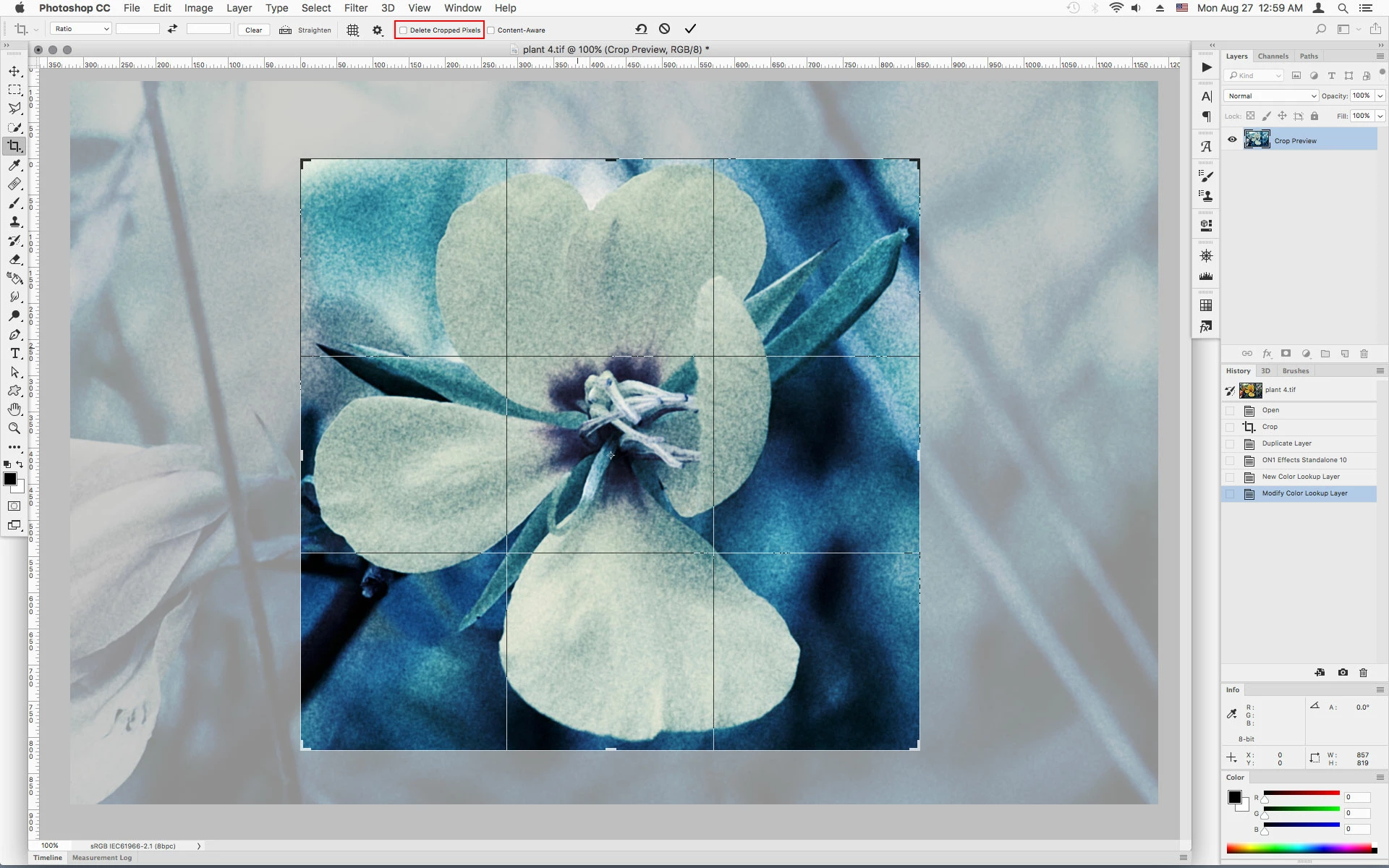
Hopefully you did not have Delete Cropped Pixels checked in the Crop Tool options.

If you click on the document with the Crop Tool that should reveal the cropped area or instead you can try Image>Reveal All.

Do you have earlier version of the document already saved?

4 replies

Inspiring
April 14, 2022

Another reason I hate Photoshop's willingness to stick to old conventions, which is probably an excuse to stay lazy on the development end. It really needs better feedback what has just happened. I was zoomed in, working on the image and I had delete cropped pixels checked. Fix this nightmare, Adobe. These are situations where your tools are not only unproductive, but they DESTROY people's work.

jane-e
Community Expert
Community Expert
April 14, 2022
"I very STUPIDLY cropped an important document,"

"Another reason I hate Photoshop's willingness to stick to old conventions, "

By @exactspace


Hi

The "old convention" for cropping was to always delete cropped pixels. Then after many years and versions, we were given a choice to keep the pixels after cropping. We don't really want to go back to the old way of doing things!


Some other things to protect yourself include:

  • Change your history states in Preferences to a higher number. You can go up to a thousand, but keep in mind that it may slow you down. You might start with 100.
  • Take snapshots as you go — click the camera in the History panel. Snapshots and history only last while the file is open.
  • Don't work on only one copy of an important file for an extended period of time. Do a File > Save followed by File > Save As. Some people number the versions; I like to use the date (and time if needed). I move the older ones into a folder I usually call "[project name] archive"
  • Consider working with psdc files. Cloud files automatically save, but they also automatically save versions. Test this out first to see how it works before committing.
  • Watch your work as you go. Errors caught early are easier to fix. When you do something, check to see if you've done it right.
  • Even after you Save, you can use your History panel to step backwards.


I'm sorry you had this disaster, but I'm glad you were able to put things back together again, even though it was painful.


Jane


Inspiring
April 15, 2022

Thank you, these are all helpful tips. I didn't even know I had selected the crop tool or used it when I was zoomed in. Even Pixelmator gives the user context when anything major happens. Feedback is key. These features are nice, but they are left off by default; leaving new users unaware of them. 

Legend
August 27, 2018

Or, SAVE AS a new name, keeping the old file. You still have the uncropped file and the new file. You can bring in parts of both to save time in future.

Bojan Živković11378569
Community Expert
Community Expert
August 27, 2018

I am not sure what you state about saving and then cropping. Did you save file after cropping? If the answer is yes then try with above suggestion, otherwise, you may be able to go back to last save with File > Revert.

Jeff Arola
Community Expert
Jeff ArolaCommunity ExpertCorrect answer
Community Expert
August 27, 2018

Hopefully you did not have Delete Cropped Pixels checked in the Crop Tool options.

If you click on the document with the Crop Tool that should reveal the cropped area or instead you can try Image>Reveal All.

Do you have earlier version of the document already saved?

printer6009
Participant
August 28, 2018

I did have "Delete Cropped Pixels" turned on, so it was a total loss. However, I've fixed that so it won't happen again.

I ended up doing what Test Screen Name also suggested and simply using the cropped piece to rebuild the image based on the earlier version. Lost a few (12) hours of work, but it's all my own fault, anyway.

Thank you for the help, you've saved my future self from disaster, at least!

Participant
November 11, 2025

That's not your fault at all. Adobe team was incompetent when desinging this feature. Whoever put that feature in with no way to reverse it needs to be blacklisted from the industry.