
Participant
September 21, 2017
Question

Right-Clicking an image and choosing to open in Photoshop CC 2017 doesn't work

  • September 21, 2017
  • 2 replies
  • 1732 views

Hi guys,

I have a user that has issues when opening basic image files in Photoshop. When he right-clicks a file and chooses to open in Photoshop, it loads Photoshop but doesn't open the image, instead coming with the attached image:
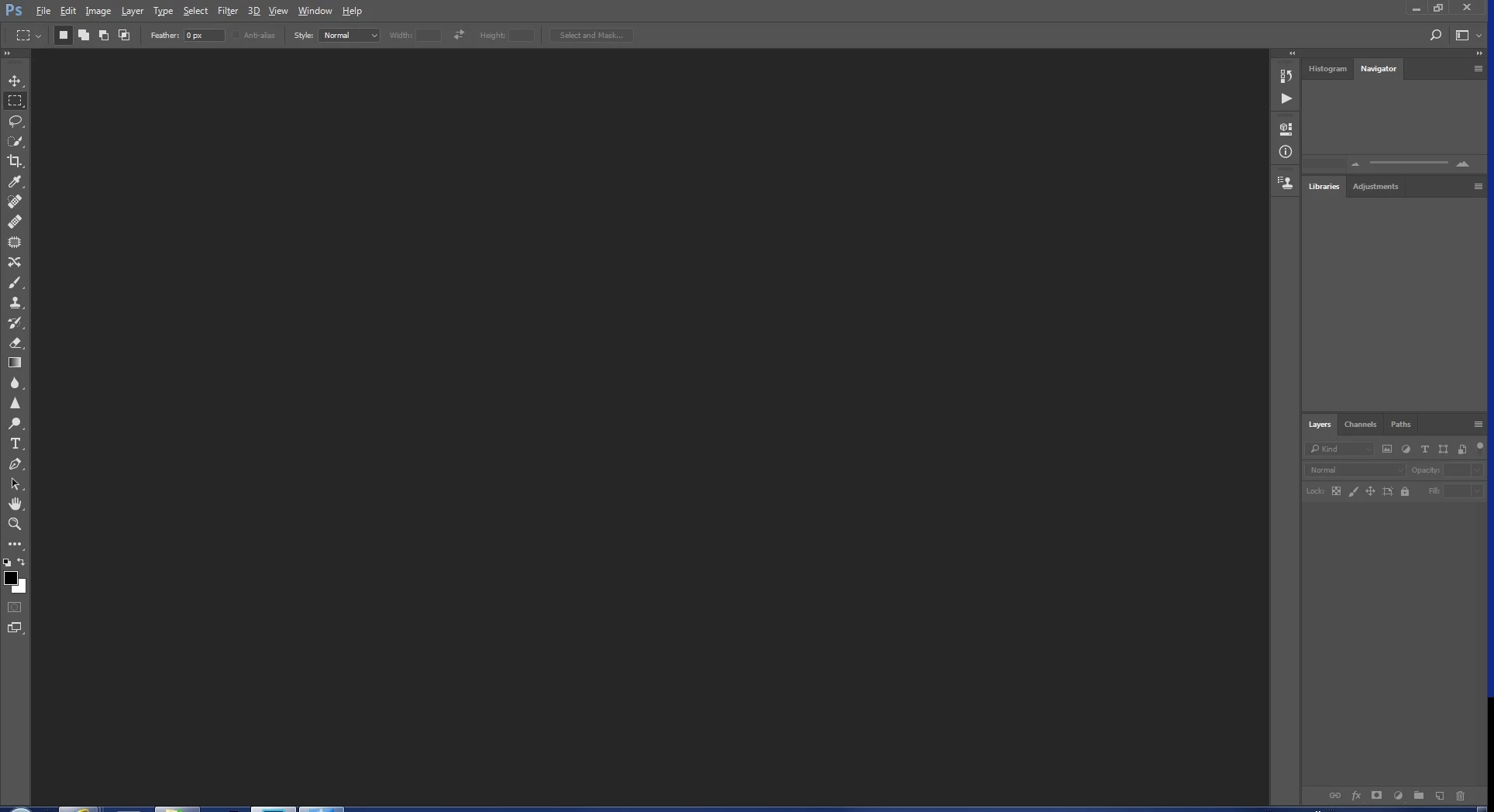
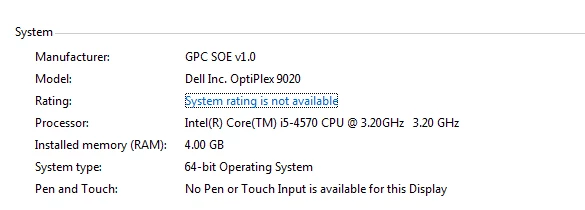
This happens with various image files like jpg and png. I have reinstalled Photoshop and even reimaged their computer to no avail. I can confirm it is the latest version of Photoshop. Here are the computer specifications:
    This topic has been closed for replies.

    2 replies

    JJMack
    Community Expert
    Community Expert
    September 21, 2017

    On you users machine use Run to start Regedit. In regedit use Ctrl+F to open fine and type Photoshop.exe in the the search field and make sure only the Keys checkbox is checked.  That should find the Photoshop.exe key. Expand that key, expand Shell, Expand open and highlight command. Then in the right panel mace sure you see something like this and it is very important that the "%1" in in there

    "C:\Program Files\Adobe\Adobe Photoshop CC 2014\Photoshop.exe" "%1"

    I changed CC 2017 to CC 2014 on my machine for CC 2017 is to buggy IMO

    JJMack
    Participant
    September 26, 2017

    Hi JJMack,

    Unfortunately we only have Photoshop CC 2017, not 2014. Will I need to install 2014 for that to work?

    JJMack
    Community Expert
    Community Expert
    September 26, 2017

    I have many version of Photoshop installed.  When I installed CC 2017  Adobe's installer  set CC 2017 to be the default Photoshop version on my machine.  CC 2017 has too many bugs for me so  I change my machine's Photoshop default back to CC 2014 the version I prefer to use.   You can set the command to any version of Photoshop.exe you have installed and prefer to use.  The Important thing is to have the parameter "%1"  after the command so the File's Full path and file name will be passed to Photoshop when Windows file explorer uses the command stored in Windows registry to start  Photoshop it will replace the %1 with the path and filename.

    JJMack
    Trevor.Dennis
    Community Expert
    Community Expert
    September 21, 2017

    Something looks broken there.  How old was the image, and what did it include?  i.e. in what sounds like a multi user work type environment, is everything on a local drive, or some of it via a networked server?

    The obvious first thing to try is resetting Preferences, or resinstalling Photoshop again, and running the Cleaning tool after the uninstall.  Reinstalling does give you a fresh new Preference file.

    Then we have to wonder if this could be OS related.  What happens if the user tries to open the same file(s) from within Photoshop?  Or even from Bridge?

    Is there more than one version of Photoshop on this system?  What are the OS file associations set to, and what are the Bridge file associations set to?

    From Bridge Preferences

    Participant
    September 26, 2017

    Hi Trevor,

    I've done some testing with images. I gave the user another PC with the same specs and a fresh new image, installed Photoshop 2017 however I still have the same problem. I then tested it by creating a new .psd file and saved it onto the Desktop however when I double-click it to open, it still comes up with the attached image in my original post. It seems that it's not just images but apparently all types of files that Photoshop is unable to open. I have also tried this from Photoshop itself by going into File -> Open and from Bridge, neither has been successful.

    Photoshop works for his colleague who has the same image and computer. Additionally I installed it onto my work laptop with the same image and it works correctly.

    There is only the 2017 version of Photoshop on the computer. Here are the Bridge file associations.