
Rotating sampled image in mixer brush?
Hello, I created a brush tip from 2 black circles that follows the direction of my pen that I'm using to draw some hair in a stylised image, problem is it's transparent in between the dots so when I'm drawing over existing hair pixels I then have to go through extra steps to obscure/remove them.
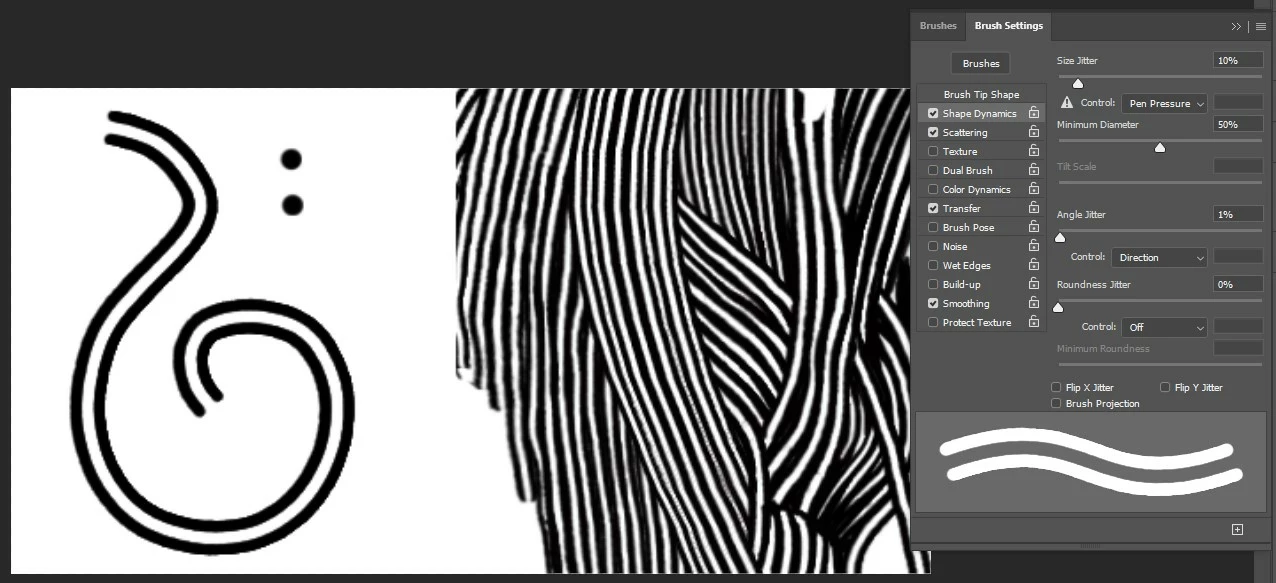 I recently read a tutorial on here that had an image of holly leaves, and used the mixer brush to sample the holly then paint them as symbols along a line. I thought this could potentially be useful as I could draw lines with white inbetween, therefore obscuring pixels from previous strokes as I painted. It mentions in step 5 setting the angle jitter to 'direction' (as I had already done in my previous brush) but that doesn't seem to change the angle of the sample in the new (mixer) brush. I've tried many different settings, and also read in older posts elsewhere that it doesn't seem the sampled image can rotate.
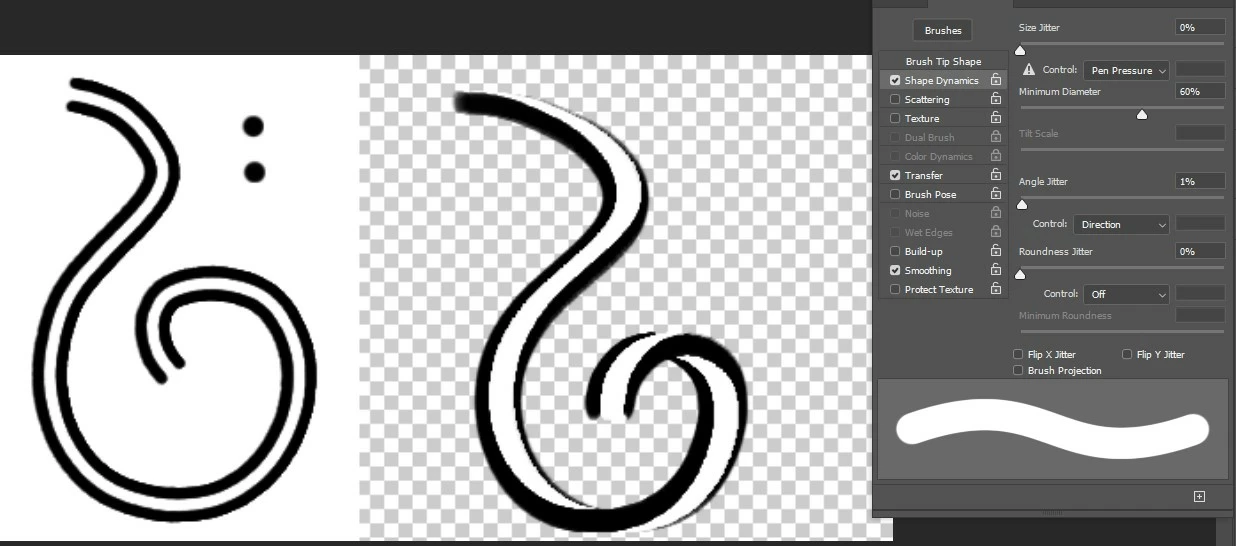
Any ideas if this can work as I'm hoping? I don't know why the steps in the tutorial mention setting angle to direction if it has no visible effect on the 'stamp' of the holly.
Also, when I lower the brush size, not only does the sample get low res with aliasing quickly, but around 30px the sample doesn't scale at the same rate as the brush and starts getting cropped, with the right-hand side hit hardest so it becomes uneven too (I sampled the sample with the tool as central as I could by eye originally, and it was decently high res with anti-aliased edges - can't remember specifics.)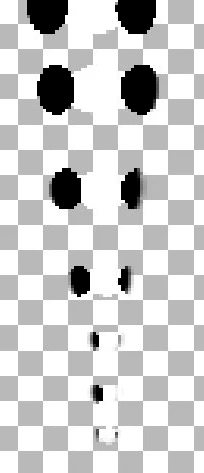
So... if I can't get the sample to rotate with the pen direction, this is a request for it to be an option to be added please, and also that the sample to scale properly and has an anti-aliased option for lower sizes.
Thank you.
 AdChoices