
Participant
July 6, 2023
Answered

sample all layers missing

  • July 6, 2023
  • 3 replies
  • 1184 views

Hi guys!
I have the last version of photohop and Im trying to use burn tool but missing the sample all layers icon .
I tried to uncheck the enable narrow option but it didnt work

please your advise what am I doing wrong ? 
im trying to find it like an hour 😕😕
This topic has been closed for replies.
Correct answer Ged_Traynor

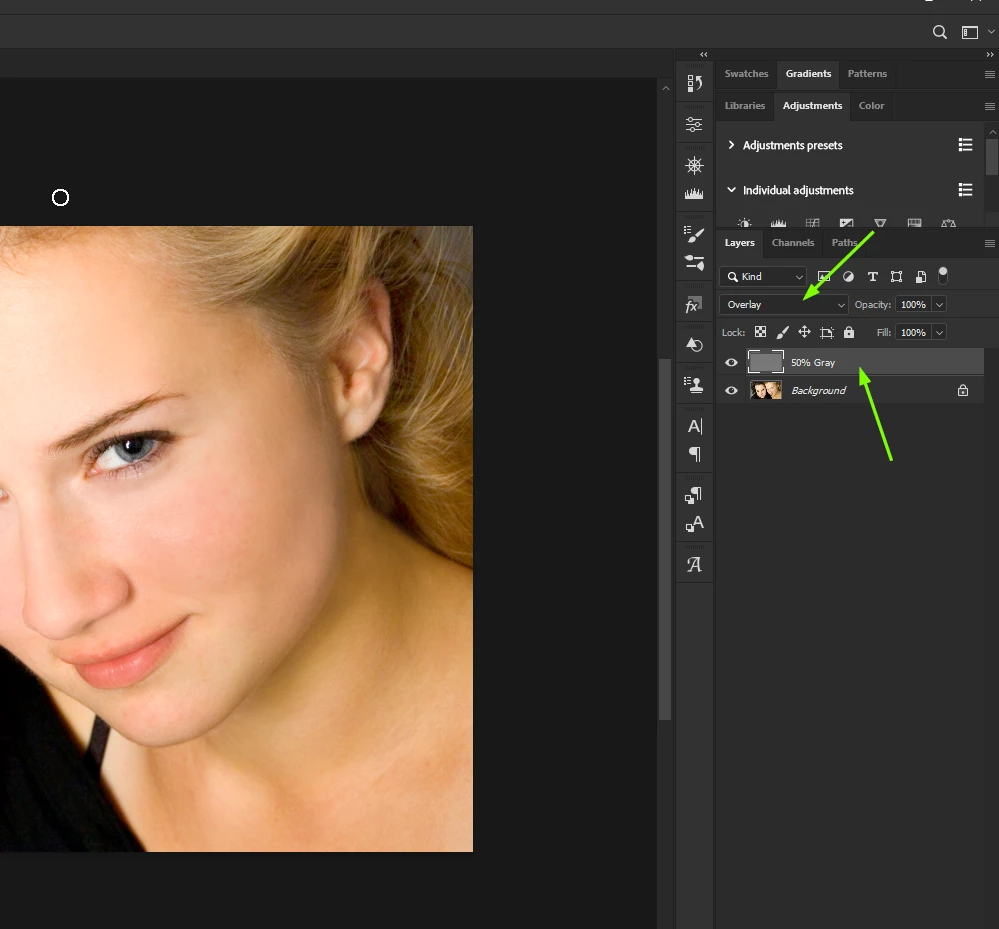
Create a new layer and fill it with 50% gray, then set the blend mode to overlay.

3 replies

Participant
June 14, 2024

I had this same problem. I'm on a Mac, using Photoshop 2024. I wanted to use 'Sample all layers' with the Mixer Brush tool but could not find the tab, nor the 'Preferences' tab in 'Edit', that I'd seen mentioned in other replies to this problem. I started over, loading some layers, then clicking the colour picker icon, which brought up the 'Sample' options in the toolbar. I clicked on 'All layers' and once I went back to the Mixer Brush tool - there it was in the toolbar.

melissapiccone
Community Expert
Community Expert
July 6, 2023

The Burn tool doesn't have that option - it never did.  There are lots of ways to burn non destructively if that is your goal, without actually using the burn tool.

Melissa Piccone | Adobe Trainer | Online Courses Author | Fine Artist
Ged_Traynor
Community Expert
Community Expert
July 6, 2023

@Chen2683144961bw there is no sample all layers for the Burn Tool

Participant
July 6, 2023

thanks for your answer. so how can i use it on a diffrent layer ?

Ged_Traynor
Community Expert
Ged_TraynorCommunity ExpertCorrect answer
Community Expert
July 6, 2023

Create a new layer and fill it with 50% gray, then set the blend mode to overlay.