

Save As Jpeg - Quality Dialog Box - How to bypass?
Hello, I am currently working on an e-commerce site and I need to edit all the product photos myself. So I created myself shortcuts and macros to save time. Save As option is assigned to my mouse side button. After editing a product, I open the save panel with one click, paste the name I previously saved from excel with ctrl+v and select jpg. I hit enter and save. It would be perfect if this process progressed so quickly. But with every recording, jpg's quality dialog pops up. If I want to act fast and press OK, I can ignore 8 levels of quality and approve, even if I look carefully and confirm, it's a waste of time. I wonder if we don't have an option to cancel this dialog box? I want to record all of them at 12 anyway, why does it make me have to choose one by one?
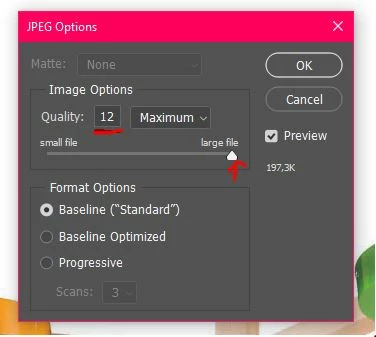
I always choose 12-Maximum-Baseline("Standard") as shown below.
I use Windows 10 - Photoshop is up to date (not Beta).
 AdChoices