
Participant
January 11, 2019
Answered

Saved psd file looks "wrongly merged" outside Photoshop

  • January 11, 2019
  • 1 reply
  • 549 views

Is Photoshop messing with me or is it my computer? In a photograph, I had to fix the background of the image with several layers and some of them have a "hard light" blend mode, now the issue seems to be here: if I save the psd file (with all the layers intact, nothing merged) and I open it in Bridge (or any other application), it looks like the file has been merged with the blend mode layers causing a "wrong" view of the whole background. The background is much lighter than it should be with some darker spots (clone stamp tool layers) in it.

I've already tried everything and I don't know what is causing this? I've tried to copy merge the layers causing this issue but it then gives the same result as explained above .. I also tried to work with smart objects (even this gave me the same issue), etc...

I need to print this image for my finals, so I thought "maybe there's no issue when I just print the photoshop file in photoshop itself..." but ALSO there it shows me the "wrong" merged-like image ... 😕😕

I'll add some screenshots so you'd understand the issue better:
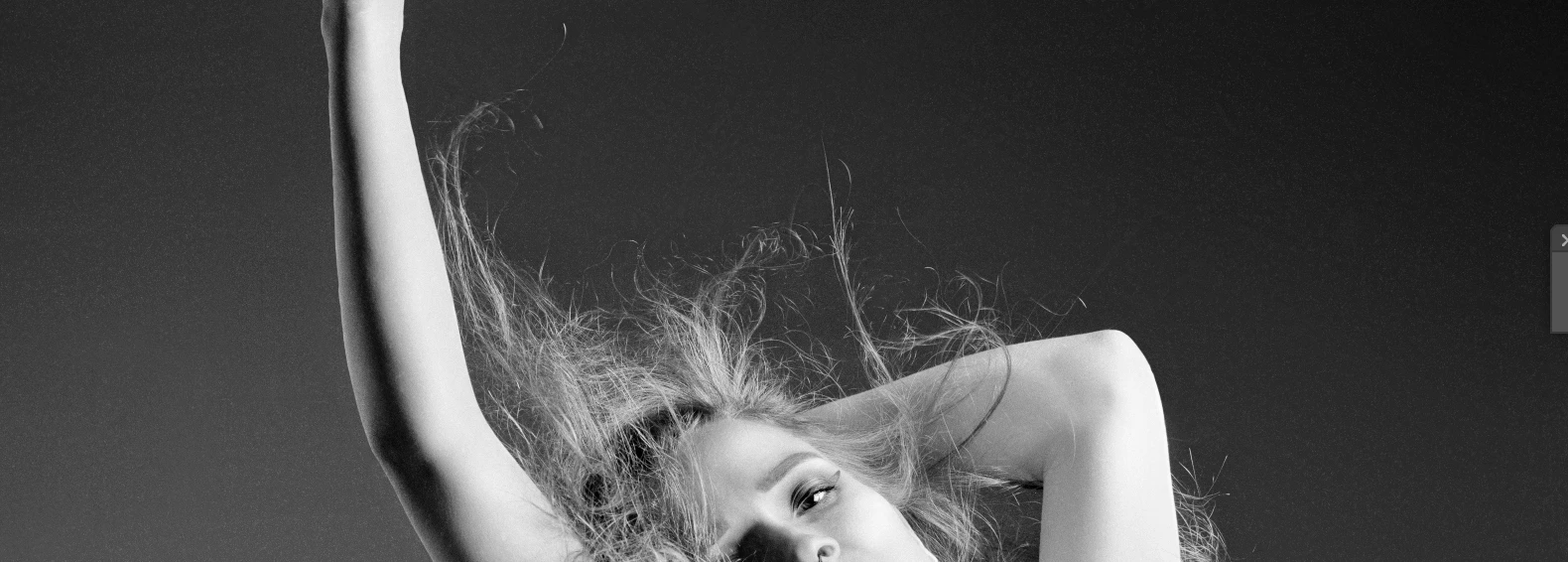
     - How the image's background looks like in Photoshop (how it should look)
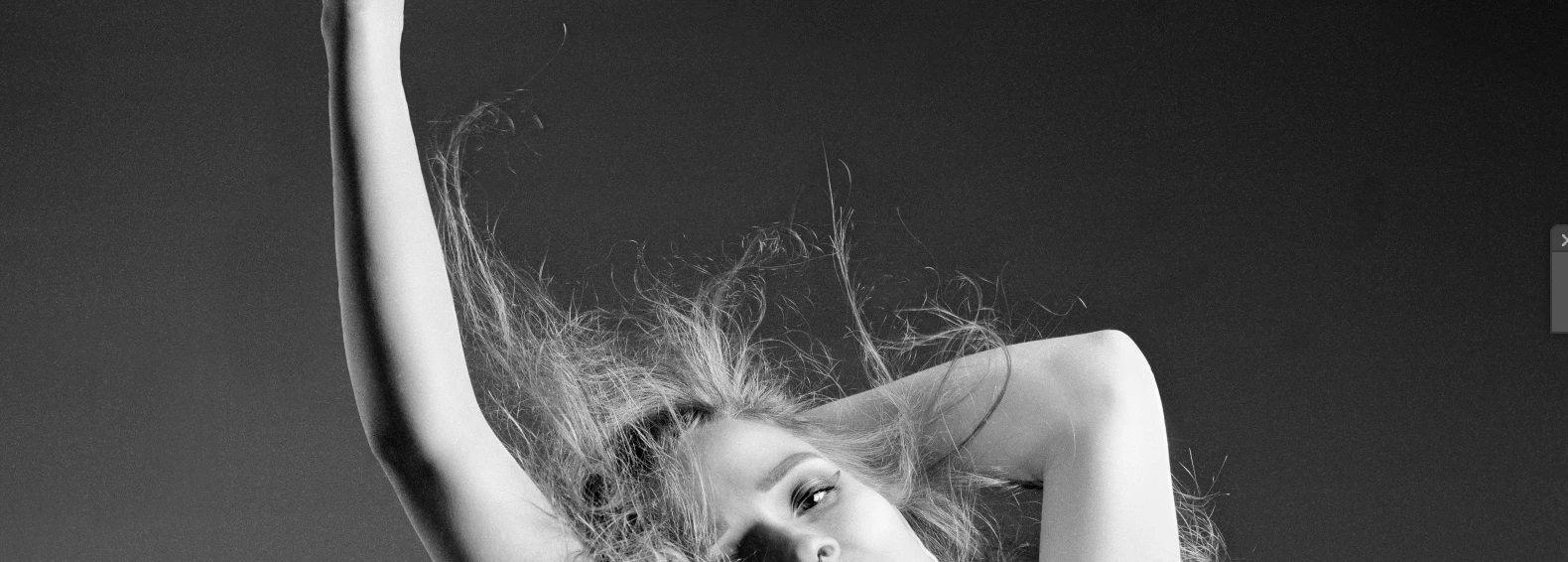
     - This is how it looks when I copy merge the layers (do you notice the darker spots? also the background is slightly lighter, causing the darker spots to pop out)
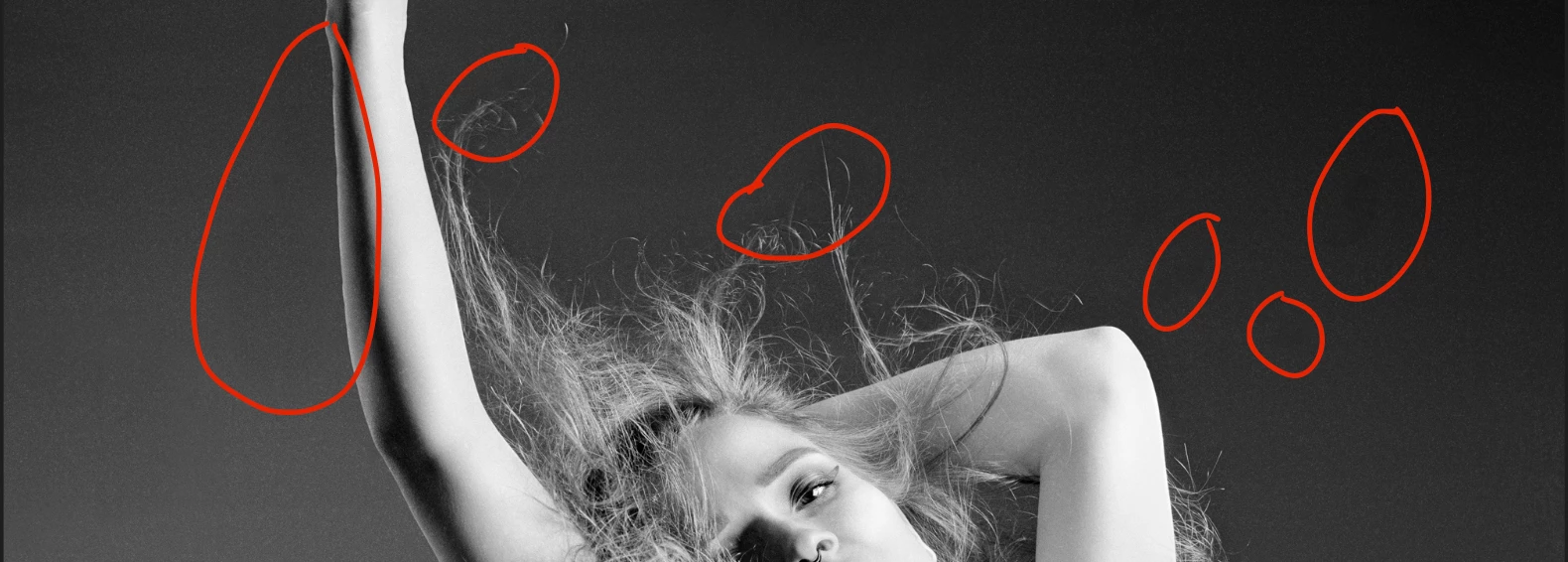
     - And how Bridge, print preview & all other applications show the psd file (I marked some of the darker spots so you might see it better, it just looks the same as the           merged file above does, but this one isn't merged ...

Has anyone else experienced this issue? Does someone know what's causing this and how to fix it?

This topic has been closed for replies.
Correct answer D Fosse

No need to roll out my pix-o-magic pixel microscope

This is a classic case where you need to view at 100%. That's the solution.

Adjustment and blending previews are calculated on the basis of on-screen zoom ratio. When you are zoomed out, this is a scaled/downsampled version, and therefore softened and blurred.

When the image has sharp pixel transitions, such as very noisy images, very fine detail on pixel level, halftone screens, line art and so on - then this softening produces intermediate pixel levels that aren't there in the original. So you get a false and unreliable preview. Apparent effects may "disappear" when the calculation is done on the full image data.

Viewing at 100% maps exactly one image pixel to one screen pixel. This is the only true representation on screen. This shows all your adjustments and blends correctly.

So again - view at 100% for a reliable preview. ​With a "normal" photograph this isn't an issue, except in special cases as described above.

1 reply

Trevor.Dennis
Community Expert
Community Expert
January 12, 2019

I don't do pixel peeping, but I know a man who does

https://forums.adobe.com/people/D+Fosse

I suspect that Dag will want to know what monitor and other hardware you are using?

What colour mode you used in Photoshop, and stuff like that.

D Fosse
Community Expert
D FosseCommunity ExpertCorrect answer
Community Expert
January 12, 2019

No need to roll out my pix-o-magic pixel microscope

This is a classic case where you need to view at 100%. That's the solution.

Adjustment and blending previews are calculated on the basis of on-screen zoom ratio. When you are zoomed out, this is a scaled/downsampled version, and therefore softened and blurred.

When the image has sharp pixel transitions, such as very noisy images, very fine detail on pixel level, halftone screens, line art and so on - then this softening produces intermediate pixel levels that aren't there in the original. So you get a false and unreliable preview. Apparent effects may "disappear" when the calculation is done on the full image data.

Viewing at 100% maps exactly one image pixel to one screen pixel. This is the only true representation on screen. This shows all your adjustments and blends correctly.

So again - view at 100% for a reliable preview. ​With a "normal" photograph this isn't an issue, except in special cases as described above.

Participant
January 12, 2019

You might be right! I always work at 100% view, but never countered this issue before ... Thanks!