
gabriellakorocz
Participant
September 28, 2018
Answered

Saving PS files in a specific size

  • September 28, 2018
  • 4 replies
  • 13337 views

Hi,

I've been using Photoshop for ages and have never had this issue. But I need to save my files at particular dimensions. For example: 20cm x 30cm at 150DPI, however, while the file is open at those exact specifications it's all good. But every single time I export it - in any way (PDF, JPEG, PNG, TIFF), it'll save but if I drag and drop to PS to check the size - it's then totally changed my specifications and I'm left with a totally different sized file.

Exact example: File saved with the following:

21.61cm x 30.63cm

Resolution : 150

Once saved/exported/all of the above:

Resized to the following:

45.01cm x 63.82cm

Resolution: 72

I've tried opening it in a document with the same resolution as it was saved in (150) but the size scaling still changed to 45.01cm x 63.82cm

I've read countless forums with similar problem but all answers disregard the problem as if the user is a rookie or making a silly mistake - however everyone complaining about this issue mentions that they are actually experienced users.

I'm happy for it to be something simple or an easy fix, however I just need a solution! I even tried different computers, different accounts for photoshop - everything!

I'm sending these images off to print so I can't risk the scale being off as that's the size they will be printed in.

Thanks so much
This topic has been closed for replies.
Correct answer Bojan Živković11378569

I am not sure what exact problem you have but here is what I can advice (based on my understanding of problem):

If you do not want to risk image being upsampled then do simple math: ask printer which resolution they will use to print and then multiply by physical size. For example: you want to print 10x8 inch and print company is using 300 resolution to print, then math will be: 10 x 300 width + 8 x 300 height. Ensure that you have image 3000 x 2400 pixels.

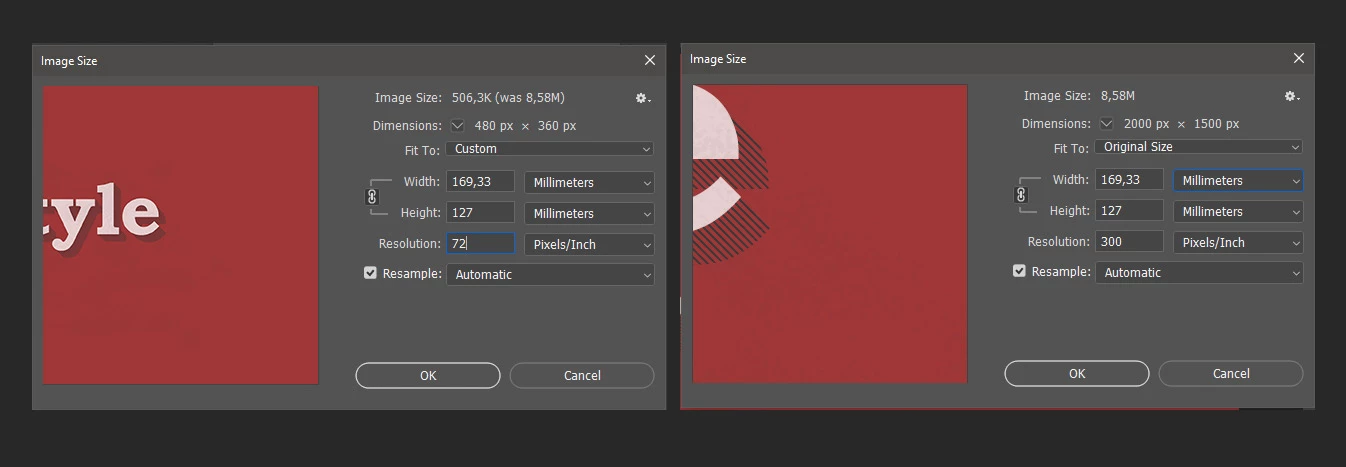
And by the way, if you open Image Size dialog and choose Millimeters for measurement unit then Photoshop will always show you exact same numbers in Millimeters even if you change Resolution from 72 to 300. What is different is pixel dimensions what you can not see while Millimeters are set for measurement unit (when Resample is turned on). Change measurement unit to Pixels what is important as above explained and then judge or get conclusion. If you going to print at 150 resolution then matching number in Millimeters for print size is not valid if your resolution is set to 72.

4 replies

Legend
September 28, 2018

Also: never use PDF to check resolution. It doesn’t have a simple resolution.

Bojan Živković11378569
Community Expert
Community Expert
September 28, 2018

I am not sure what exact problem you have but here is what I can advice (based on my understanding of problem):

If you do not want to risk image being upsampled then do simple math: ask printer which resolution they will use to print and then multiply by physical size. For example: you want to print 10x8 inch and print company is using 300 resolution to print, then math will be: 10 x 300 width + 8 x 300 height. Ensure that you have image 3000 x 2400 pixels.

And by the way, if you open Image Size dialog and choose Millimeters for measurement unit then Photoshop will always show you exact same numbers in Millimeters even if you change Resolution from 72 to 300. What is different is pixel dimensions what you can not see while Millimeters are set for measurement unit (when Resample is turned on). Change measurement unit to Pixels what is important as above explained and then judge or get conclusion. If you going to print at 150 resolution then matching number in Millimeters for print size is not valid if your resolution is set to 72.

D Fosse
Community Expert
Community Expert
September 28, 2018

Or to boil it down to the bottom line: Photoshop doesn't care about print size or ppi. All that is added later as metadata, if needed and applicable.

Photoshop only works with pixels. So many pixels wide by so many pixels high.

If you don't change pixel dimensions, the file isn't changed.

D Fosse
Community Expert
Community Expert
September 28, 2018

Export and Save For Web both strip the resolution metadata since it doesn't apply for web. The file is exported without a ppi figure at all.

The 72 figure appears as a default assignment when the file is reopened in PS. Other apps have other defaults.

Use Save As instead. That's what you should use for print anyway, export is strictly for screen viewing of small files.

Participant
September 29, 2018

This worked! Thanks so so much!!!