Answered
Scaling an image
I am trying to create a tileable texture and is having trouble scaling the photo. When I scale it according to instructions it turns out too large and distorted. I'm not sure what to do.

I am trying to create a tileable texture and is having trouble scaling the photo. When I scale it according to instructions it turns out too large and distorted. I'm not sure what to do.
This is what I'm getting now. The little dot in the middle.
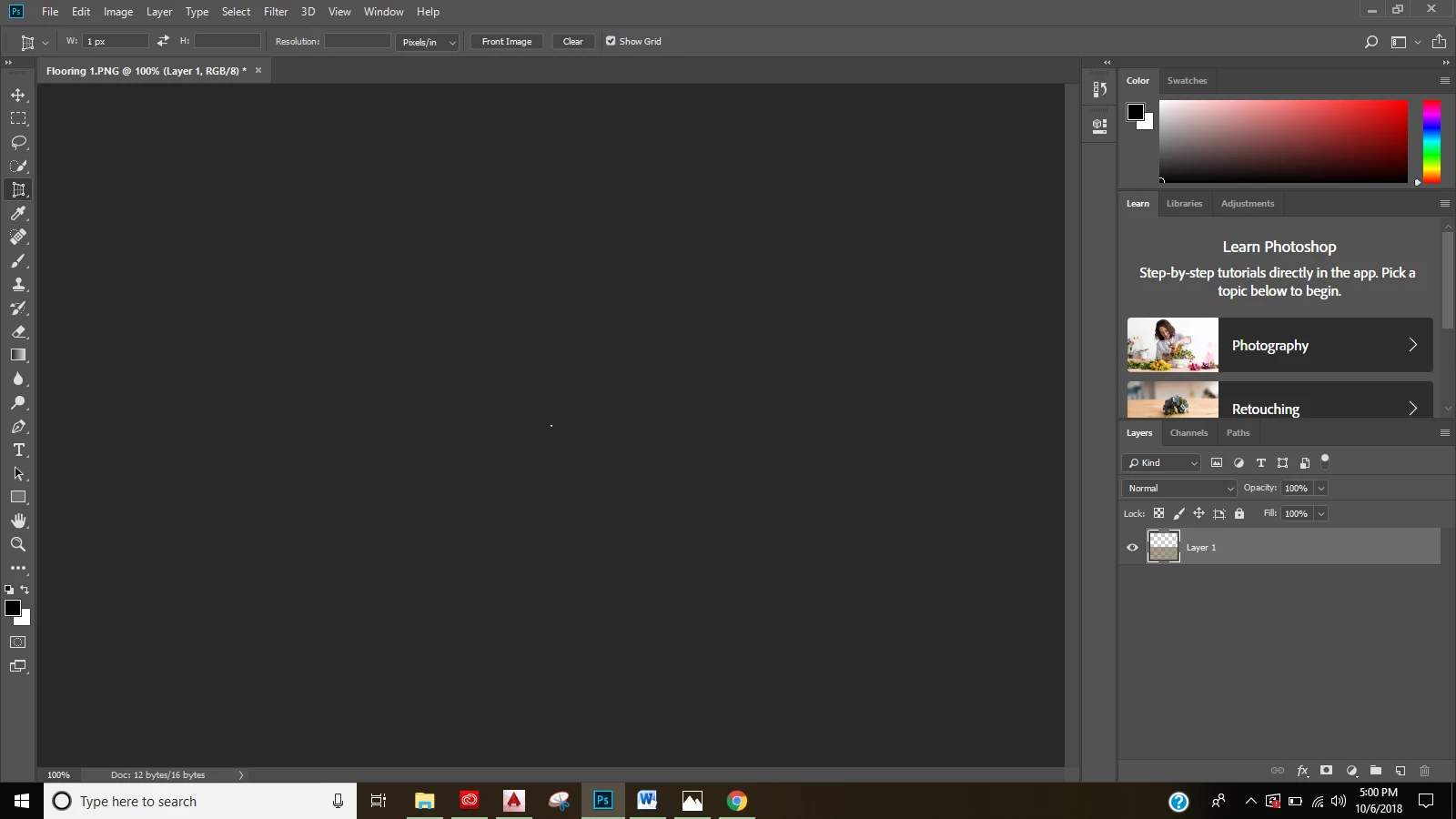
The reason you're getting a little dot in the middle is that the tool is currently set to create a 1 pixel box. That's what it says at the top left of the screen, in the options bar, next to the W (Width) option.
Click the Clear button near the right side of the options bar to take out that 1 pixel width, and try again.
If you don't need to distort the image in any way, if all you need is to resize the entire image proportionally, using one of the tools may not be the right approach. Instead try choosing Image > Image Size, and set the width and height to 1200 x 1200 pixels.
If what you need is to crop an existing picture to a square tile, then do use the Crop tool, but set the options bar Width and Height to 1200 x 1200 pixels.
If the original image is slightly distorted to start with, like it has a little bit of perspective in it, then you do want to use the Perspective Crop tool with the Options bar Width and Height set to 1200 x 1200 pixels.
Already have an account? Login
Enter your E-mail address. We'll send you an e-mail with instructions to reset your password.
 AdChoices