Known Participant
August 24, 2025
Answered

Scratch Disk doesn't seem to be working ...

  • August 24, 2025
  • 4 replies
  • 326 views

Hello,

I have an iMac 27in 2019 with 64GB of Ram and 1TB hard drive with 500GB available, 3.7 GHz 6-Core Intel Core i5, with Radeon Pro 560X 8GB.  I have a 500 GB SSD G Drive contected to my CalDigit using a Thunderbolt 3 port as my Scratch Drive.  It's formated to APFS.  I'm not sure it's working.  Everytime I check it their are no files added.  I have it set as my primary disk for the scratch disk in the #1 position.  I've hooked it up directly to my iMac using thunderbolt 3 port and still is has no files.  I tested it and I can save a file from PS to it.  I just don't no how to fix this issue.  If I understand correctly PS should use this before using any other drive ... Correct?

Thanks in advance for any help!

Dennis Zito

Correct answer Conrad_C

Based on your description, there doesn’t seem to be anything wrong.

You shouldn’t ever see the Photoshop scratch files. They’re invisible cache files.


macOS works the same way…your Mac creates virtual memory swap files, a huge “sleepimage” cache, storage snapshots, and many other large temporary files that you never see and can’t find because even though they’re temporary and take up a lot of space, they’re set to be hidden. Even their folders and subfolders are hidden from the user, unless you know how to reveal hidden system files.


On a Mac, the way to watch the Photoshop scratch disk setting affect free space is to leave a Finder desktop window open viewing the scratch disk volume (or any folder on it) with the Status Bar visible, and leave a little space under the Photoshop window to see that Status Bar at the bottom of the Finder window. If the window isn’t showing the Status Bar, choose the command View > Show Status Bar.


Now switch to Photoshop and watch the Status Bar as you work in Photoshop. Over time, as Photoshop loads the scratch disk, the amount of free space shown in the Status Bar will go down. When you quit Photoshop, the amount of free space will jump back up as Photoshop dumps its caches on the way out.


In the demo below, my laptop starts with about 150GB free space, but as I open a large document and start editing, you can see free space keep dropping down to 130GB and finally bottoms out at 128.92GB. After that I close the document, and when I quit Photoshop the free space jumps back up to around 150GB…totally as expected. I don’t think 150GB is a lot of space for a scratch disk, so like you, I plug in an empty external SSD when I’ll be opening a very large file in Photoshop. Using the technique below, I’ve learned that my very large files can temporarily use around 300-600GB of space on the external scratch disk. But simple files don’t need very much; for those, the 150-200GB I keep free on my MacBook Pro internal storage is fine.



If you want to find the actual hidden location of the Photoshop scratch file, it helps to be a little technical. I used a free app called Sloth that lists all open files on the Mac. It showed me that when my external primary scratch SSD is not connected, Photoshop sets up the scratch file on my boot volume, somewhere in

/private/var/folders/…/TemporaryItems/Adobe Photoshop 2025/Photoshop Temp…


Of course, you can’t normally navigate there because it’s a hidden file. Also, the reason I inserted ellipses (…) into the path is because there was a portion of the path that looks like randomly generated letters and numbers so it’s probably different on every Mac, there’s no point in me posting it. And the … at the end of the path is because the numbers after “Photoshop Temp” definitely change for each session, as D Fosse showed.


When my external scratch SSD is connected, the path is:

/Volumes/[name of external SSD]/.TemporaryItems/folders.501/TemporaryItems/Adobe Photoshop 2025/Photoshop Temp…

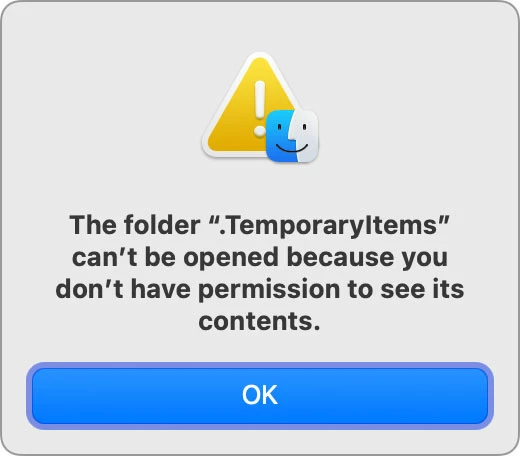
But even if you show hidden files, when I tried to double-click my way into .TemporaryItems, macOS told me…
 

4 replies

Conrad_C
Community Expert
Conrad_CCommunity ExpertCorrect answer
Community Expert
August 25, 2025

Based on your description, there doesn’t seem to be anything wrong.

You shouldn’t ever see the Photoshop scratch files. They’re invisible cache files.


macOS works the same way…your Mac creates virtual memory swap files, a huge “sleepimage” cache, storage snapshots, and many other large temporary files that you never see and can’t find because even though they’re temporary and take up a lot of space, they’re set to be hidden. Even their folders and subfolders are hidden from the user, unless you know how to reveal hidden system files.


On a Mac, the way to watch the Photoshop scratch disk setting affect free space is to leave a Finder desktop window open viewing the scratch disk volume (or any folder on it) with the Status Bar visible, and leave a little space under the Photoshop window to see that Status Bar at the bottom of the Finder window. If the window isn’t showing the Status Bar, choose the command View > Show Status Bar.


Now switch to Photoshop and watch the Status Bar as you work in Photoshop. Over time, as Photoshop loads the scratch disk, the amount of free space shown in the Status Bar will go down. When you quit Photoshop, the amount of free space will jump back up as Photoshop dumps its caches on the way out.


In the demo below, my laptop starts with about 150GB free space, but as I open a large document and start editing, you can see free space keep dropping down to 130GB and finally bottoms out at 128.92GB. After that I close the document, and when I quit Photoshop the free space jumps back up to around 150GB…totally as expected. I don’t think 150GB is a lot of space for a scratch disk, so like you, I plug in an empty external SSD when I’ll be opening a very large file in Photoshop. Using the technique below, I’ve learned that my very large files can temporarily use around 300-600GB of space on the external scratch disk. But simple files don’t need very much; for those, the 150-200GB I keep free on my MacBook Pro internal storage is fine.


If you want to find the actual hidden location of the Photoshop scratch file, it helps to be a little technical. I used a free app called Sloth that lists all open files on the Mac. It showed me that when my external primary scratch SSD is not connected, Photoshop sets up the scratch file on my boot volume, somewhere in

/private/var/folders/…/TemporaryItems/Adobe Photoshop 2025/Photoshop Temp…


Of course, you can’t normally navigate there because it’s a hidden file. Also, the reason I inserted ellipses (…) into the path is because there was a portion of the path that looks like randomly generated letters and numbers so it’s probably different on every Mac, there’s no point in me posting it. And the … at the end of the path is because the numbers after “Photoshop Temp” definitely change for each session, as D Fosse showed.


When my external scratch SSD is connected, the path is:

/Volumes/[name of external SSD]/.TemporaryItems/folders.501/TemporaryItems/Adobe Photoshop 2025/Photoshop Temp…

But even if you show hidden files, when I tried to double-click my way into .TemporaryItems, macOS told me…

 

zeetoe25Author
Known Participant
August 25, 2025

Thanks Conrad for the info.  I tried you suggestion of leaving the Finder open while working in Photoshop, and I could definitely see the changing capacity.  I appreciate your indepth explanation and help.

Dennis

D Fosse
Community Expert
Community Expert
August 25, 2025

Actually a scratch file is always written the moment you open Photoshop. Everything is written to scratch constantly, the full file history.


When a non-system drive is designated as scratch disk, the scratch files are at the root of the drive, not in any folder. It's divided into 16 GB chunks, so you'll have several as it grows.


Here's how it looks:

Legend
August 25, 2025

As always, Glenn has the answer. 

Dennis, check out Set up scratch disks (UK edition), especially if you're seeing errors concerning the scratch disk.

Does your SSD show up in Settings>Scratch Disks?

Larry
Glenn 8675309
Legend
August 25, 2025

Your scratch disc info gets deleted everytime you close the program. 
Your system ram gets used first.
Once your system ram gets used up, then the scratch disk gets used.


