Select Subject gives inconsistent results when SHIFT key is depressed
I'm working on a UXP plugin where the user can hold down the SHIFT key when clicking a button on a UXP panel that calls Select Subject in Photoshop. Doing so will take the resulting selection and do some additional processing in Photoshop. Unfortunately, holding down the SHIFT key causes Select Subject to create inconsistent results independent of it being called from a UXP plugin. So, this is NOT a UXP issue. The problem can easily be reproduced in Photoshop simply by clicking the Select Subject button while depressing the SHIFT key, and I have reproduced the results on two Windows computers and one Mac computer.
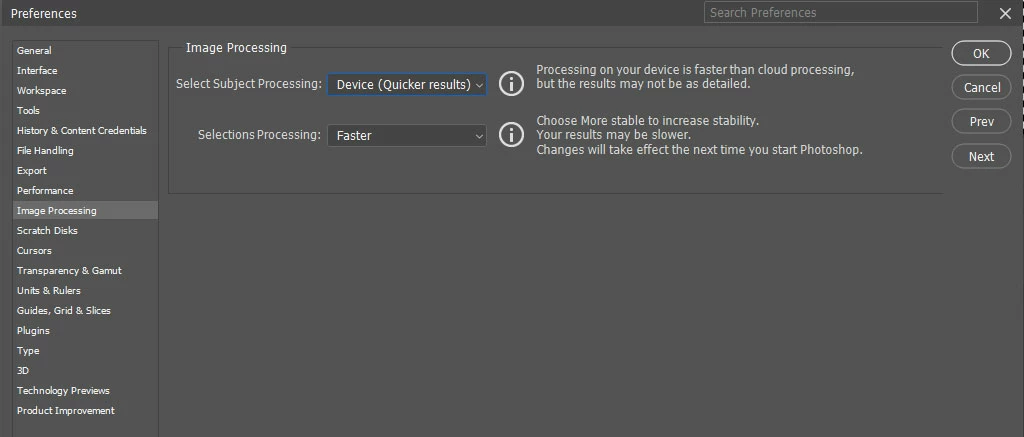
The problem occurs with the following preferences setting:
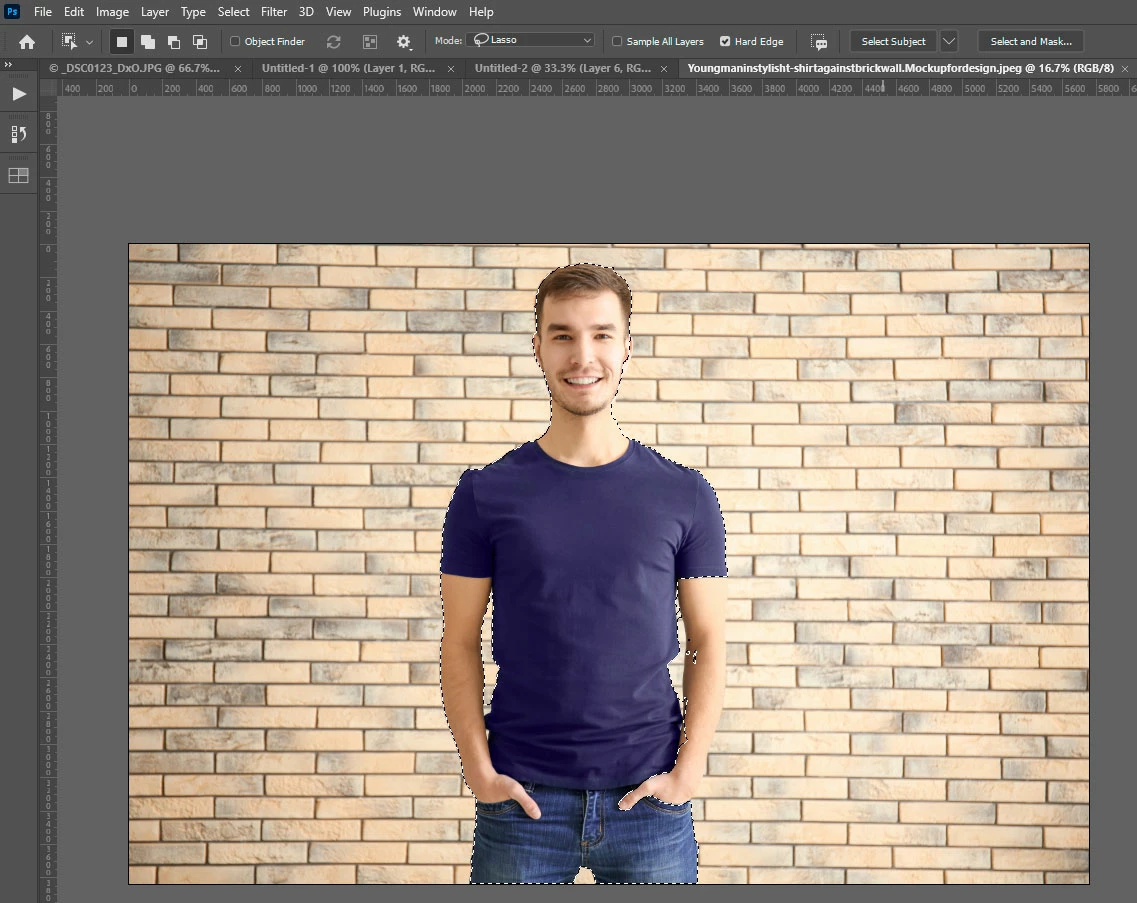
Clicking Select Subject in Photoshop with the Object Selection tool active (and NOT depressing the SHIFT key) produces the following results using Adobe Stock image 192041604:
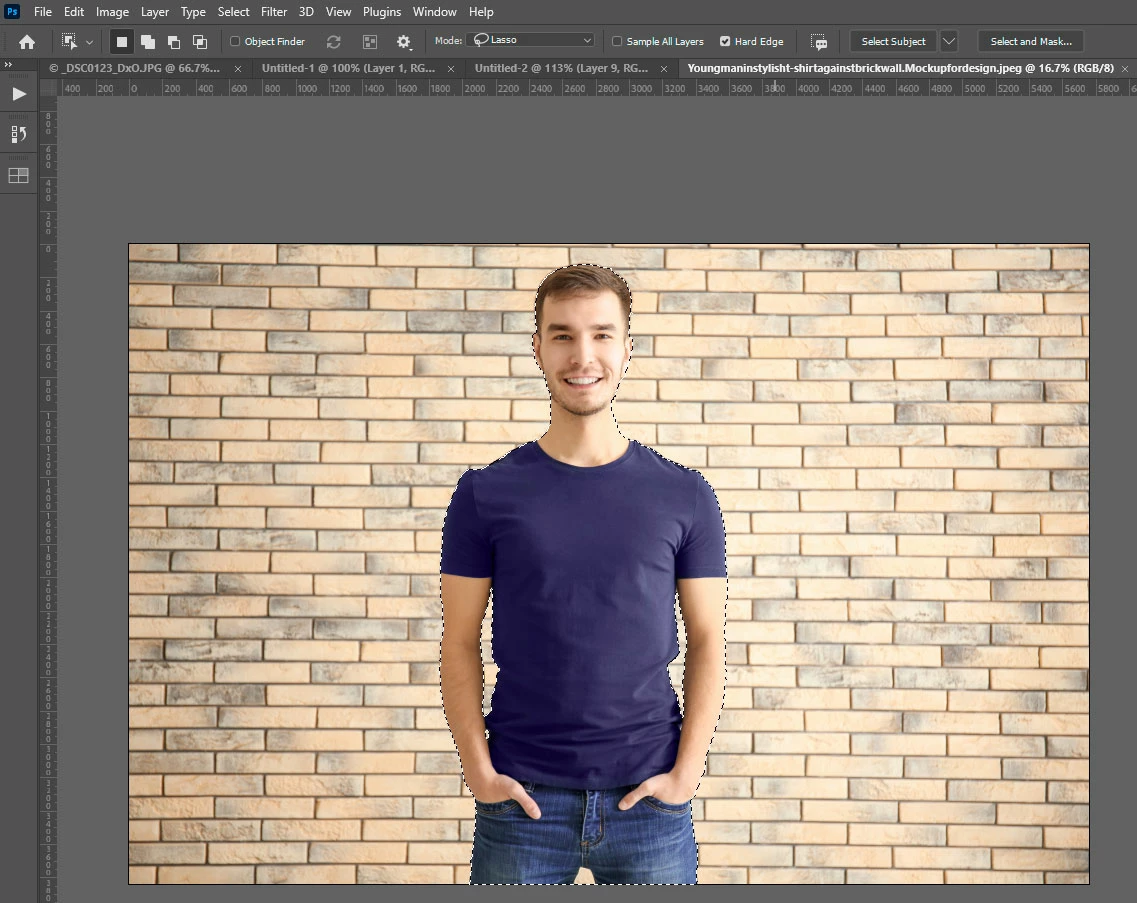
The results are very consistent. Every time I click Select Subject (without depressing the SHIFT key) I get the same selection.
However, if I hold down the SHIFT key when I click Select Subject, I don't get the same selection, and it constantly changes. Below are some of the different selections that have been generated when holding down the SHIFT key when clicking Select Subject on Windows. The subject's left arm and legs are cut off. None of the results match the original selection when the SHIFT key was not depressed.
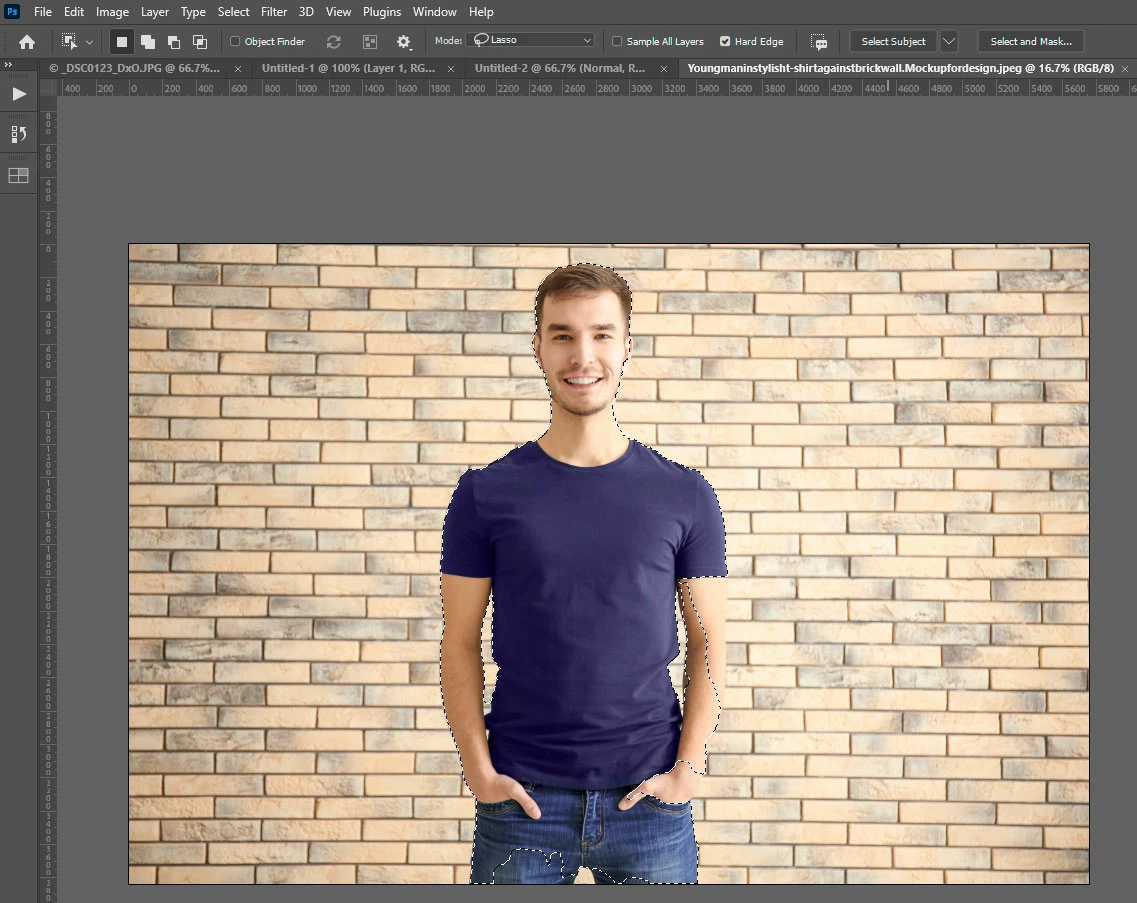
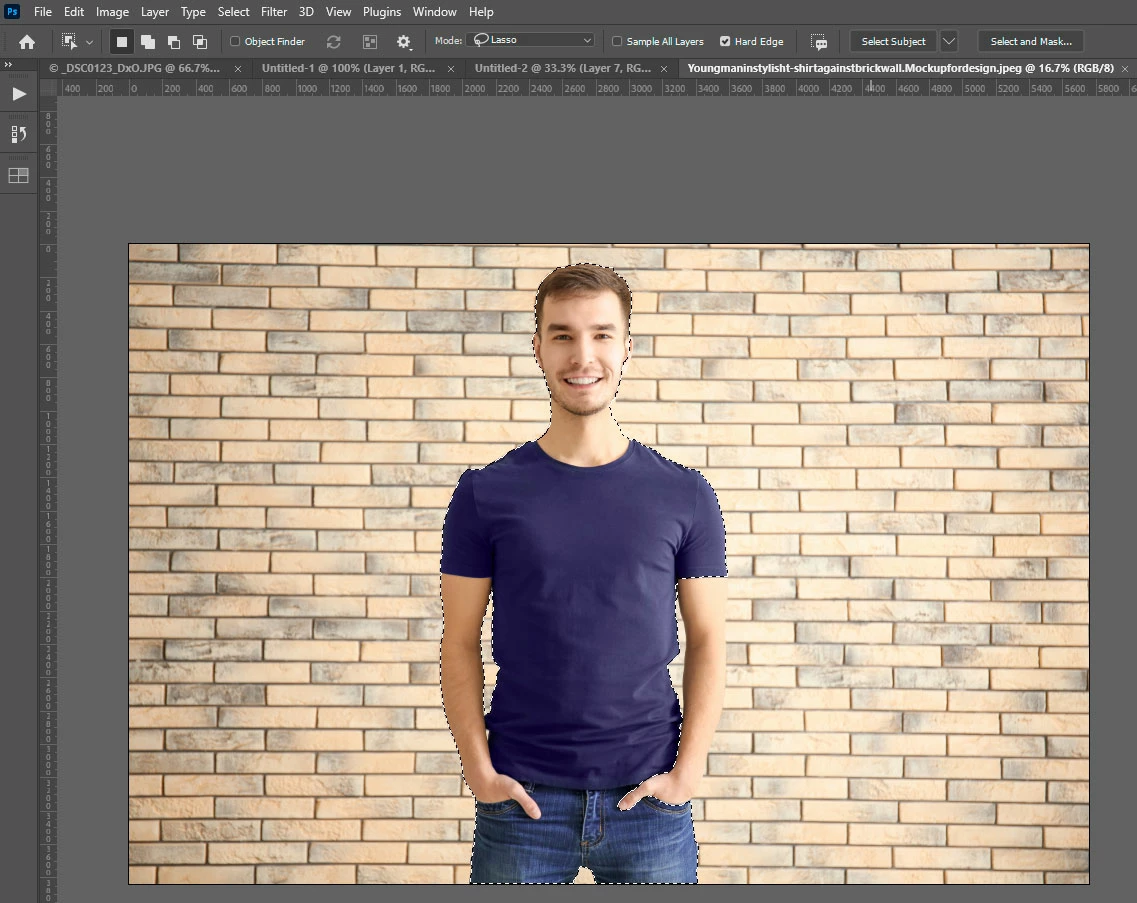
Depressing the SHIFT key appears to be causing some type of tolerance shift as to what gets selected. On some images it decreases the area being selected (like in these examples), but on other images (like with darker backgrounds) it increases the area being selected.
The expected result would be that depressing the SHIFT key when clicking Select Subject produces the same selection as when the SHIFT key is NOT depressed. In other words, why does the SHIFT key modify what is selected by Select Subject when the preferences are set as shown at the top of this post?
It might be worth noting that I have disabled the pop-up message that says "This will discard your current selection. Do you want to continue?" Having that message enabled, at least on the Mac computer where it is enabled, leads to more consistent, expected results. However, if I manually deselect the previous selection on Mac and then hold down SHIFT and click Select Subject on the Mac, I do get a result that is different than what I get when SHIFT is not depressed.
Also on the Mac computer (MacBook Air (Intel)), the selection that results from holding down SHIFT when clicking the Select Subject button is consistent. It's different than the selection when not depressing the SHIFT key, but it's the same "wrong" selection in that the subject's left arm is not selected. So, that's a difference, it seems, between Mac and Windows. Windows gives a variable selection when depresssing SHIFT and clicking Select Subject and Mac gives a consistent selection. However, both give selections that DO NOT match what is selected when SHIFT is NOT depressed.
Possible workaround: Switching "Select Subject Processing" in the Image Processing Ps Preferences to "Cloud" does not cause the same inconsistency when the SHIFT key is depressed at the same time the Select Subject is clicked?
I have tried resetting my PS preferences and this does NOT fix the problem.
The problem has persisted even after today's update to Photoshop version 24.4.0 (I was hoping the new version might fix this bug).
My main computer is Windows 10 and I have the current versions of PS (24.4.0) and Creative Cloud installed (5.10.0.573).
I would like to see this bug addressed so the SHIFT key can be used to modify a button click on a UXP plugin that calls Select Subject to execute.
 AdChoices