
batter_n__baked
Participating Frequently
January 9, 2019
Question

Selection/Masks/Creating a white background

  • January 9, 2019
  • 5 replies
  • 1426 views

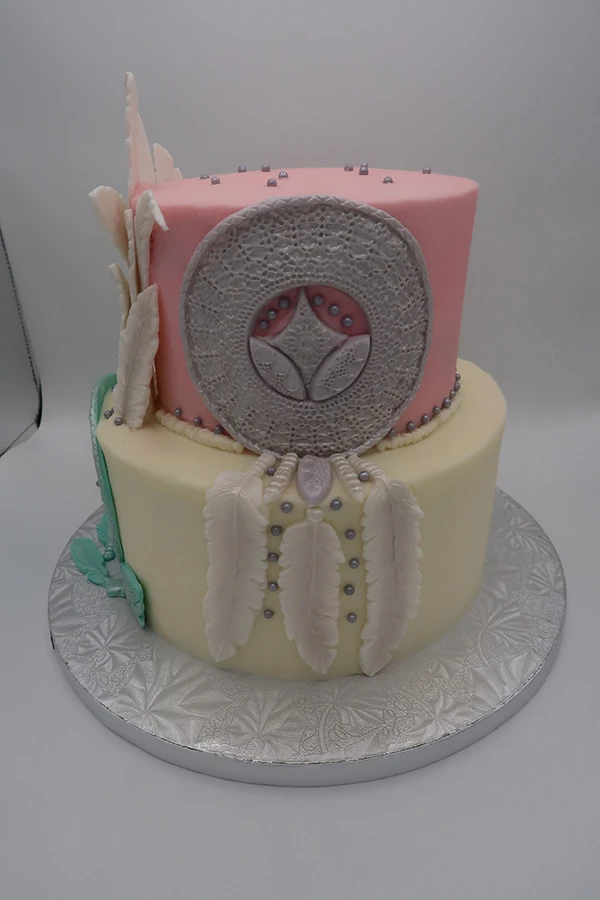
Hello everyone, I consider myself to be an advanced beginner in PS. I've been using it for years, but never learned it fully. I own a bake shop and take pictures of my baked goods mostly in a photo box with a white backdrop and foil reflectors on the sides. The raw image comes out with the background looking grey (see below). I am trying to make the background a true white but no matter how close I make selections, it's never smooth. My final image isn't perfect and has softer edges VS sharper (which is what I am aiming for). I am using a laptop but considering buying a pen; is it necessary? I think I am on the right track but i just cant figure it out. If someone can help, I'd really appreciate it.

Raw JPEG Image:
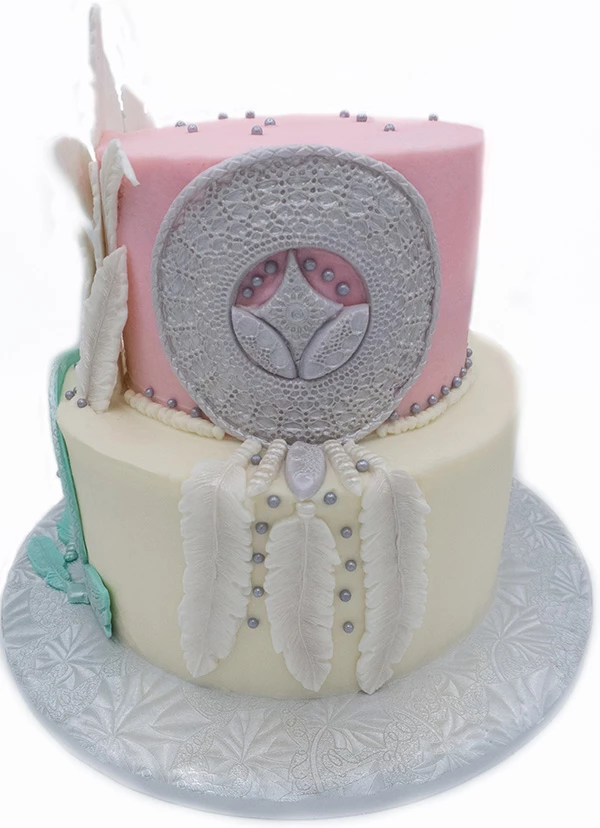
After using selection tool, creating a mask, and using a paint brush (in black/white) to refine the edges the best that i can.
    This topic has been closed for replies.

    5 replies

    batter_n__baked
    Participating Frequently
    January 11, 2019

    After about 4 hours of trial and error, getting used to using a pen vs mouse, and experimenting with new techniques...I think I am done. Below are my new edits. I was able to use the tips you all gave me and was able to achieve a sharper, more defined selection. I also brightened it up and gave saturation a bit of a boost. The new pen and pad I ordered worked way better than the mouse pad! Definitely a Great investment. The final photo isn't perfect but I am way more satisfied with this VS the previous image. I am now noticing that the previous image was dull, not sharp whatsoever, had very soft edges, and I even cut some areas off.  Thank you all again for the help. I'd gladly take more advice.

    D Fosse
    Community Expert
    Community Expert
    January 11, 2019

    It's still too drab and dull. Give it some pop! Bring up the highlights and tighten the shadows - just make sure you don't blow out the highs completely. If you err on color balance, better to do it on the warm side:

    You asked about black or white background. White is always more delicate. Use black only when you have to.

    Chuck Uebele
    Community Expert
    Community Expert
    January 9, 2019

    When the brush tool is active, you can change its blend mode in the menu bar to get overlay.

    barbara_a7746676
    Community Expert
    Community Expert
    January 9, 2019

    To save time in Photoshop, try to get the lighting and camera settings first. You'll need two lights on either side of the subject and behind the subject that illuminate the background. You may want to consider using a softbox, like Digitent, and there are many others.

    January 9, 2019

    Also try the cake on a peddle stool to remove casting a shadow on the ground. This will allow you to display a flat white background instead of the the curved piece which will have different tones. So may remove the need to cut the cake out in the first place.

    Other than that, i personally would use the pen tool if you go slowly and add smooth curves you will get the cleanest cut out. Others like marquee or quick selection will work but not as precise or controllable.

    batter_n__baked
    Participating Frequently
    January 9, 2019

    I usually switch it up, pedestal, cake drum, etc. Unfortunately, since the cake was so tall, it wouldn't fit in the photo box on a pedestal. The point of this photobox, is to remove shadows, as the light comes from above and is supposed to bounce on all 4 sides to be even. I am still working on that. Business just starting booming faster than I expected. I am going to attempt the pen tool. I just hate using the mousepad on my laptop. Thank you!

    JJMack
    Community Expert
    Community Expert
    January 9, 2019

    Try using the pen tool to make a good cake selection. Add a vecror layer mask to cut out the cake. Add a layer style to give the cake some depth.

    JJMack
    batter_n__baked
    Participating Frequently
    January 9, 2019

    Wow, that looks great. I am horrible when it comes to the pen tool. I think that is the hardest for me, actually. It might be the trackpad on my laptop that makes it difficult. Either way, I am going to give it a go. Thank you!

    JJMack
    Community Expert
    Community Expert
    January 10, 2019

    It is well worth while to learn how to use the Pen tools and Path editing tools in Photoshop.  You can quickly create a ruff path to cut out an object.  Then refine the path with the path editing tools and other pen tools options.  The new curvature pen tool makes it even easier to do these days.   When you use a Pen tool the Path you make need not be perfect.  You can edit the paths you create to make them better before you actually use the path to do something in Photoshop.

    You can also use other selection tools to make a selection and have Photoshop convert the selection into a vector path selection then edit the Path  Photoshop created.

    There are areas in you image where selection tools will not work well so I would suggest starting with the Pen tool or curvature pen to begin with.  The best I could do using Photoshop's Quick Selection Tool which took some work with the modifier keys so was not very quick. I the had Photoshop convert the selection to a vector path. You can see the path is not and better that the selection was.  The path needs to be edited.

    JJMack
    Chuck Uebele
    Community Expert
    Community Expert
    January 9, 2019

    There are lots of ways to make a selection and an image like this, you can use several different techniques. I used the quick selection for most of it, then the base, I used the pen tool to make a nice smooth outline. Once you make your selection, you can use select and mask to refine it, but I've alway had difficulty with this tool and prefer to use other methods. for example, you mentioned brushing the edges, It's best to use overlay mode with the brush, as it will allow you to darken or lighten gray areas, depending upon your brush color without affection pure whites or blacks. This makes cleaning up edges easier.

    batter_n__baked
    Participating Frequently
    January 9, 2019

    Oh wow, that is an amazing job! I am still here trying to work on it. I also used the quick select tool. I get pretty close but my issue is tackling the edges. I am going to try the overlay when using the brush. Thank you for the help!