Inspiring
April 4, 2023
Answered

Selection, masks, etc ... inverted

  • April 4, 2023
  • 4 replies
  • 2017 views

Hello there,


I have a problem since a few days. Each time I use selection tool or if I want to create a mask or anything and when I want to fill in with whatever (colors, pictures, ...), instead of putting into the selected part of my image, it puts it outside and leaves the selection blank. So since someone can help me to solve the problem, I create my selection but then I have to do ctrl + shift + i


I might have switched it by pressing wrong buttons and it's kind of annoying.


Thank you if you can bring me the solution.
Correct answer Imaginerie

The only thing I could see if you hit ALT/OPTION when you create the mask from the selection (which automatically inverts it)
Now maybe it's that, but you don't know it, ie: there is a problem with your ALT/OPT key.
First you can check if it "solves" the problem when you hit ALT/OPT when you create the mask. Of course, I wouldn't go on like that, it's not how it's supposed to work, but it would give an idea, as a test, if that's the issue.


That's the only thing I can think of, because your selection IS NOT inverted by default.


One thing you can do - as a preventive measure - is to reset your preferences, but not after having saved all your workspaces, presets etc.

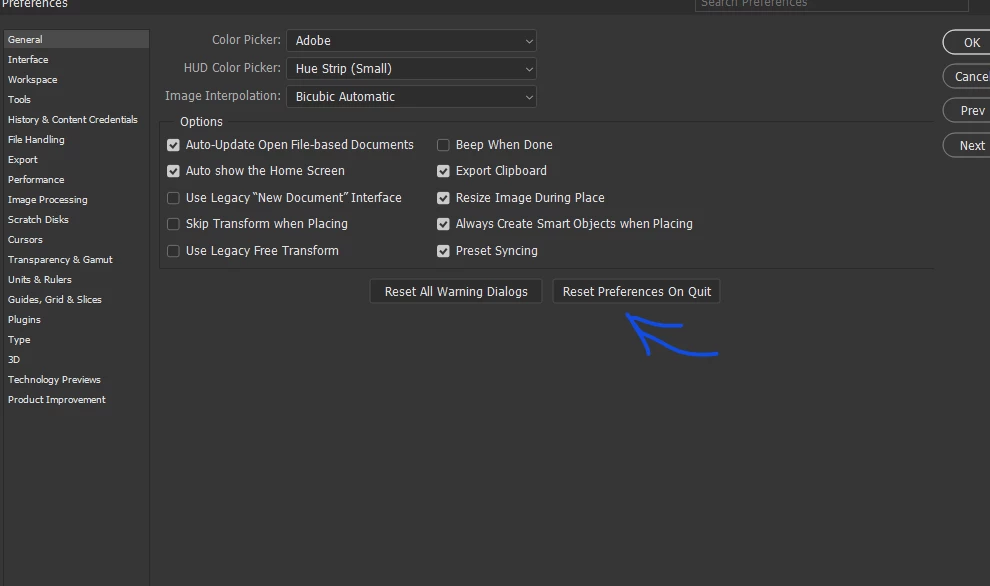
Just go to edit>preferences>general>reset preferences on quit and then close and open Photoshop again.


4 replies

Vince_fceAuthor
Inspiring
April 4, 2023

It seems to went back to normal. I used to have these kind of issues when by hitting some keys I was switching my keyboard's mode from AZERTY to QWERTY. but in case I reseted preferences as mentionned. I'll get back if the bug appears again.


Thanks for your answers.

- Curiosity is the only key -
c.pfaffenbichler
Community Expert
Community Expert
April 4, 2023

Could you please post screenshots with the pertinent Panels (Toolbar, Layers, Options Bar, Channels, …) visible? 

Imaginerie
Community Expert
ImaginerieCommunity ExpertCorrect answer
Community Expert
April 4, 2023

The only thing I could see if you hit ALT/OPTION when you create the mask from the selection (which automatically inverts it)
Now maybe it's that, but you don't know it, ie: there is a problem with your ALT/OPT key.
First you can check if it "solves" the problem when you hit ALT/OPT when you create the mask. Of course, I wouldn't go on like that, it's not how it's supposed to work, but it would give an idea, as a test, if that's the issue.


That's the only thing I can think of, because your selection IS NOT inverted by default.


One thing you can do - as a preventive measure - is to reset your preferences, but not after having saved all your workspaces, presets etc.

Just go to edit>preferences>general>reset preferences on quit and then close and open Photoshop again.


Vince_fceAuthor
Inspiring
April 4, 2023

Thanks, I reset just in case.

- Curiosity is the only key -
Bojan Živković11378569
Community Expert
Community Expert
April 4, 2023

I can not reproduce using Marquee tool.  Starting new selection with any of available modes: New selection, Add to selection, Subtract from selection, Intersect with selection will always result that Ctrl + Backspace fills background color inside selection. Try with preference reset.

Vince_fceAuthor
Inspiring
April 4, 2023

Thank you

- Curiosity is the only key -