Participant
November 21, 2023
Question

Selection no longer Snaps to pixels, snaps to lasso/rectangle instead

  • November 21, 2023
  • 7 replies
  • 316 views
  1. Version of the app: Photoshop 25.0 - I know this is not the most updated version, but 25.1 has a bug with color selection (not changing the color on the color wheel, only changing the active color, which is a huge pain) so I had to revert back to 25.0
  2. Platform and OS version: MacOS Ventura 13.0
  3. Basic steps to reproduce the problem: Make a selection, Command+T for free transform


Expected result and actual result:

What used to happen when you made a selection with the lasso or rectangular marquee tool - the selection would snap to the pixels themselves, not the boundary drawn by the selection. Like this mockup below
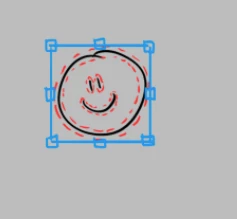
 

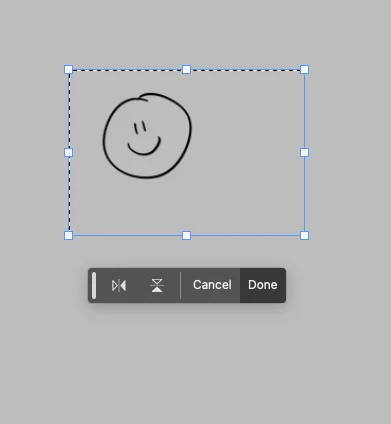
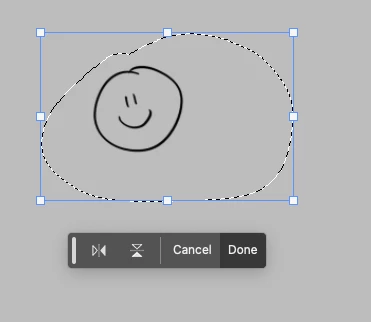
What now happens when you make a selection and free transform - Now, when you make a selection (with lasso or marquee) it snaps to the selection boundary itself, rather than the pixels, like the examples below. I don't remember exactly when this change was made, but it's been bothering me for at least over a month, and I haven't found any information on it, let alone solutions. My best guess is that it changed when they introduced the popup box underneath selections (which I do use frequently now, exclusively for the flip horizontal shortcut). It is extremely frustrating to my workflow, as often when I am concepting and painting I need to resize something in specific relation to the space around it. Having the selection snap to the drawn boundary instead of the pixels makes this much more difficult if not impossible.
 

Please tell me there is a solution to this?

This topic has been closed for replies.

7 replies

PECourtejoie
Community Expert
Community Expert
December 15, 2023

Hi, there is even a 25.3.1 update released today.

nohsaraAuthor
Participant
December 14, 2023

I didn't realize 25.2 had been rolled out already, thanks to those who notified me. I will try that and get back with an update.

nohsaraAuthor
Participant
December 14, 2023

@PECourtejoie I've been using Photoshop for over 8 years, and professionally for the last two, trust me this happens when I am on my transparent layers as well - the smiley was not on the background layer. However, is it possible though that there is some setting I have accidentally enabled that treats transparent layers as opaque?

PECourtejoie
Community Expert
Community Expert
December 14, 2023

Hi, I had a realization, what you describe happens if you are making a selection on a non-transparent layer. 

To have only the smiley, it needs to be on its own layer, and the grey in the background.

PECourtejoie
Community Expert
Community Expert
December 14, 2023

Hi, did you try to to restore your preferences to the default using this manual method?
https://helpx.adobe.com/photoshop/using/preferences.html#Manually it lets you keep a copy on the desktop that you can use to revert the process.

Jeff Arola
Community Expert
Community Expert
December 13, 2023

Have you installed the latest 25.2 or your might get 25.3 depending on your location.

The color wheel bug has been fixed in those versions.

nohsaraAuthor
Participant
December 13, 2023

Hoping for any developer feedback on this issue