Participant
February 15, 2019
Answered

Selections from pen tool paths are coming out uneven.

  • February 15, 2019
  • 4 replies
  • 951 views

Hey everyone!

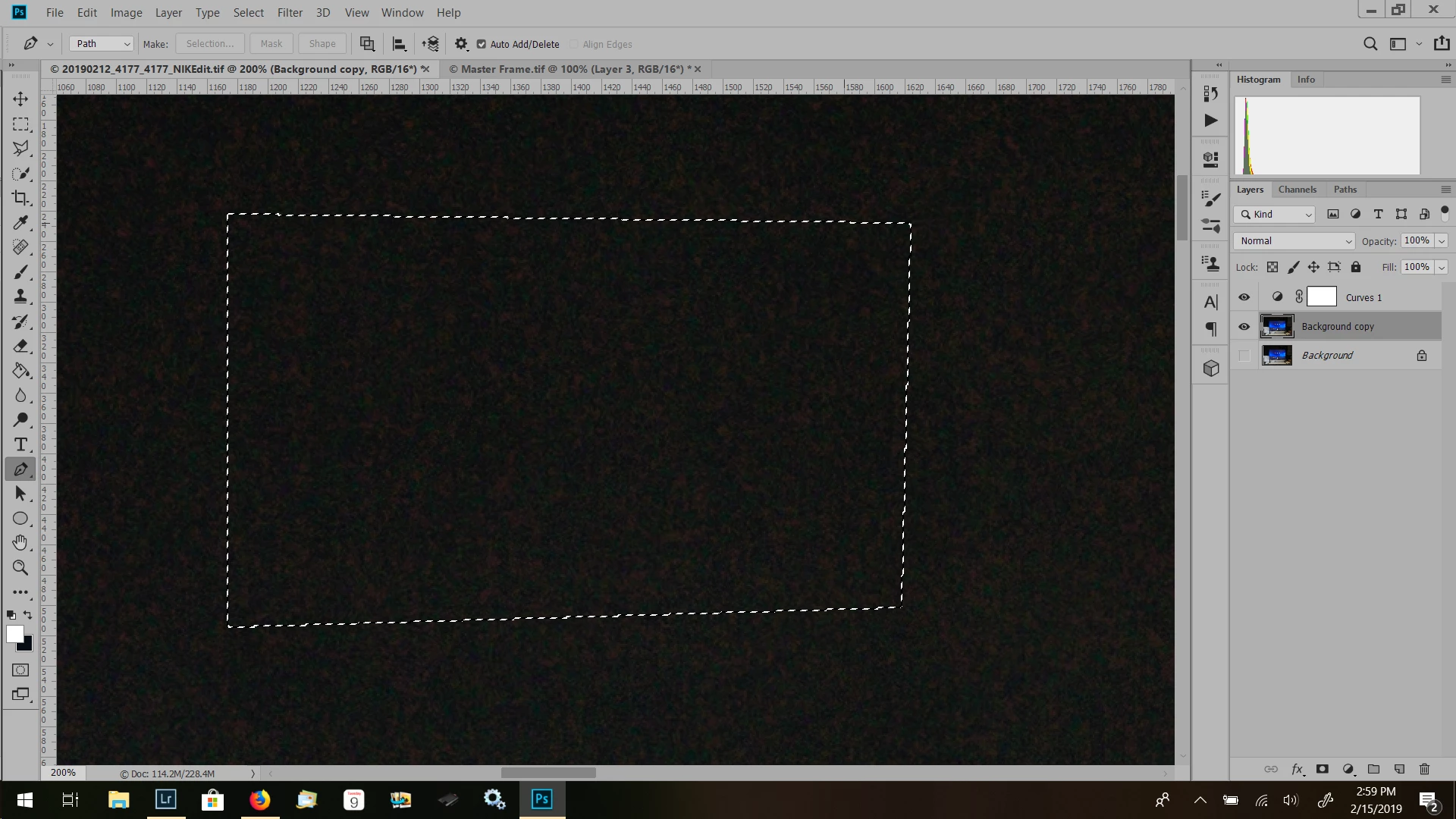
I'm running into an issue when making selections from a Pen Tool path.  Even with a simple rectangular path, the selection winds up with little jumps (see the reference image here).  I've tried feathering but I'm not sure what else to do.  Thanks in advance for the help!
    This topic has been closed for replies.
    Correct answer Semaphoric

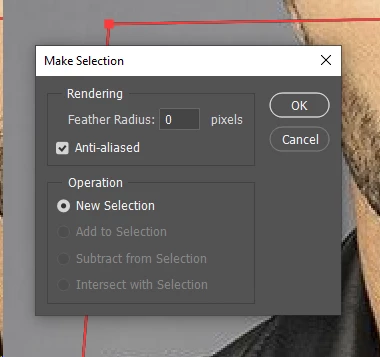
    If you look in the panel menu for Paths, and click "Make Selection …", you get a dialog where you can turn anti-aliasing on or off:


    However, with lines that are not perfectly vertical or horizontal, the marching ants will look the same, whether Anti_aliasing is on or off. If you look at the selection in Quick Mask mode, though, you can see the difference —

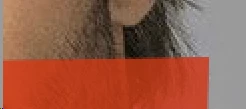
    Anti-aliasing on:


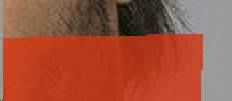
    Anti-aliasing off:


    4 replies

    Semaphoric
    Community Expert
    SemaphoricCommunity ExpertCorrect answer
    Community Expert
    February 15, 2019

    If you look in the panel menu for Paths, and click "Make Selection …", you get a dialog where you can turn anti-aliasing on or off:


    However, with lines that are not perfectly vertical or horizontal, the marching ants will look the same, whether Anti_aliasing is on or off. If you look at the selection in Quick Mask mode, though, you can see the difference —

    Anti-aliasing on:


    Anti-aliasing off:


    Participant
    February 16, 2019

    Anti-aliasing seems to do the trick.  What threw me off was the marching ants not changing.  Learned a few things here today - thanks so much to everyone for the suggestions!  Much appreciated.

    Participant
    February 15, 2019

    Thanks for the suggestions!  I'll try them when I'm back at my desk.

    sharp_hands16B8
    Community Expert
    Community Expert
    February 15, 2019

    Does it do the same thing if you use the regular vector shape tools rather than just the pen tool?

    I get that effect if my pen tool drawn path is even 1px off in alignment. Which is even more noticeable at 200% zoom.

    Do a test with the rectangular shape tool work path. Draw it and convert that to a selection and see if it does the same thing.

    jane-e
    Community Expert
    Community Expert
    February 15, 2019

    Hi Zoccophoto,

    I agree with Mark. Use the rectangle tool. Just be sure to select “Path” in the options bar and not the default of “Shape”.

    As you are drawing you can use the spacebar to move the rectangle. Once you stop drawing the spacebar switches to the shortcut for panning your canvas.

    ~Jane

    JJMack
    Community Expert
    Community Expert
    February 15, 2019

    When you are using the pen tool are you using  the Shift Modifier key to constant  the pen to to Horizontal and Vertical lines?  It also would be very hard to draw a perfect rectangle with the pen tool without using guide lines.

    JJMack
    Participant
    February 15, 2019

    I'm not using the shift key - I'm trying to extract the content on a video screen that wasn't shot exactly straight-on so it's not an exact rectangle.  I may try to perspective-correct it in LR first and then try that.

    JJMack
    Community Expert
    Community Expert
    February 15, 2019

    Photosop's perspective crop tool will crop to  your perspective selection a distort the selection to a squared up rectangle area.  I do not know if it will work on a video layer  it will work on a frame layer.  I know nothing about Lightroom I just use Photoshop. However, I do not think Lightroon supports video it does not ever support layers.

    JJMack