
Inspiring
January 10, 2018
Question

shadow turns bad ...?

  • January 10, 2018
  • 2 replies
  • 1945 views

hi,

big problem - that started lately:

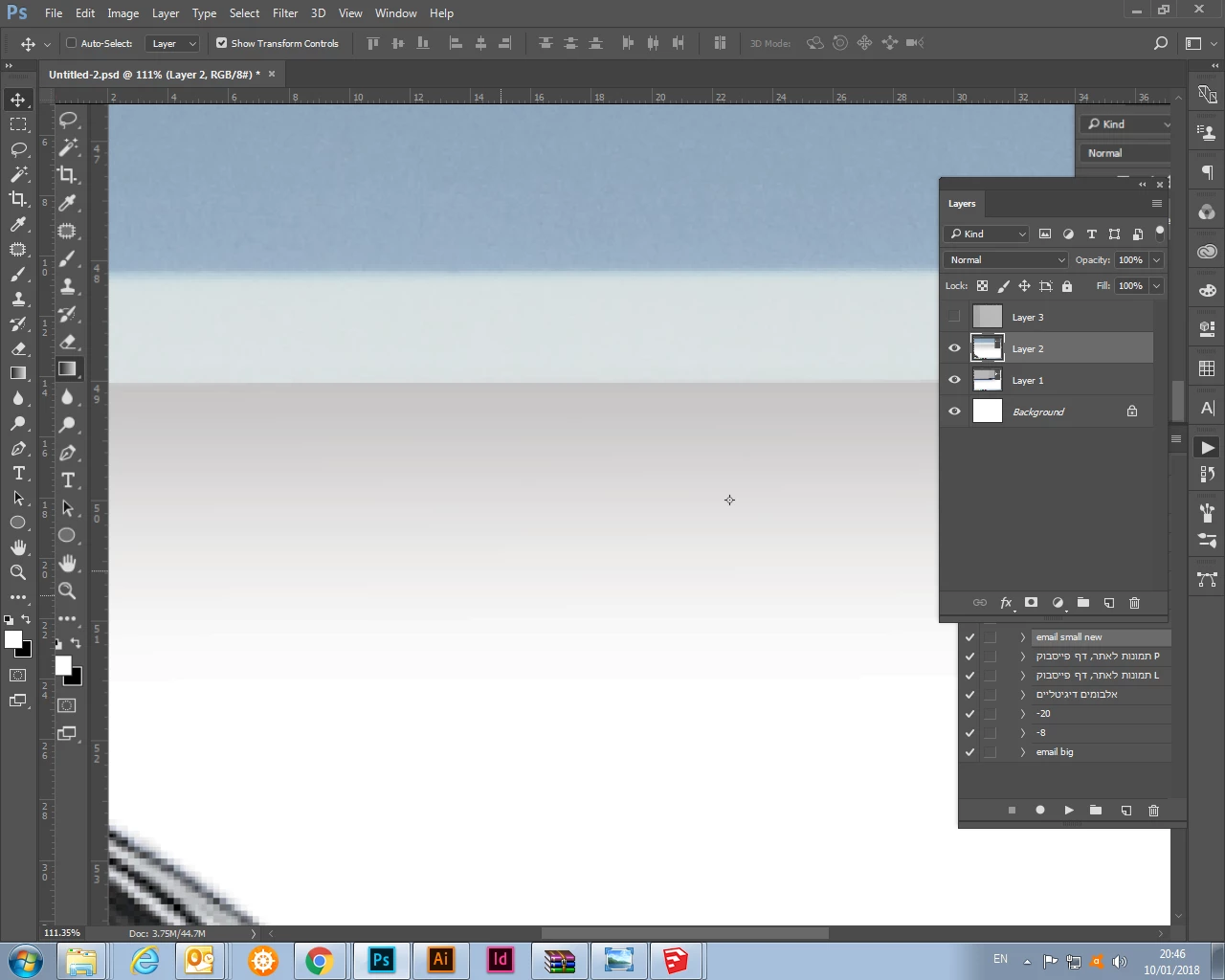
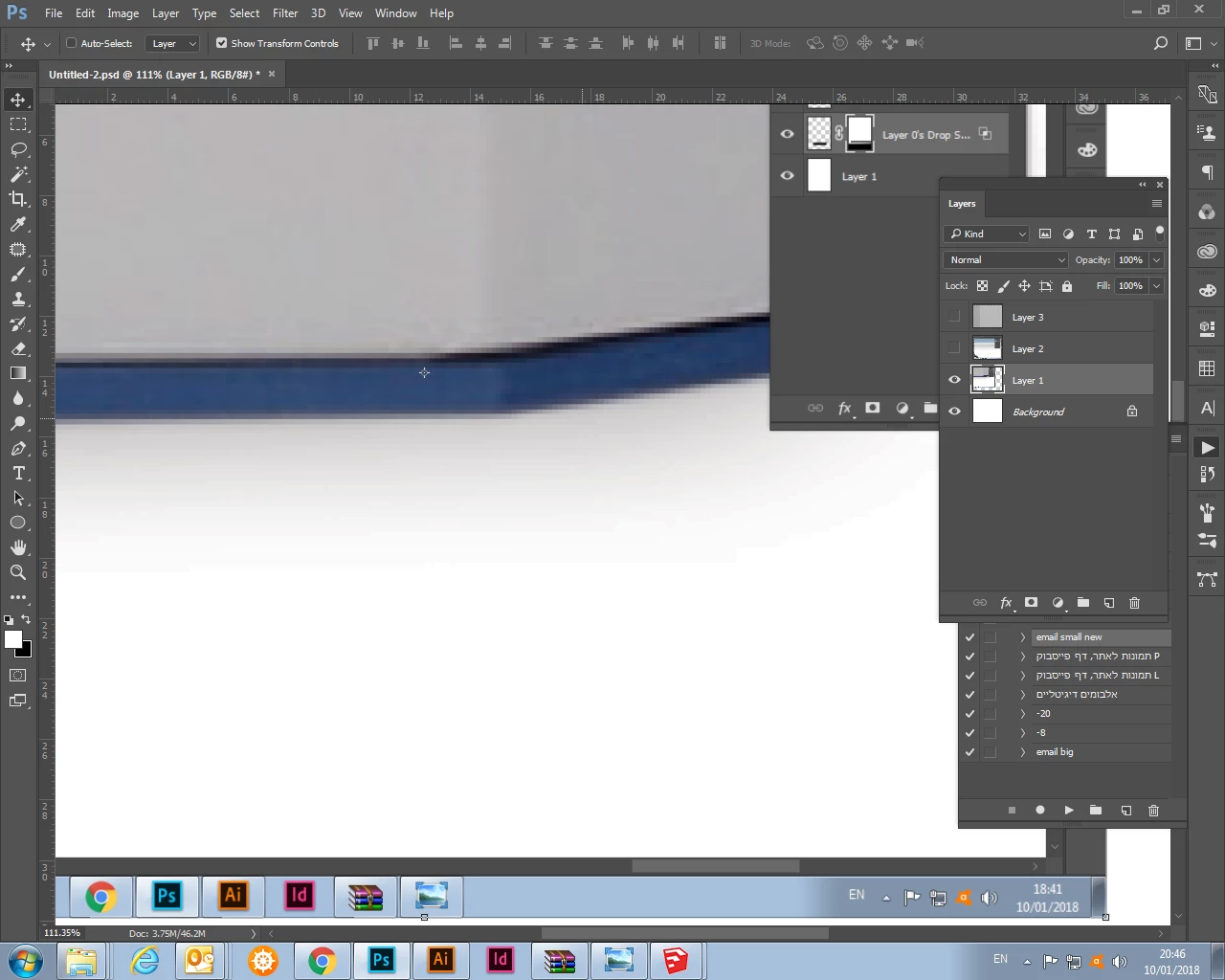
when i make shadow (by drop shadow, or blur) - it become "noisy" around the image...

it never happens to me before so i d'ont know what the problem is.

and it will be printed like that, so it is very bad...

see screen shut below.
,
    This topic has been closed for replies.

    2 replies

    Trevor.Dennis
    Community Expert
    Community Expert
    January 10, 2018

    I don't know where you are at with this, or even if your drop shadow is made with layer effects, but if it is, there are at least two ways a drop shadow can appear noisy.

    Setting the blend mode to Dissolve would be too obvious not to miss, but there is also a noise slider.

    davescm
    Community Expert
    Community Expert
    January 10, 2018

    Hi

    I am not sure what you mean by "noise". I do see gradient banding in your screenshot. If that is what you mean , switch to 16 bit mode and then add your shadow and see if the problem remains. You may still see some banding on screen (due to the limitations of an 8 bit display) but it should not be in your document in 16 bit. You can confirm whether the banding is in your document or display system if you run over the bands with the eyedropper tool.

    Dave

    btrideAuthor
    Inspiring
    January 10, 2018

    it still doesn't help...

    and i did not understand the way you check: "u can confirm whether the banding is in your document or display system if you run over the bands with the eyedropper tool"

    - i opened the file 100% at Photoshop, and i know for a fact -that what you see is what you will get (in printing)... :-(

    by the way -forgot to mention:

    it is a pic that i attached at psd/png to an illustrator file, and export it to PDF. and the background is white (that's way you see every thing)

    davescm
    Community Expert
    Community Expert
    January 10, 2018

    btride  wrote

    and i did not understand the way you check: "u can confirm whether the banding is in your document or display system if you run over the bands with the eyedropper tool"

    Hi

    Let me explain my comments.

    We sometimes see banding on gradients due to the limited levels (i.e steps of brightness) available in 8 bits. There are only 256 steps from fully off black to fully on in each of the red , green and blue channels

    This can be avoided by working in 16 bit which in theory gives 65536 levels (in Photoshop it actually uses 32769 levels). This increase in steps is more than enough to make the individual steps invisible.  Note this will only work for gradients added in 16 bit. Just converting an 8 bit stepped gradient to 16 bit will keep those steps.*

    When using 16 bit documents,  the display system still operates at 8 bit. So a gradient may appear to be banded, when in actual fact it is not. If you switch the info panel to show 16 bit levels, then move slowly across the apparent banding, it should show constantly changing values - not the stepped changes you will see if the banding is in the document.

    *The other way to hide banding in an existing gradient is to add a little noise to the picture (Filter >Add noise). Although it sounds counter-intuitive to add degradation to hide an artefact, it takes very little noise to hide the banding effects on a gradient and is often much preferable to the visible banding.

    Dave