Hey Trevor,
my initial thought was that I had to create multiple actions for various sizes and then I also thought, while working, I wanted to simply (for example) press command + T, then tap a key to increase and tap another key to decrease, so when the idea creating multiple actions and then activating one of those action meant, I had to take my fingers off the key board and move the mouse over to select an action and figure out if the selected action was ideal for the size I wanted, I thought that seems so much more cumbersome then simply drag the corners in free transform mode.
Although, the samples you added in your reply has cleared up some my doubt and I have a better understanding of what is possible. I feel that your first response does actually fit as a solution, I just may have over thought it, since I was stuck on wanting a specific solution.
Thank you, I'm going to try to figure out how to create the actions you recommended. It may turn out to be the best answer for my question.
A wee tip about shortcuts, but only relevant if you are using CC. Basically, there are no spare shortcuts, but the fix is that you can save custom shortcuts with custom workspaces. So if you set Shift F4 to increase by 10%, and Alt Shift F4 to increase by 1%, and did the same with F5 to downsize, then save those with your favourite workspace like so:
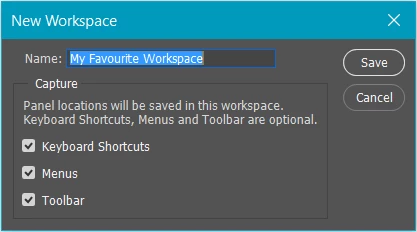
You then return to Photoshop's default shortcuts by selecting, and then resetting, the Essentials workspace which is hard wired.
You might like to create a new Action set before making your resize actions to keep things tidy, and perhaps give the four actions the same colour. The whole process is going to take you less than five minutes.
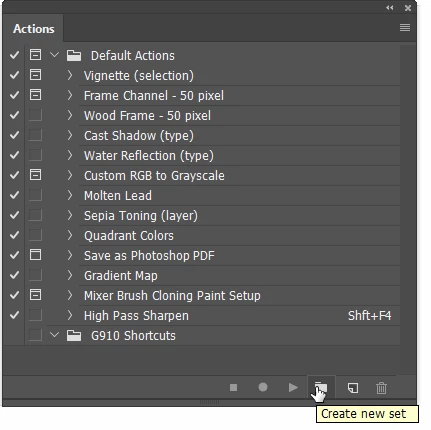
I just tested it and it works fine, and instantaneously.

 AdChoices