
Participant
March 11, 2018
Answered

Snap to guides are not functioning accurately

  • March 11, 2018
  • 3 replies
  • 1704 views

I use guides to mark out divisions on an artwork, the guides are accurate but when I use 'Snap To Guides' it doesn't align perfectly.

Here my artwork is 42cm x 42cm and I'm using guides to mark the middle point

1. I mark out halfway point of artwork using a guide - Here I set the guide at X:21cm - the exact halfway point of my artwork
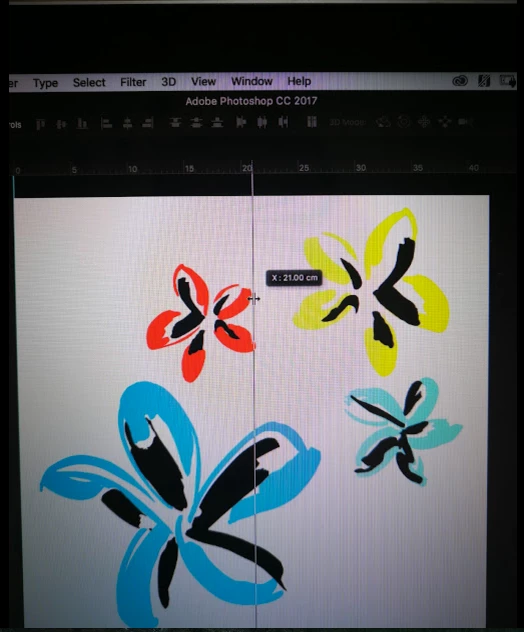
2. Then when I go to use the Rectangular Marque to select exactly half of the artwork (21cm), using X as a guide - BUT it flips to 21.01cm
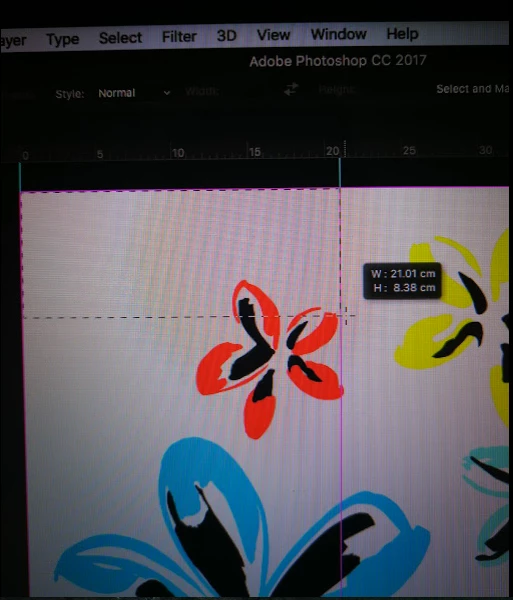
I want it to snap to 21cm - Isn't the point of 'Snap To' to be perfectly accurate? If not, how is best to get a perfect alignment?

NB: This is also the case if I'm moving an element using <alt> to copy, and <shift> to constrain; - It'll not copy and move exactly to 21cm along, rather it'll snap to 21.01cm... being just off

I'm trying to be exact with my measurements and movements - can anyone help?

Thank you

This topic has been closed for replies.
Correct answer gener7

There is a reason for this and it's due to the fact that pixels are whole integers and can never be fractions, so when converting to cm, it will round off there. I've seen this elsewhere. Go to Image > Image Size and give me pixel dimensions and resolution in pp/cm

Bear in mind Photoshop is pixel based and document size in cm is determined by resolution.

21.00 to 21.01 or .1 mm would not make a visual difference if printed.

Gene

3 replies

JJMack
Community Expert
Community Expert
March 11, 2018

Actually Photoshop uses .5 half a pixel all the time.   If you set a color sampler point and read the setting you would see this.  Most of the Pixels calculating Photoshop does is carried out to many decimal places not rounded to the nearest pixel.

JJMack
gener7
Community Expert
gener7Community ExpertCorrect answer
Community Expert
March 11, 2018

There is a reason for this and it's due to the fact that pixels are whole integers and can never be fractions, so when converting to cm, it will round off there. I've seen this elsewhere. Go to Image > Image Size and give me pixel dimensions and resolution in pp/cm

Bear in mind Photoshop is pixel based and document size in cm is determined by resolution.

21.00 to 21.01 or .1 mm would not make a visual difference if printed.

Gene

Participant
March 13, 2018

Thanks gener7​ - very simple! The size of my canvas in pixels did not allow a whole number when divided.

I have adjusted the size to 41.98cm x 41.98cm giving a canvas size of 1190 px X 1190 px at 72 px/inch - I can then split this exactly in half at 595 pixels (21.99cm)

Thank you to JJMack​ - Your answer really helped me understand - I also didn't know you could set a constraint on the rectangular marquee tool and I've been using Photoshop for years and years... duh!

Very helpful answers - thank you

JJMack
Community Expert
Community Expert
March 11, 2018

I had no problen with snal to guide lines However I set bothe vertical and horzontal guides ate 0% 50% and 100% to snap to and set the marque tool to fixed size 21cm by 42 cm and 42cm by 21 cm to fill one empty layers all were perfect.

JJMack