

Soft proof color rendering is incorrect when Gamut Warning is disabled
Photoshop 23.0.0 on Windows 10.0.19043.1288 appears to sometimes render colors incorrectly when the View → Gamut Warning option is disabled. Surprisingly, the issue is not limited to soft proofing: enabling or disabling the Gamut Warning option can change the way colors are rendered even if the View → Proof Colors option is disabled.
I have attached an image that consistently and straightforwardly reproduces the issue on my machine, which is a single-pixel, 8 bits/channel TIFF file in the ProPhoto RGB color space. The image’s solitary pixel has RGB values (47, 47, 83), which Photoshop maps to (40, 61, 107) when the image is converted to sRGB using the Perceptual rendering intent. And indeed, if soft proofing is configured to use sRGB as the proof space, the Info panel reports those RGB values for the Actual Color and Proof Color, respectively:
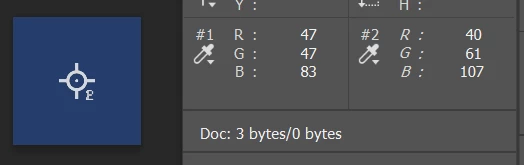
So far, so good. But how does Photoshop actually render these colors on my display? To minimize the number of variables, I have configured my system to use sRGB as my monitor’s display profile, so I would expect the rendered color to be identical to the sRGB triple mentioned above. Indeed, if I convert the image to sRGB using Edit → Convert to Profile and use a display-space color picker application to sample the color displayed in the Photoshop canvas, I get the expected value of (40, 61, 107).
But what if I leave the image in ProPhoto RGB? In that case, Photoshop still has to convert the image to sRGB on the fly to render it, since sRGB is my display space. However, surprisingly, the rendered color is the subtly-different (36, 61, 107), which is slightly less red. Even more surprisingly, this doesn’t change if I enable the View → Proof Colors option, even though the Info panel reports (40, 61, 107) as the proof color! Finally, most bizarre of all, this discrepancy disappears if I enable the View → Gamut Warning option—the color is not out of gamut, so it is not given a gray overlay, but it suddenly renders as the expected (40, 61, 107)—and this change occurs regardless of whether the Proof Colors option is also enabled.
My first theory was that perhaps this had something to do with the choice of rendering intent—perhaps the 36 value for the red channel was the result of a conversion using a different rendering intent. However, that does not seem to be the case, as Photoshop produces the exact same (40, 61, 107) sRGB triple using any rendering intent. In the case of an Absolute Colorimetric conversion, that seems blatantly incorrect, as ProPhoto RGB (47, 47, 83) has the xy chromaticity coordinates (0.2363, 0.2317), while sRGB (40, 61, 107) has coordinates (0.2111, 0.1970), which is a meaningfully different color. However, I don’t know if that discrepancy is a related problem or a different issue entirely.
Regardless, the current behavior seems unambiguously wrong, as I see no reason that the colors rendered by soft proofing shouldn’t match an equivalently-configured color space conversion. Furthermore, the fact that enabling or disabling the Gamut Warning option can change the rendered colors even when the Proof Colors option is disabled is unmistakably a bug.
 AdChoices