
Participating Frequently
April 22, 2017
Question

Space bar toggles selected layers locked/unlocked

  • April 22, 2017
  • 4 replies
  • 1186 views

I have a huge problem with this.  What happens is that when I use the space bar as a hand tool (like I've always used), Photoshop locks the current layer that I'm working with. This only happens when the move tool is on:
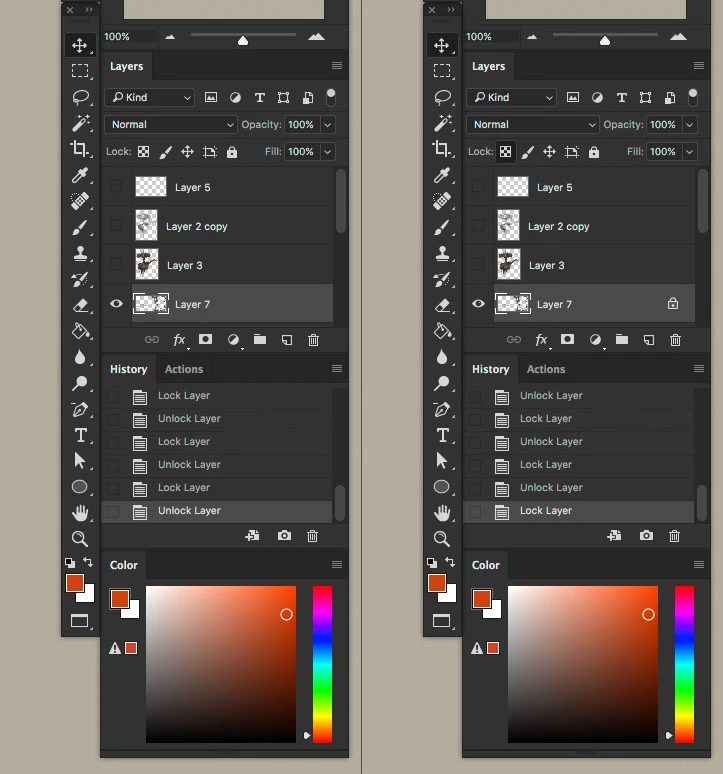
When I press the space bar again it toggles to unlock. It makes drawing quite annoying since it basically eats away all my history states. I haven't change any keyboard shortcuts so this seemed to come out of nowhere.

Any suggestions?

This topic has been closed for replies.

4 replies

Participating Frequently
May 4, 2017

Just updated Photoshop today and the problem was solved! Don't know what caused it, don't know how it was fixed but it works now!

Trevor.Dennis
Community Expert
Community Expert
April 23, 2017

I doubt this is what is happening, because of it being conditional to the Move tool being selected, but just to be sure, can you check that the shortcut for Lock Layers is still set to Ctrl / (Cmd /)

Participating Frequently
April 24, 2017

I have Mac Sierra 10.12.2. Adobe Creative Cloud with latest Photoshop. I can't recall when exactly this started to happen but i've had it couple of weeks now. I've checked all keyboard shortcuts and they are unchanged. Lock layers shortcut too.

It only happens with move tool. If I change to brush tool, I can normally use space bar and it won't lock. Also, it only locks when there is only one layer selected: If I'm using move tool and there's multiple layer selected there is no problem.

Sebastian Bleak
Community Expert
Community Expert
April 23, 2017

Is this happening on a Windows machine? Sometimes I'll run into something like this on mine if a field is still activated. I hit ESC a couple times and I'm good. Not sure if this is the same with you, but it's worth a shot.

Benjamin Root
Legend
April 22, 2017

Try resetting your preferences.

Win: Press and hold Ctrl+Alt+Shift immediately after initiating Photoshop's startup. A box will appear asking if you want to continue with the reset, select "yes." If you don't see this, you weren't fast enough...Try again.

Mac: Press and hold Cmd+Opt+Shift then start Photoshop. A box will appear, asking if you want to continue with the reset, select "yes."

Participating Frequently
April 23, 2017

Tried that. Problem remains

Benjamin Root
Legend
April 23, 2017

Is this on Mac or Win? Photoshop version? Had you just done any OS or Photoshop updates when this started to happen?