Known Participant
November 11, 2020
Answered

straight rope into a loop

  • November 11, 2020
  • 1 reply
  • 741 views

I know I could just get a stock photo, but is there a way to turn a striaght piece of rope image into a loop or circular rope?  I know puppet warp has some ability but it's easy to mishapen the rope using it.  Thanks for any insight,

Kevin

This topic has been closed for replies.
Correct answer Norman Sanders

Whether it’s rope or rasterized type, the procedure is the same. Here is part of a Tech Sheet I prepared for my students.

**************


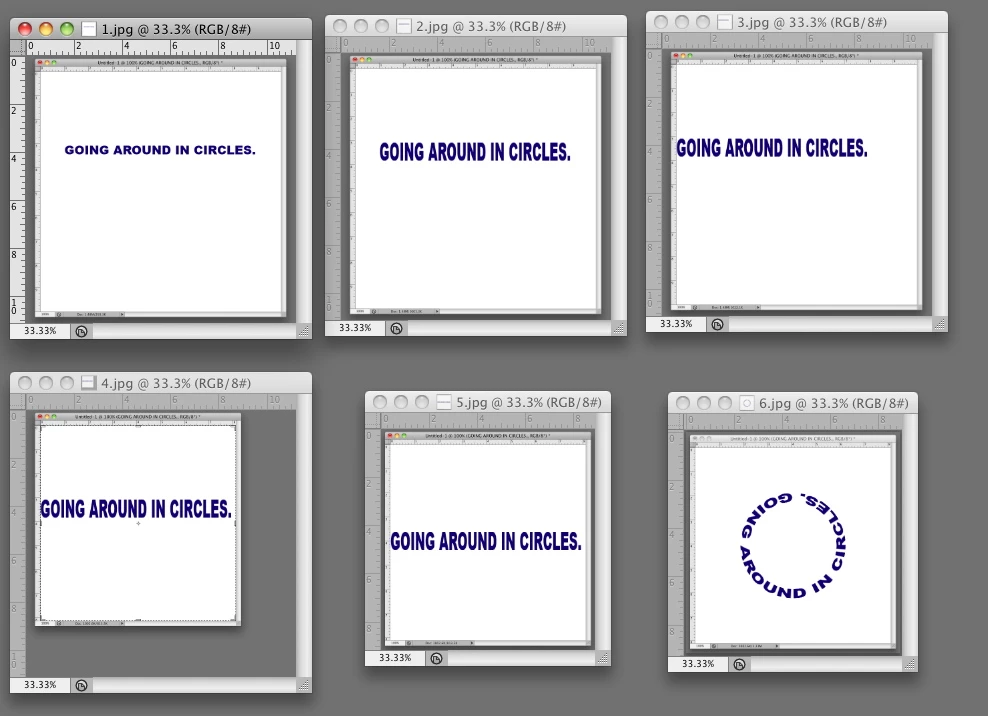
To create a ring of type as seen in Fig. 6:


  1. Open a new file (File > New) with the same height as its width, perhaps ten inches square and then type the sentence that is to create the circle (Fig. 1)


  1. Converting the type line to a circle reduces its height. To compensate for that, choose Edit > Transform > Scale. Drag the type to about twice its height (Fig. 2)


  1. Choose the Move tool and shift the type line close to – but not touching – the left edge. (Fig 3)


  1. Choose the Crop tool. In the Options bar change Unconstained to 1 x 1 (Square). Then drag the right corner handle of the Crop diagonally until there is a one-letter space between the last letter of the type line and the right edge of the square. (Fig. 4)


  1. Center the line vertically. (Fig 5)


  1. Choose Select > All. Then, choose Filter > Distort > Polar Coordinates. Rasterize the type when asked. Radio button should be set to Rectangular to Polar. To preview the image, adjust the percent listed below the inset illustration. Click OK. The result: Fig 6


  1. Choose Select > Deselect and, for final housekeeping, choose the Crop tool and return the Options bar to Unconstrained.


  1. Save the file in psd format so that the circle of type remains on a transparent surround and the layer may be floated onto another image.  


1 reply

Norman Sanders
Norman SandersCorrect answer
Legend
November 11, 2020

Whether it’s rope or rasterized type, the procedure is the same. Here is part of a Tech Sheet I prepared for my students.

**************


To create a ring of type as seen in Fig. 6:


  1. Open a new file (File > New) with the same height as its width, perhaps ten inches square and then type the sentence that is to create the circle (Fig. 1)


  1. Converting the type line to a circle reduces its height. To compensate for that, choose Edit > Transform > Scale. Drag the type to about twice its height (Fig. 2)


  1. Choose the Move tool and shift the type line close to – but not touching – the left edge. (Fig 3)


  1. Choose the Crop tool. In the Options bar change Unconstained to 1 x 1 (Square). Then drag the right corner handle of the Crop diagonally until there is a one-letter space between the last letter of the type line and the right edge of the square. (Fig. 4)


  1. Center the line vertically. (Fig 5)


  1. Choose Select > All. Then, choose Filter > Distort > Polar Coordinates. Rasterize the type when asked. Radio button should be set to Rectangular to Polar. To preview the image, adjust the percent listed below the inset illustration. Click OK. The result: Fig 6


  1. Choose Select > Deselect and, for final housekeeping, choose the Crop tool and return the Options bar to Unconstrained.


  1. Save the file in psd format so that the circle of type remains on a transparent surround and the layer may be floated onto another image.