Participant
December 2, 2019
Answered

Substract duplicated pixels of 2 layers

  • December 2, 2019
  • 4 replies
  • 2522 views

Hello everyone,


I'm struggling with a problem for about 2 months now and I cant find an easy solution (or a solution at all). I have 2 layers/pictures and I want to substract one of the layers from the other layer, so that the result gives me exact the pixels that are different of both layers. Both pictures have no transparencies in it and the result cant have transperency in it too obviously. I cant use Blend mode (or atleast it doesnt work when I try it) because there should be no tolerance, if the pixel is exactly the same color in both layers, delete it, if there is even a tiny difference, keep it.

Here are 2 example layers 
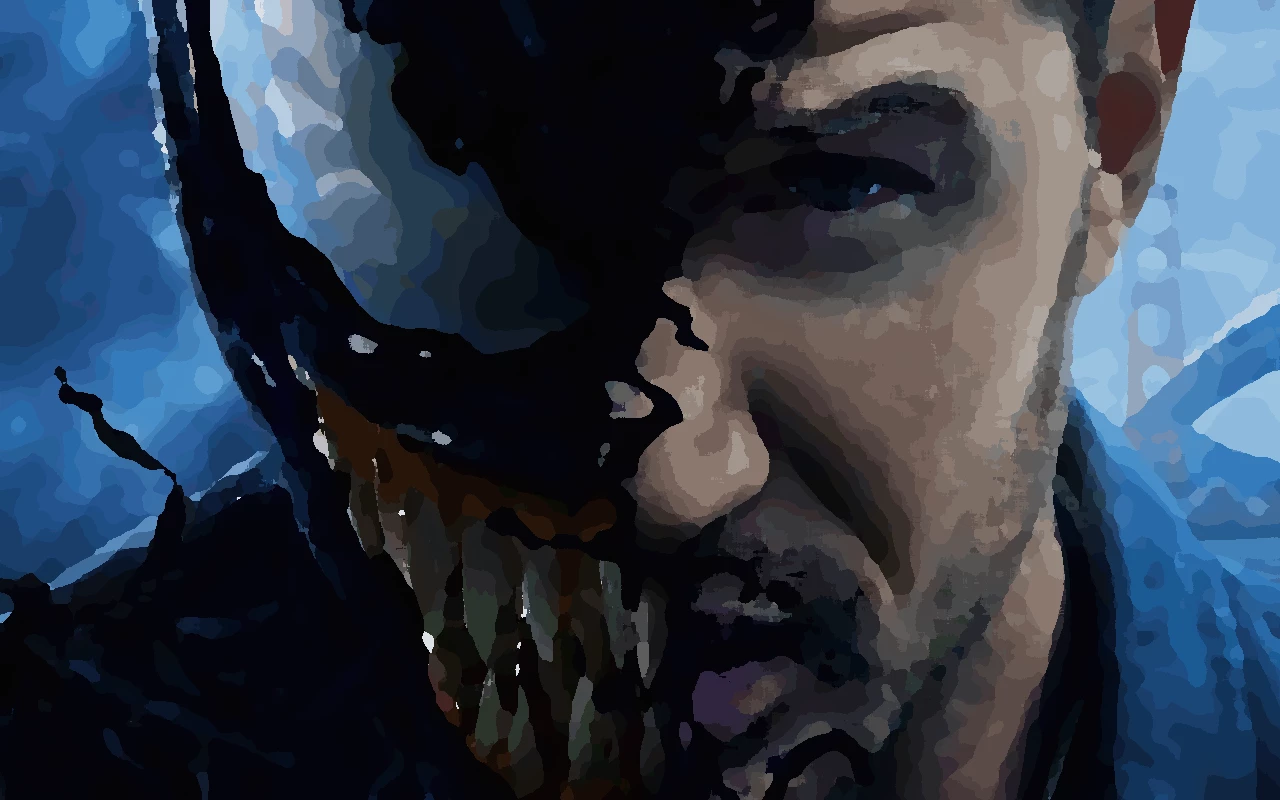


If you compare both images you can obviously see that a lot of pixels are the same in both pictures, but I need layer 2 to just have the difference in pixels, without all the pixels that stay the same in both layers.
This topic has been closed for replies.
Correct answer silk-m
Hi,
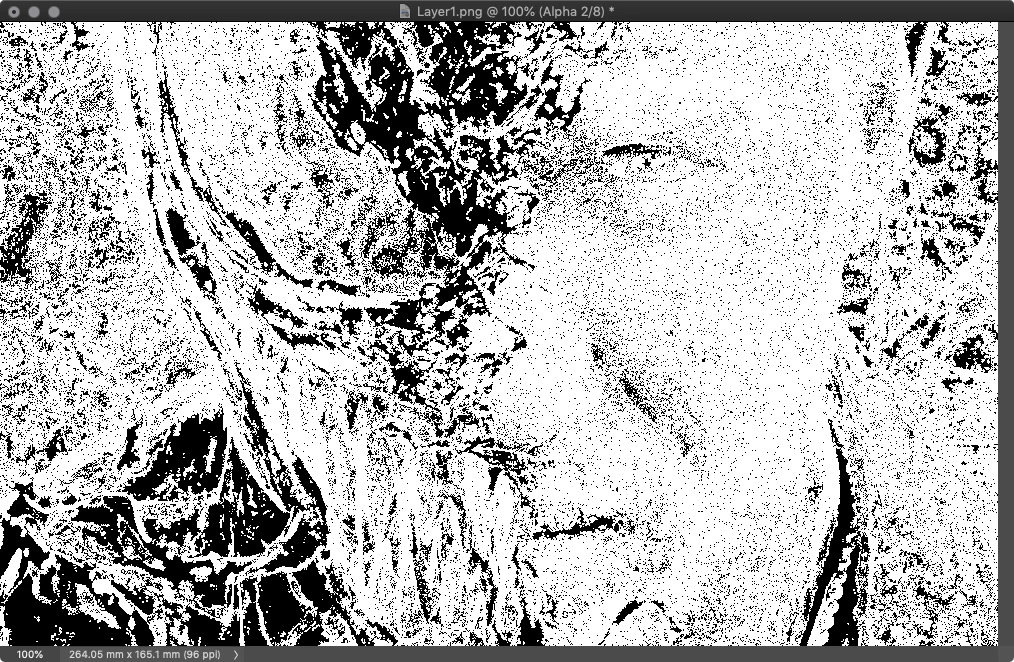
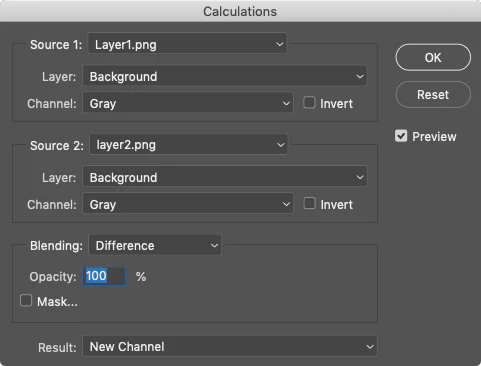
"Image / Calurations ..." the two layers.
 
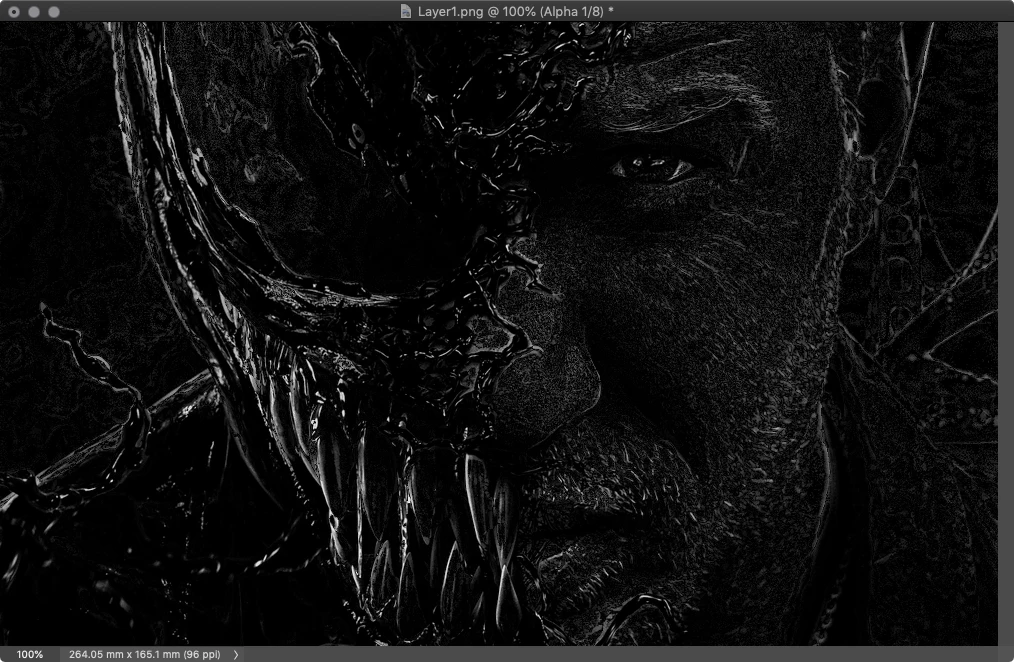
result
Look for "RGB = 0, 0, 0".
Pixels with a difference of 0 are the same pixel.

4 replies

Legend
December 2, 2019

layer2 over layer 1

layer2 mode = subtract

selection from RGB

save sesection as s1


layer1 over layer2

layer1 mode = subtract

selection from RGB

save sesection as s2


layer2 and layer1 mode = normal


load selection s1

load selection s2 (add to selection)


create mask from selection to layer1

stay on mask, edit->adjustment->treshold=1


copy mask to layer2

invert mask on layer2


you get layer1 (or  layer2) in result.


invert mask on both layers = you will get anoter layer


silk-m
Community Expert
silk-mCommunity ExpertCorrect answer
Community Expert
December 2, 2019
Hi,
"Image / Calurations ..." the two layers.
 
result
Look for "RGB = 0, 0, 0".
Pixels with a difference of 0 are the same pixel.
--Susumu Iwasaki
Participant
December 2, 2019

Thank you very much for this answer. Could you ellaborate how to look up for a specific rgb value? I did everything as you stated and selected the values of rgb 0 0 0 with the magic wand and copied them into a new layer and it looks quite similar to yours and it actually works when I put it over the first layer but Im still wondering why there are differences between our pictures. I guess its some compression fault for the uploaded picture.

silk-m
Community Expert
Community Expert
December 2, 2019

Hi,

Difference between actual image and screenshot?


Sample Size: Point Sample, Tolerance: 0, Anti-alias = off, Contiguous = off


--Susumu Iwasaki
c.pfaffenbichler
Community Expert
Community Expert
December 2, 2019

The identical pixely might be fewer than you expect. 

The Difference Blend Mode with a Threshold Adjustment Layer and Blend if-settings on a Group might be helpful. 

Participant
December 2, 2019

I dont know what the fault in this procedure is, but it seems to be incorrect as there appear to be way more identical pixels as seen in the answer below, which seems to be correct. 🙂 But thank you for your effort, I really appreciate it.

c.pfaffenbichler
Community Expert
Community Expert
December 2, 2019

A difference of even one value in one channel means: Not the same. 

davescm
Community Expert
Community Expert
December 2, 2019

I am slightly confused by your requirement. You say the result cannot have transparency but then go on to say if the pixels are the same "delete it". Delete it and replace it with what if it is not to be transparent?

So to get the pixel differences use the difference blend mode. Pixels that are exactly the same will be RGB 0,0,0 and any that are different will anything  above that.

To go on to make all pixels transparent and just keep the originals where there was no exact match, put both in a group and set the group "blend if", in layer styles to "this layer 1-255". Then clip a copy of the original layer to the group. It will only show where the original layers are not an exact match.

Dave


Participant
December 2, 2019

Sorry I just meant that I dont want to have some transparent colors, either its the same color or its no color (transparent).