thesoulartist
Known Participant
November 23, 2023
Answered

Tag field no longer works

  • November 23, 2023
  • 3 replies
  • 551 views

MacOS Monterey 12.7

This began yesterday in both the latest PS and PS beta updates.

I can't type in a copyright tag; if one is already present, I can't edit it as before. It won't accept comments, either. I don't recall making any changes to PS for this field to become unusable.

I've restarted my computer, but that didn't fix it. 

I would appreciate a solution and Happy Thanksgiving. 


This topic has been closed for replies.
Correct answer Conrad_C

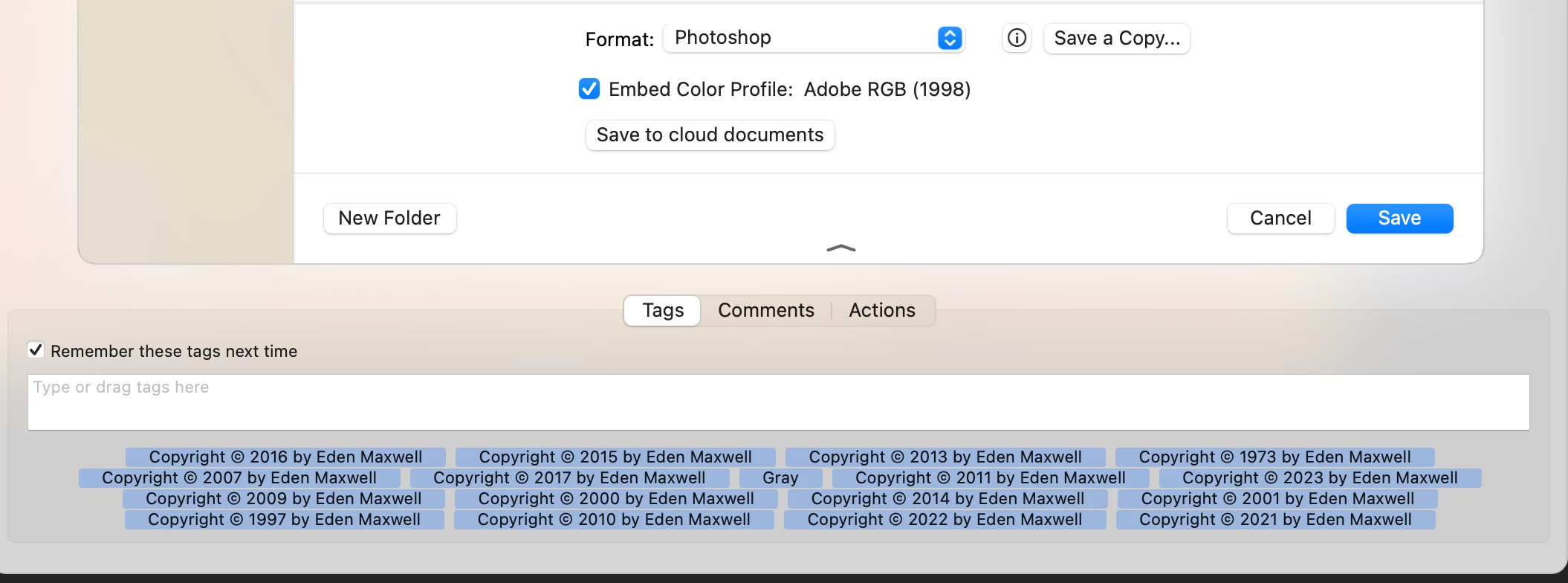
I know at least part of what is going on. The Tags/Comments/Actions panel at the bottom is added by the utility Default Folder, one of the greatest productivity utilities ever made for the Mac. I’ve been using it for maybe 30 years. Those are Finder tags being applied through Default Folder, not any code in Photoshop. To prove this, quit Default Folder and you will find that all of the extra buttons and fields around the Save As dialog box will disappear. Start Default Folder again, and all of the extra options will return the next time you open am Open/Save As dialog box.


But I am also going to say that adding a copyright with the Tags field is not a good workflow, and is probably not in your best interests. Here’s why.


That field adds Finder Tags. Those can help label documents in the macOS Finder, and those are synced through iCloud Drive so you can see the same labels on iOS and iPad OS. I also use Finder Tags, for the things they are good at.


The first point is that the location shown in your screen shot (Default Folder’s Tags field) is not the correct place to edit them. You edit Finder tags in the macOS Finder, by choosing Finder > Settings and then clicking the Tags tab. In other words, Photoshop does not manage the macOS feature you are showing.


The bigger problem here is that what is being entered here is a copyright notice. If the intention is to embed a copyright notice that will be seen by others especially when sharing online, the Tags field is absolutely the wrong place to do it. That’s because Finder tags are Apple-only. They are not supported on other platforms, and also, they cannot be preserved when, for example, uploading to a website or social media.


The correct place to add a copyright notice is in industry standard, cross-platform, IPTC photo metadata. To do this in Photoshop, you choose File > File Info, and type into the Copyright Notice field. But it is often much faster and more efficient to apply a copyright notice in the Metadata panel in Adobe Bridge or Lightroom/Lightroom Classic, especially if you want to select multiple images and add copyright metadata to all of them in one click. Those add the copyright notice as standard IPTC metadata, which is preserved and respected across platforms and applications.


Note that Apple Finder Tags are so weird and proprietary that they are in no way related to standard IPTC photo metadata, and also, there are not many tools around that can convert between Finder tags and standard IPTC metadata (I don’t think any Adobe applications can). So if the goal is to enter standard photo metadata, it’s really important to enter it in the right place the first time.


3 replies

Conrad_C
Community Expert
Conrad_CCommunity ExpertCorrect answer
Community Expert
November 23, 2023

I know at least part of what is going on. The Tags/Comments/Actions panel at the bottom is added by the utility Default Folder, one of the greatest productivity utilities ever made for the Mac. I’ve been using it for maybe 30 years. Those are Finder tags being applied through Default Folder, not any code in Photoshop. To prove this, quit Default Folder and you will find that all of the extra buttons and fields around the Save As dialog box will disappear. Start Default Folder again, and all of the extra options will return the next time you open am Open/Save As dialog box.


But I am also going to say that adding a copyright with the Tags field is not a good workflow, and is probably not in your best interests. Here’s why.


That field adds Finder Tags. Those can help label documents in the macOS Finder, and those are synced through iCloud Drive so you can see the same labels on iOS and iPad OS. I also use Finder Tags, for the things they are good at.


The first point is that the location shown in your screen shot (Default Folder’s Tags field) is not the correct place to edit them. You edit Finder tags in the macOS Finder, by choosing Finder > Settings and then clicking the Tags tab. In other words, Photoshop does not manage the macOS feature you are showing.


The bigger problem here is that what is being entered here is a copyright notice. If the intention is to embed a copyright notice that will be seen by others especially when sharing online, the Tags field is absolutely the wrong place to do it. That’s because Finder tags are Apple-only. They are not supported on other platforms, and also, they cannot be preserved when, for example, uploading to a website or social media.


The correct place to add a copyright notice is in industry standard, cross-platform, IPTC photo metadata. To do this in Photoshop, you choose File > File Info, and type into the Copyright Notice field. But it is often much faster and more efficient to apply a copyright notice in the Metadata panel in Adobe Bridge or Lightroom/Lightroom Classic, especially if you want to select multiple images and add copyright metadata to all of them in one click. Those add the copyright notice as standard IPTC metadata, which is preserved and respected across platforms and applications.


Note that Apple Finder Tags are so weird and proprietary that they are in no way related to standard IPTC photo metadata, and also, there are not many tools around that can convert between Finder tags and standard IPTC metadata (I don’t think any Adobe applications can). So if the goal is to enter standard photo metadata, it’s really important to enter it in the right place the first time.
thesoulartist
Known Participant
November 23, 2023

Thank you for enlightening me with your detailed description. The Default Folder tag field may have stopped working due to an update a day or so ago. 

Jeff Arola
Community Expert
Community Expert
November 23, 2023

Are you using some kind of Finder addon or replacement?


I don't recall ever having seen the Tag, Comments or Actions and edit fields attached to the bottom of the Save As dialog

in photoshop.


thesoulartist
Known Participant
November 23, 2023

I've been using Default Folder X for years without any issues. I have now disabled this app, and those fields no longer appear. I now see a post from Conrad C explaining what is happening--although I have been using that tag field for a long time. The reason the tag field is not working may have to do with an update of a few days ago from Default Folder.

Jeff Arola
Community Expert
Community Expert
November 23, 2023

What command in photoshop are you using to get the dialog shown in your screenshot?

thesoulartist
Known Participant
November 23, 2023

Command>shift>s

I've been using this command for years.

See the full screenshot.