


Known Participant
February 16, 2024
Question

Terrible rendering of Illustrator object with rotated text

  • February 16, 2024
  • 3 replies
  • 1058 views

Photoshop does a lousy job rendering fonts contained in Illustrator objects which are rotated. This problem exists for a while and while working on this hobby project I noticed it again. 
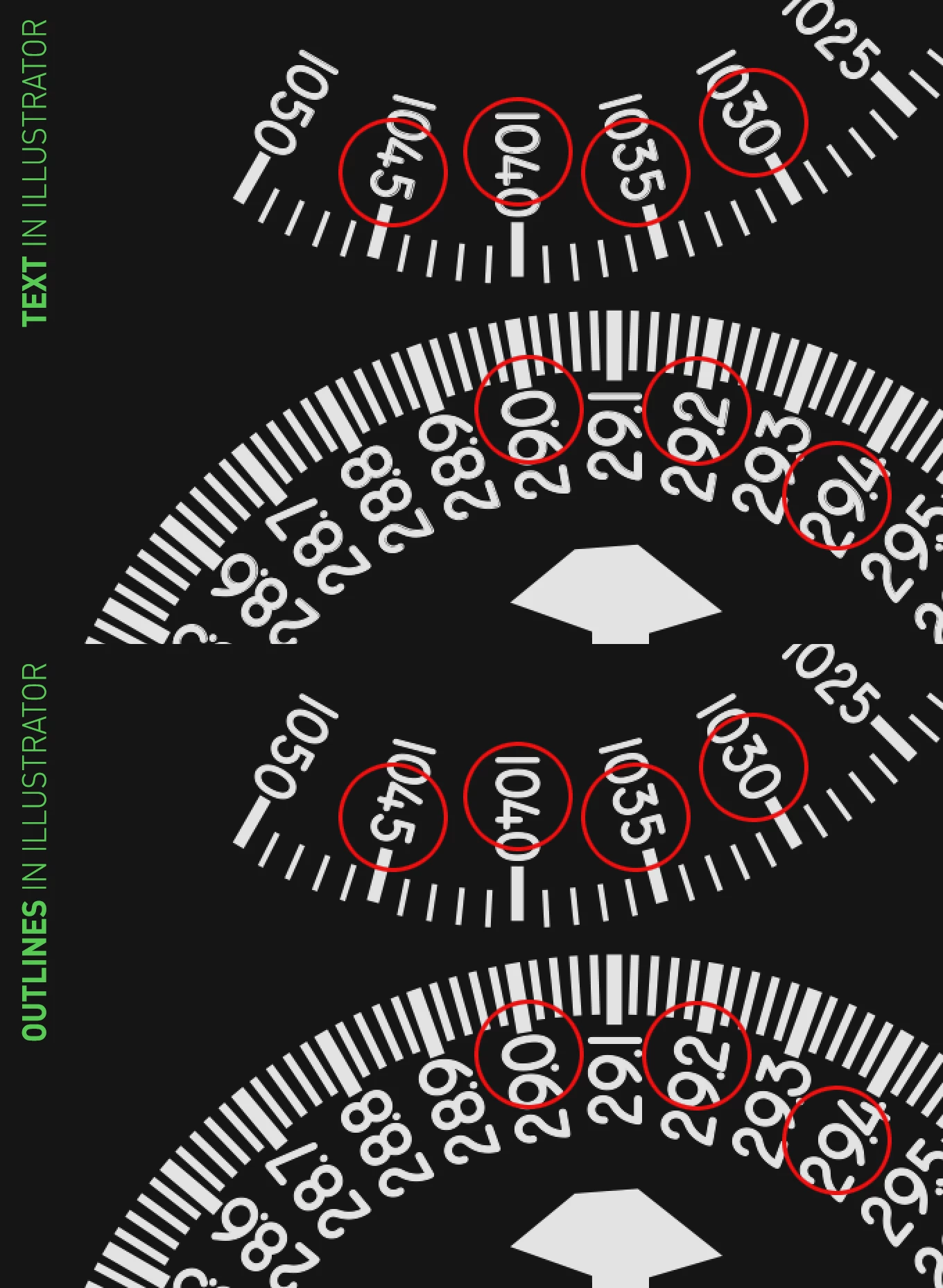
In the example above you see the same Photoshop file but once the object contains fonts (top) and once I converted the fonts to outlines in Illustrator (bottom). 

At the top you see fonts appear with some double line and I don't understand why. While I can imagine it will have a bit different anti-aliasing it shouldn't render fonts this bad you actually will notice the bad quality on export. 

Of course you can work around the issue by outlining the fonts but that's pretty annoying wastes a lot of time since the advantage of using smart objects is that you can change them if needed. Converting all fonts to outlines removes the easy editting of the Illustrator file.

I think the double line is caused by the fact the text in Illustrator has a thin outline to make it a bit bolder but that's still not an exuse to appear like this imo. The outline is also on the center so you shouldn't get a kind of gaps rendererd between the font and the outline. Looks like the rendering of it ain't precise enough. The file is placed at 100% in the PS doc but that really shouldn't make a difference.

While not a life threatening issue I think this is a bug though. An outline around text is pretty common  to make a text bolder or for example create a bit of overfill while printing coloured text on a black background.

Platform: Windows 11 - 23H3 Build 22631.3155
Photoshop: 25.4.0
Illustrator: 28.2
GPU Driver: Nvidia Game Ready Driver 551.52

I hope my post can contribute a bit to better rendering of vector files inside Photoshop. Thanks!

This topic has been closed for replies.

3 replies

Known Participant
March 2, 2024

Have you tried changing the Document Raster Effects Settings in the .ai file to see if it makes a difference? It might work better copy/paste into Psd as a smart object if the workflow supports it.

OzBozAuthor
Known Participant
March 21, 2024

It is actually a smart object inside the PSD. And the scaling is 100% so I would think it's a 1:1 copy.

I'm sure it has to do with the outline on the text and of course I can create outlines, do stroke to outline and combine all again to clean filled text. But I'd like to stay flexible in case I need to correct things, that's why I also like smart objects so much. 

I've uploaded a zip with the files above if you'd like to try something but for me it's some kind of render/rasterizing bug. Might be a little one and this is a hobby thing but it would be more serious is text got printed in such a way as well.

c.pfaffenbichler
Community Expert
Community Expert
March 1, 2024
quote

Photoshop does a lousy job rendering fonts contained in Illustrator objects which are rotated. This problem exists for a while and while working on this hobby project I noticed it again. 

In the example above you see the same Photoshop file but once the object contains fonts (top) and once I converted the fonts to outlines in Illustrator (bottom). 

At the top you see fonts appear with some double line and I don't understand why. While I can imagine it will have a bit different anti-aliasing it shouldn't render fonts this bad you actually will notice the bad quality on export. 

Of course you can work around the issue by outlining the fonts but that's pretty annoying wastes a lot of time since the advantage of using smart objects is that you can change them if needed. Converting all fonts to outlines removes the easy editting of the Illustrator file.

I think the double line is caused by the fact the text in Illustrator has a thin outline to make it a bit bolder but that's still not an exuse to appear like this imo. The outline is also on the center so you shouldn't get a kind of gaps rendererd between the font and the outline. Looks like the rendering of it ain't precise enough. The file is placed at 100% in the PS doc but that really shouldn't make a difference.

While not a life threatening issue I think this is a bug though. An outline around text is pretty common  to make a text bolder or for example create a bit of overfill while printing coloured text on a black background.

Platform: Windows 11 - 23H3 Build 22631.3155
Photoshop: 25.4.0
Illustrator: 28.2
GPU Driver: Nvidia Game Ready Driver 551.52

I hope my post can contribute a bit to better rendering of vector files inside Photoshop. Thanks!


By @OzBoz

Could you please post screenshots taken at View > 100% with the pertinent Panels (Toolbar, Layers, Options Bar, …) visible? 

What is the Stroke in Illustrator exactly (»Align Stroke to …« etc.)? 

Can you provide the psd file with the embedded ai? 

OzBozAuthor
Known Participant
March 21, 2024

Sorry for my late response, bit hectic here. 

I created a test file which has the AI embedded as smart object and included the used font so you've I think all the ingredients needed to check/reproduce. As you will see it's nothing really special. The Illustrator document is exactly the same size as Photoshop and the stroke is 1pt/px aligned on the center of the text. So it's not a scaling issue I would say.

Note: it says the .otf font is not matching it's extention so I've dropped a zip with all ingredients here: 
https://fizion.nl/files/adobe/adobe_bad_rendering.zip


Hope this helps you! If you need more information, please let me know! 

c.pfaffenbichler
Community Expert
Community Expert
March 21, 2024

It seems you did not embed the Smart Object. 

Sameer K
Community Manager
Community Manager
March 1, 2024

Hey, @2866107. Thanks for adding the screenshots & the details. I'll need more info to help you figure this out.


Please share the following information:
1 - System info from Photoshop Help > System info > Copy & paste into a text document. 

2 - A sample working file. (You can directly message the link to me from my profile.)


What troubleshooting steps have you tried in Photoshop? Does this happen with a particular Font or position of the fonts? 


In Photoshop, go to Edit > Preferences (CTRL+K) > Technology Previews & select 'Deactivate native canvas' & restart Photoshop, and check if there is a difference. 


Let me know how it goes. 

Thanks! 

Sameer K