Participant
February 13, 2023
Answered

Text box bug

  • February 13, 2023
  • 3 replies
  • 1927 views

Can someone help me solve this problem? When i type a text, it begins outside the text box and the text cursor is bigger than the actual font size. I already reinstalled PS but it didn't solve the problem

This topic has been closed for replies.
Correct answer jane-e

@Uiscee wrote:

When i type a text, it begins outside the text box and the text cursor is bigger than the actual font size.


There is only one setting that can cause those two things to happen. Your text has a very large baseline shift. In this example I selected the text and set the baseline shift to 300. It's doing exactly what you describe.
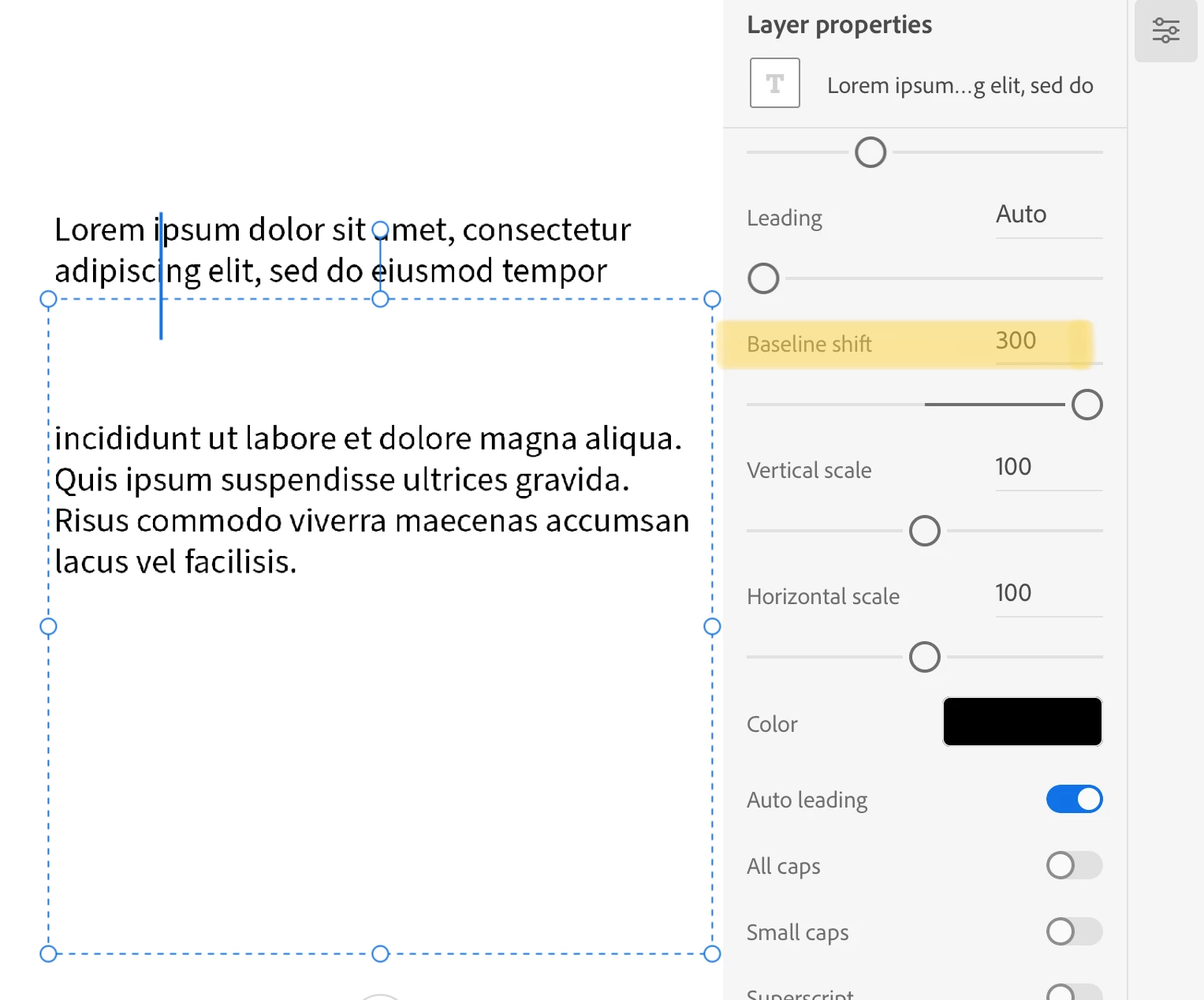


To fix it, here's how: select the text (it's a character setting) and change the baseline shift to zero.


As Pierre said, resetting preferences is drastic and not needed in this case. Resetting the Type tool will also reset the baseline shift to zero. Or you can simply adjust the baseline shift if it happens again.


Jane


3 replies

jane-e
Community Expert
jane-eCommunity ExpertCorrect answer
Community Expert
February 14, 2023

@Uiscee wrote:

When i type a text, it begins outside the text box and the text cursor is bigger than the actual font size.


There is only one setting that can cause those two things to happen. Your text has a very large baseline shift. In this example I selected the text and set the baseline shift to 300. It's doing exactly what you describe.


To fix it, here's how: select the text (it's a character setting) and change the baseline shift to zero.


As Pierre said, resetting preferences is drastic and not needed in this case. Resetting the Type tool will also reset the baseline shift to zero. Or you can simply adjust the baseline shift if it happens again.


Jane


Legend
February 13, 2023

Please post screenshots of your entire document and your character panel so we can see what is going on.

You can also try resetting the type tool.

https://helpx.adobe.com/photoshop/using/using-tools.html

UisceeAuthor
Participant
February 13, 2023

Hi! Thanks for answering!
I did that and the problem was solved, thanks a lot 🙂

PECourtejoie
Community Expert
Community Expert
February 13, 2023

Hi, @Uiscee @what @Lumigraphics @suggested was less drastic: next time, try first to right-click on the text tool icon in the option bar, and if it did nothing, to go to the local menu of the Character Panel. Resetting the preferences might work, but you'll have to reset Photoshop to your liking.

Ranjisha Sengupta
Legend
February 13, 2023

Hi there,


Thanks for reaching out.

Which version of Photoshop are you using? What is the size of the text? Would you mind sharing a screenshot of the entire Window?

You can try to reset the preferences of Photoshop using the steps mentioned here: https://helpx.adobe.com/photoshop/using/preferences.html#reset_preferences

Please back up your settings prior to resetting the preferences.

You can check: https://helpx.adobe.com/photoshop/using/preferences.html#BackupPhotoshoppreferences


Let us know how it goes. 

Regards,

Ranjisha

UisceeAuthor
Participant
February 13, 2023

Hi! Thanks for answering!
I reset the preferences and it solved the problem, thank you!
