AmandaMc14
Inspiring
May 29, 2020
Answered

Text not crisp

  • May 29, 2020
  • 3 replies
  • 1690 views


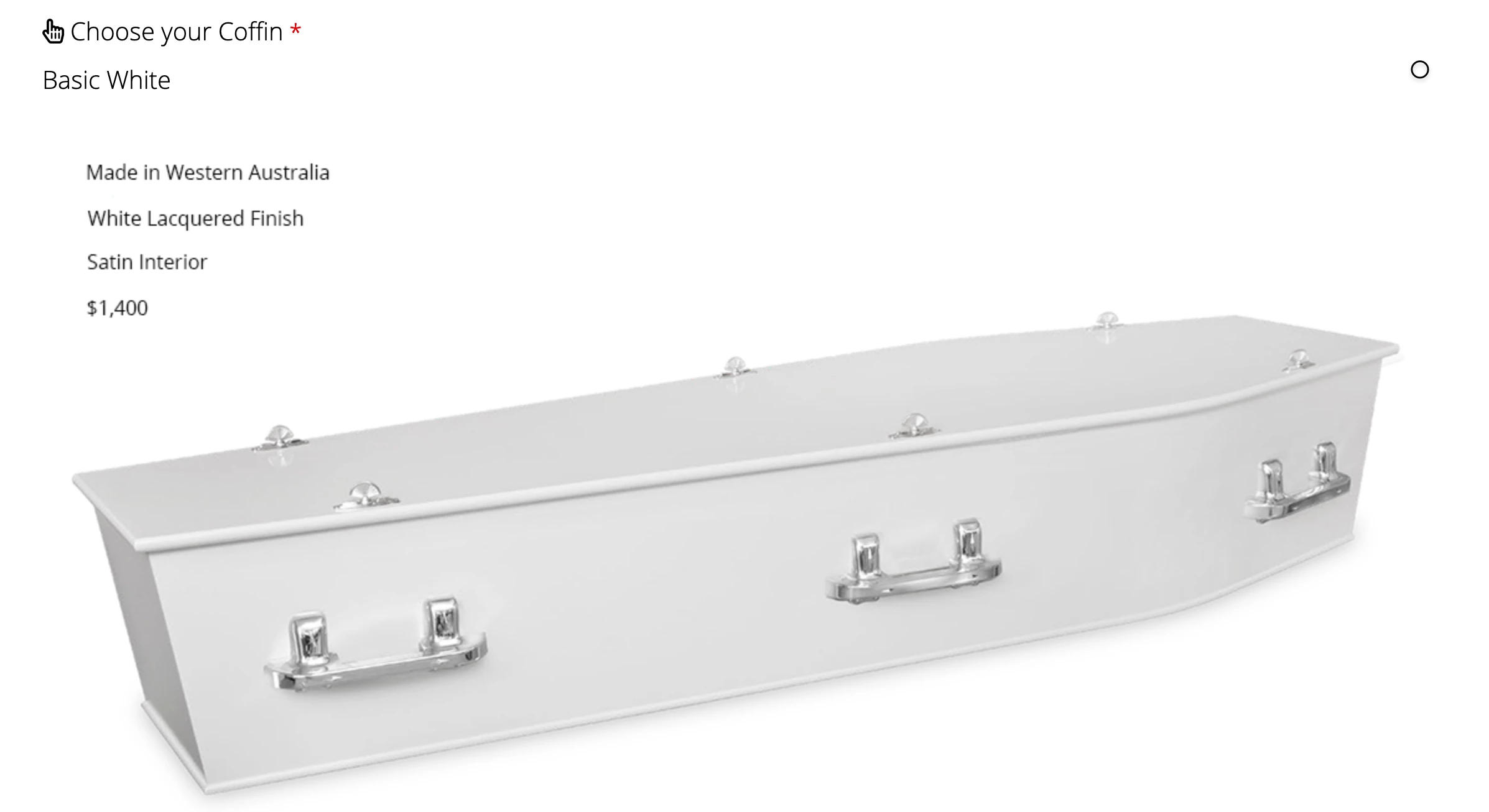
Hi as you can see from the image above which doesn't show it as clearly as what it does on my desktop where the image is bigger but there is text on this website page .. "Choose your coffin, and Basic White", this text is crisp open sans font.  The text attached to the image, which is the same size and same font, is very blurry compared.

I tried saving the image as a png instead of a jpg but it didn't make much difference.  I also tried, crisp, smooth but stuck to sharp.

Any suggestions?  The image is 1118x616 px 72ppi.  The original image without the text was taken as a screenshot from a PDF and then I added the text in photoshop cc.  Using an iMac.

Appreciate your help 🙂

This topic has been closed for replies.
Correct answer Conrad_C

If the first two lines of large text are on a web page, they are being rendered as pure text (vector shapes), always to the full resolution of whichever display they’re on. If you are looking at this on an iMac with a Retina display, it has a resolution of 218 ppi, so that is the resolution of the website text on your computer, and that is why it looks so much sharper than text in an image on the page.


In contrast, the text in the PDF is not being rendered as pure text but as pixels, because it was said to be taken from a screen shot of a PDF. Therefore, the sharpness of the text depends on:

  • Whether the text in the PDF is pure text, or if it’s also an image rendered to a limited number of pixels, which will look mushy.
  • The magnification of the PDF at the time the screen shot was made, since a screen shot at 200% could capture sharper type if it was text and not pixels.


One suggestion would be that, instead of taking a screen shot of the PDF, try opening the PDF directly into Photoshop. This gives you the opportunity to enter a ppi value like 300 ppi, so that any vector or text elements in the PDF should show more detail. But I still would not recommend this because it's not a good idea to pre-render text into pixels. Especially if you are then going to turn it into a low-resolution web graphic, because the low resolution text will always look worse than the fully rendered “real” text on the web page itself.


The best practice way of doing this is: Bring in the image on its own with no text, prepare it for the web, and upload the image. Then add all text on the web page itself, so that the text always renders at the full resolution of the display.


What you should not do is take the 218 ppi of your iMac display and use that as a guide for the ppi resolution of the image or text. Displays come in many different resolutions today across desktops, laptops, tablets, and smartphones, so 218 ppi would work only for others viewing on a Retina iMac.


Instead of thinking of web graphics in terms of 72 ppi, instead think in terms of the pixel dimensions (width and height) required for the website. For example, does the web design suggest an image size like 1200 px maximum so that they fit the page layout? Web browsers automatically scale images for all of those different screen resolutions that are out there; if you are export a 1118 px wide image, different web browsers will try to keep it looking a consistent size regardless of whether it’s being viewed on a older 96 ppi desktop screen or a 530 ppi smartphone screen. That’s why 72 ppi doesn’t really fit in anywhere anymore; it’s all about how many pixels wide and tall.


3 replies

Conrad_C
Community Expert
Conrad_CCommunity ExpertCorrect answer
Community Expert
May 29, 2020

If the first two lines of large text are on a web page, they are being rendered as pure text (vector shapes), always to the full resolution of whichever display they’re on. If you are looking at this on an iMac with a Retina display, it has a resolution of 218 ppi, so that is the resolution of the website text on your computer, and that is why it looks so much sharper than text in an image on the page.


In contrast, the text in the PDF is not being rendered as pure text but as pixels, because it was said to be taken from a screen shot of a PDF. Therefore, the sharpness of the text depends on:

  • Whether the text in the PDF is pure text, or if it’s also an image rendered to a limited number of pixels, which will look mushy.
  • The magnification of the PDF at the time the screen shot was made, since a screen shot at 200% could capture sharper type if it was text and not pixels.


One suggestion would be that, instead of taking a screen shot of the PDF, try opening the PDF directly into Photoshop. This gives you the opportunity to enter a ppi value like 300 ppi, so that any vector or text elements in the PDF should show more detail. But I still would not recommend this because it's not a good idea to pre-render text into pixels. Especially if you are then going to turn it into a low-resolution web graphic, because the low resolution text will always look worse than the fully rendered “real” text on the web page itself.


The best practice way of doing this is: Bring in the image on its own with no text, prepare it for the web, and upload the image. Then add all text on the web page itself, so that the text always renders at the full resolution of the display.


What you should not do is take the 218 ppi of your iMac display and use that as a guide for the ppi resolution of the image or text. Displays come in many different resolutions today across desktops, laptops, tablets, and smartphones, so 218 ppi would work only for others viewing on a Retina iMac.


Instead of thinking of web graphics in terms of 72 ppi, instead think in terms of the pixel dimensions (width and height) required for the website. For example, does the web design suggest an image size like 1200 px maximum so that they fit the page layout? Web browsers automatically scale images for all of those different screen resolutions that are out there; if you are export a 1118 px wide image, different web browsers will try to keep it looking a consistent size regardless of whether it’s being viewed on a older 96 ppi desktop screen or a 530 ppi smartphone screen. That’s why 72 ppi doesn’t really fit in anywhere anymore; it’s all about how many pixels wide and tall.
AmandaMc14
Inspiring
May 29, 2020

Wow thanks Conrad for your explanation.  It is not possible in the layout I am using to add the text to the website (long story) so I am just trying to get it to look as best I can.  I never realised you could open a PDF into photoshop.

lambiloon
Community Expert
Community Expert
May 29, 2020

Hi show us photoshop screenshot so we can help you....regards

Ali Sajjad / Graphic Design Trainer / Freelancer / Adobe Certified Professional
AmandaMc14
Inspiring
May 29, 2020


Thanks Ali

Semaphoric
Community Expert
Community Expert
May 29, 2020

"Text attached to the image" — how? Is it from a .jpg or .png? Does the image have editable text

AmandaMc14
Inspiring
May 29, 2020

Hi I have tried it both ways.  The screenshot comes in at 144 dpi as a png and then I reduce the file size.  Then I add the text and save it as a png.  I originally reduced the dpi to 72 and saved it as a jpg and then added the text and saved it as a jpg.  It doesn't make any difference to the text whichever was I go, the text is still not as crisp as the text on the website.