davids48912930
Participant
February 11, 2022
Answered

Text on a striped background

  • February 11, 2022
  • 1 reply
  • 1164 views

I have a vertically striped background with alternating colours. I want to put text on it so that the text or that part of it takes on the opposite colour to the stripe it is crossing. I have done it with black and white using white text and the difference adjustment on the text layer but when I use other colours such as brown and yellow stripes it ends up with different colours. In the yellow stripes the letter or parts of letters are black and on the brown stripes a pasty green.

Is there a simple way to achieve what I am after?
This topic has been closed for replies.
Correct answer Trevor.Dennis

This might sound like more work than it is, but it really only took me two minutes and it works.


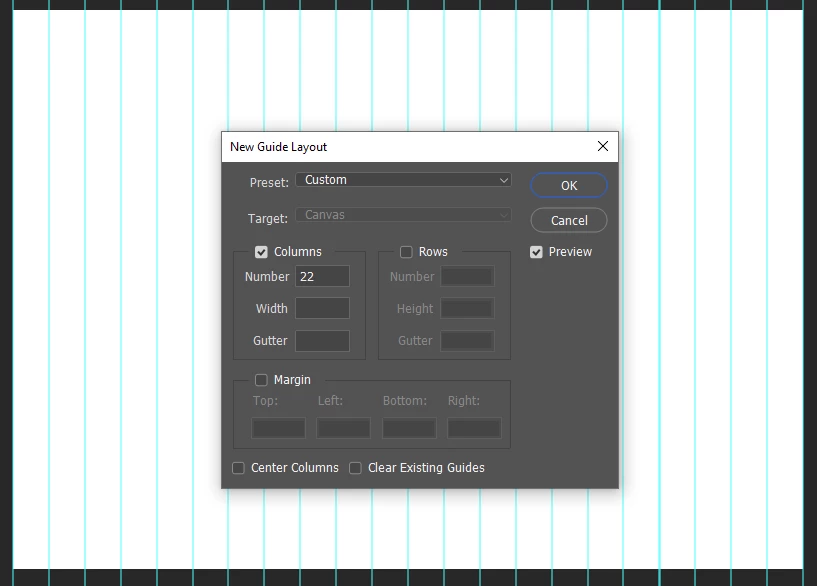
You have 11 brown and 11 yellow stripes, so View > New Guide Layout and set to 22 collumns

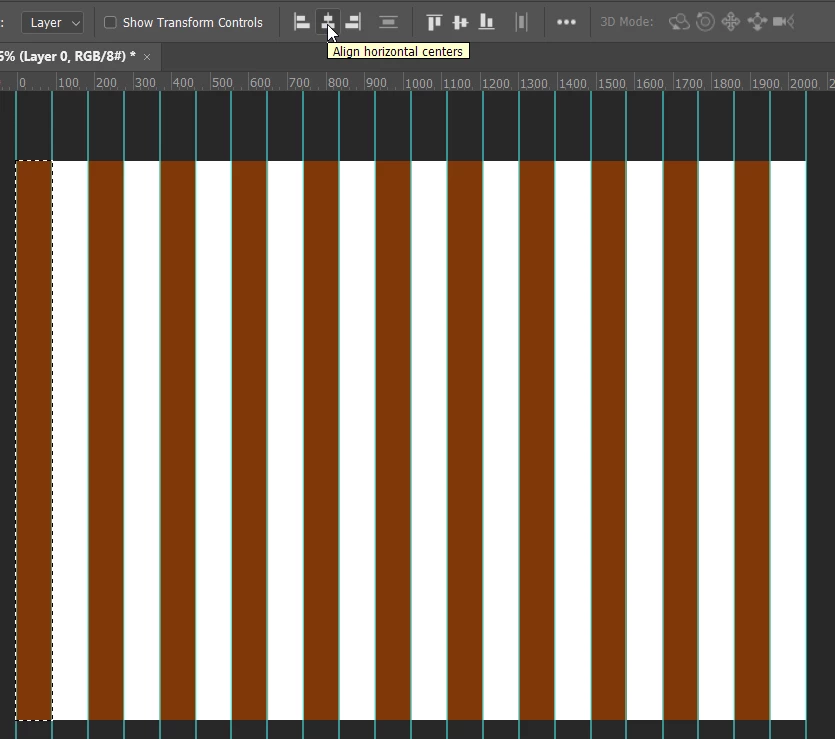
Make sure Snap is turned on, and drag a rectangular marquee to form the first stripe. Fill a new layer with the brown.

Make 10 copies with Ctrl J — drag the top copy to snap into the required position second colum from right, and use Move > Align to distribute the layers.  Merge the layers with Ctrl E

Do the same for the yellow collums.

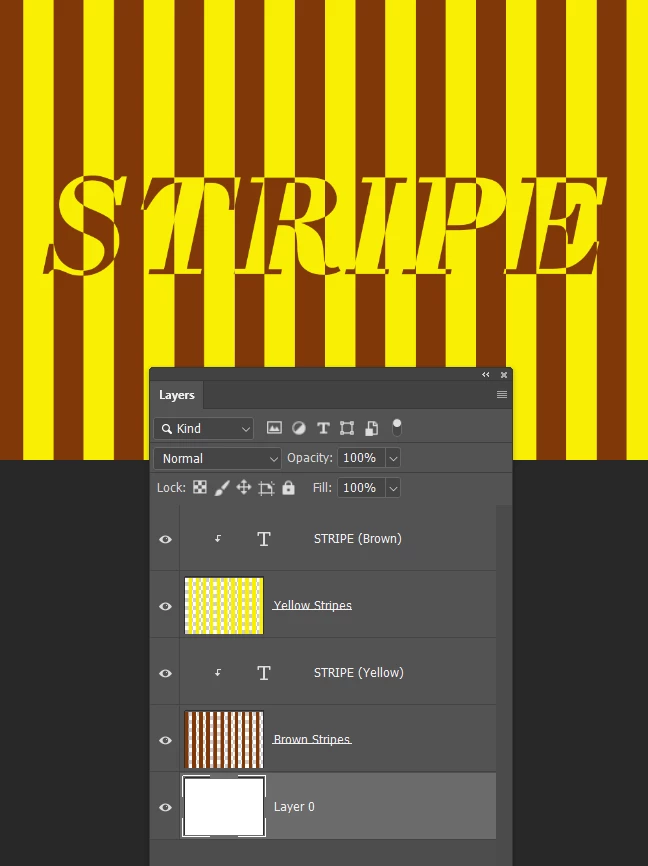
Make your text layer and use brown and clip it to the yellow columns

Copy the text layer making it yellow and clip it to the brown columns

You can see it is not really complicated and I can't think how to do it with blend modes.


1 reply

Trevor.Dennis
Community Expert
Trevor.DennisCommunity ExpertCorrect answer
Community Expert
February 11, 2022

This might sound like more work than it is, but it really only took me two minutes and it works.


You have 11 brown and 11 yellow stripes, so View > New Guide Layout and set to 22 collumns

Make sure Snap is turned on, and drag a rectangular marquee to form the first stripe. Fill a new layer with the brown.

Make 10 copies with Ctrl J — drag the top copy to snap into the required position second colum from right, and use Move > Align to distribute the layers.  Merge the layers with Ctrl E

Do the same for the yellow collums.

Make your text layer and use brown and clip it to the yellow columns

Copy the text layer making it yellow and clip it to the brown columns

You can see it is not really complicated and I can't think how to do it with blend modes.


Trevor.Dennis
Community Expert
Community Expert
February 11, 2022

Whoops.  I forgot to turn the Yellow Type layer on in the second screen shot above.  I've fixed and changed the image now.

davids48912930
Participant
February 12, 2022

What an elegant solution.Thanks. I created the original background with a pattern which won't work with your solution, however you showed me the New Guide Layout which I am sure I will use again. I found that by selecting both text layers I can change the font and size but if I want to change the the text itself I have to do it on each individual layer. This is the first time I have asked a question in this forum and I am extremely pleased with the result.