Participant
August 13, 2024
Answered

The bucket tool is not working properly

  • August 13, 2024
  • 2 replies
  • 1890 views

Can someone explain to me why the bucket tool is not working as usual and how I can fix it?


I wanted to fill just the inside of the circle, but instead it fills all the workspace except the draw already existing.


  

This topic has been closed for replies.
Correct answer jane-e

Anyone?  I'm still stuck on this and not having the fill ability is really messing up my images.


Thanks.


@JohnnyScience 


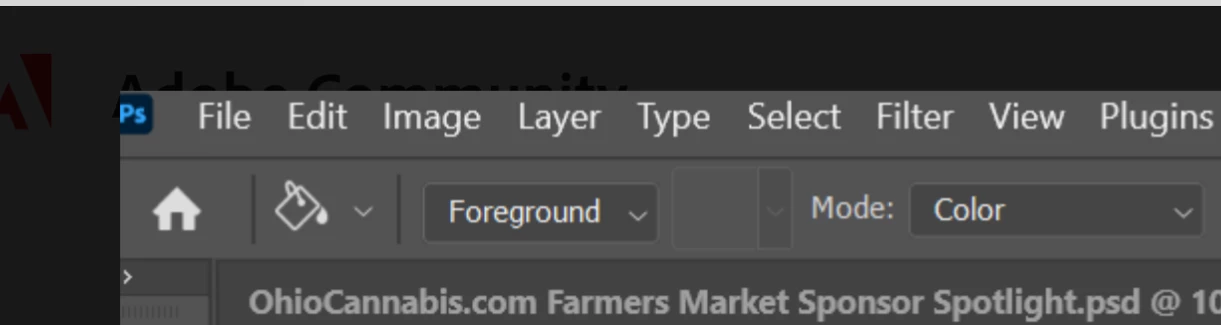
Change the Mode from "Color" to "Normal"


Jane


2 replies

davescm
Community Expert
Community Expert
August 14, 2024

@Mara99 Go to the options bar, for the paint bucket tool, turn on Anti-Alias and then adjust the tolerance value until you get the result you need


Dave

Mara99Author
Participant
August 18, 2024

Hi, thanks for the advice was really useful. I asked for help first to Adobe Care in X (twitter) and they told me to reset the tool, which worked. So I think your suggestion would worked as well. I take note for the next time, thanks!

Sameer K
Community Manager
Community Manager
August 14, 2024

Hey, @Mara99. Welcome to the Photoshop Community. I'll need more info to help you figure this out.


Is the 'All Layers option' selected for the Paint Bucket tool? Try this:


If this does not help, ensure there are no stale preferences in your Photoshop. Go to the location of the preference folder below and rename it to backup.

  • Windows 10/11: Users/[user name]/AppData/Roaming/Adobe/Adobe Photoshop [version]/Adobe Photoshop [version] Settings
  • You can press Press the Windows key > Enter 'Run' > Enter %APPDATA%\Adobe
  • Rename the Adobe Photoshop folder by adding a .old at the end. (Adobe Photoshop 2024 > Rename > Adobe Photoshop 2024. old), you can later restore these preferences if needed.(https://adobe.ly/4860qM9)
  • Restart the computer.

These changes will give a fresh start to Photoshop as a fresh install. Let me know how it goes.

Thanks!

Sameer K

(Use '@mention' to tag me when you reply)

Mara99Author
Participant
August 18, 2024

Hi, thanks for the advice was really useful. I was using the tool in the same layer, so I really don't know what was the issue. I asked for help first to Adobe Care in X (twitter) and they told me to reset the tool, which worked. So I think your suggestions would worked as well. I take note for the next time, thanks!