Inspiring
June 4, 2023
Answered

The confusing crop tool - setting 900 x 900

  • June 4, 2023
  • 2 replies
  • 856 views

I have never understood well the confusing crop interface.


I 'm trying to make a preset 900px x 900px

But it says px/ inch  which is it? px or inch?
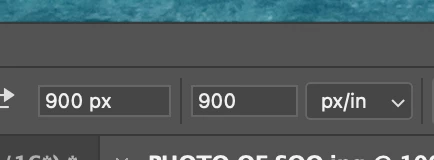


And when I drag out, I still get a retaangle not a square!


ANd if I try to type px  in 2nd box, wont allow cursor in. Stumpe thanks.

 

This topic has been closed for replies.
Correct answer D Fosse

It is a bit confusing.


First you need to set the rolldown to W x H x Resolution, not Ratio.


Then type in measurement units as px. You can set a ppi number in the third field, or you can leave it blank. Doesn't really matter.


The important thing here, what you need to consider, is that this will resample the crop! Are you absolutely sure that's what you want?


If you don't want to resample, just crop out 900 x 900 pixels from the existing image, you use the Rectangular Marquee set to "fixed size".

2 replies

D Fosse
Community Expert
D FosseCommunity ExpertCorrect answer
Community Expert
June 4, 2023

It is a bit confusing.


First you need to set the rolldown to W x H x Resolution, not Ratio.


Then type in measurement units as px. You can set a ppi number in the third field, or you can leave it blank. Doesn't really matter.


The important thing here, what you need to consider, is that this will resample the crop! Are you absolutely sure that's what you want?


If you don't want to resample, just crop out 900 x 900 pixels from the existing image, you use the Rectangular Marquee set to "fixed size".

larry45Author
Inspiring
June 4, 2023

D Fosse thanks ok great, I got it!


I was using the last two boxes as W and H, not two first fields.  whew


You would think after 20 years PS would label those spot on...none are labeled at at all, none... , not 1st , 2nd or mystery 3rd. Wow


BTW,  res did not change, started at 300 and stayed at 300 on my new test.

Conrad_C
Community Expert
Community Expert
June 4, 2023

There are labels, if you pause the pointer over the fields to see the tool tips…see the demo below.


The fields correspond to what you selected in the menu. For example, if you select W × H × Resolution, then you get three fields, which correspond to W, H, and resolution because that’s what you chose. Here, it might be nice if Adobe added “W” and “H” next to the fields like Photoshop has in other panels (resolution is already labeled by the “px/in” menu). Fortunately, as soon as you enter a dimension value, Photoshop labels it with the current ruler units (my example below shows that after I typed 35, Photoshop added the “px”). And as shown, if you right-click the field you can change the units at any time.


So those fields are not entirely unlabeled.


If you select Aspect Ratio, you get two fields, so naturally it’s the two dimensions of your ratio (W × H). A ratio has no unit of measure, so if Aspect Ratio is selected, no unit labels are needed next to the fields.

c.pfaffenbichler
Community Expert
Community Expert
June 4, 2023

Could you please post complete screenshots with the pertinent Panels (Toolbar, Layers, Options Bar, …) visible? 


The 900px/in in your screenshot are the resolution, the width is not included in the screenshot.