


Participating Frequently
September 15, 2022
Answered

the masking after selection from the color range

  • September 15, 2022
  • 2 replies
  • 531 views

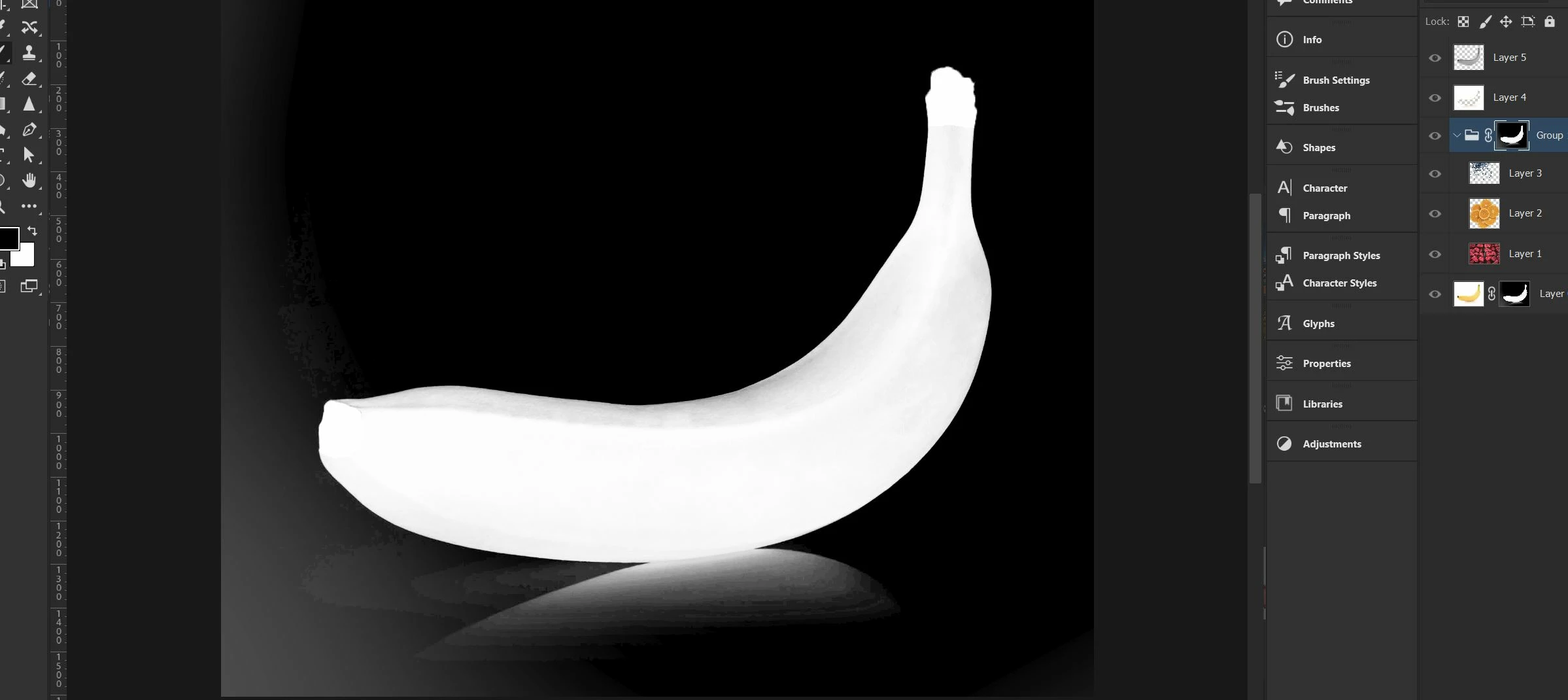
i selected this banana shaped by the color range selection and then i made the layer mask of the selection

but i want to make some changes to the layer mask by painting with the black paint brush -> infact i want to  darken those white pixels  at the lower left corner but the brush tool is not painting

anyone pleease help
This topic has been closed for replies.
Correct answer olivierd42825091

As c.pfaffenbichler said, we don't have much info to understand the issue, just make sure your brush is in normal blending mode, black color and 100% opacity before you paint in your mask. There can also be an hidden selection when you selected with "color range" so painting won't work if its not in the selection.

2 replies

Inspiring
September 15, 2022

Hi,

It can be easely done if your "layer 4" has the right cut-out banana (as it seems on your screenshot):

- Hold "ctrl" and click on "layer 4" (on the layer thumbnail, not the name) > you will get a selection of everything outside the banana.

- Select your group mask layer and either fill with black or paint with a black brush where you need to.

Alternatively, if your "layer5" has the right cut banana shape, hold ctrl and click this layer. Then invert your selection (ctrl+maj+i). You can now select your group mask and paint or fill with black.

Another way could be to use"levels" directly in your mask layer (ctrl + L) and play with the setting to darken any grey area.

Rgds,

olivierd42825091Correct answer
Inspiring
September 15, 2022

As c.pfaffenbichler said, we don't have much info to understand the issue, just make sure your brush is in normal blending mode, black color and 100% opacity before you paint in your mask. There can also be an hidden selection when you selected with "color range" so painting won't work if its not in the selection.

Participating Frequently
September 17, 2022

ok Thanks for helping and sharing how to resolve the issue

c.pfaffenbichler
Community Expert
Community Expert
September 15, 2022

Please post a meaningful screenshot instead of a needlessly clipped one. 

As it is we cannot even see the Tool’s Blend Mode and Opacity in the Options Bar.