칸투칸 본사
Participant
October 25, 2017
Answered

There is a leading error.

  • October 25, 2017
  • 3 replies
  • 603 views

Good morning

I have a 2018 photoshop update.

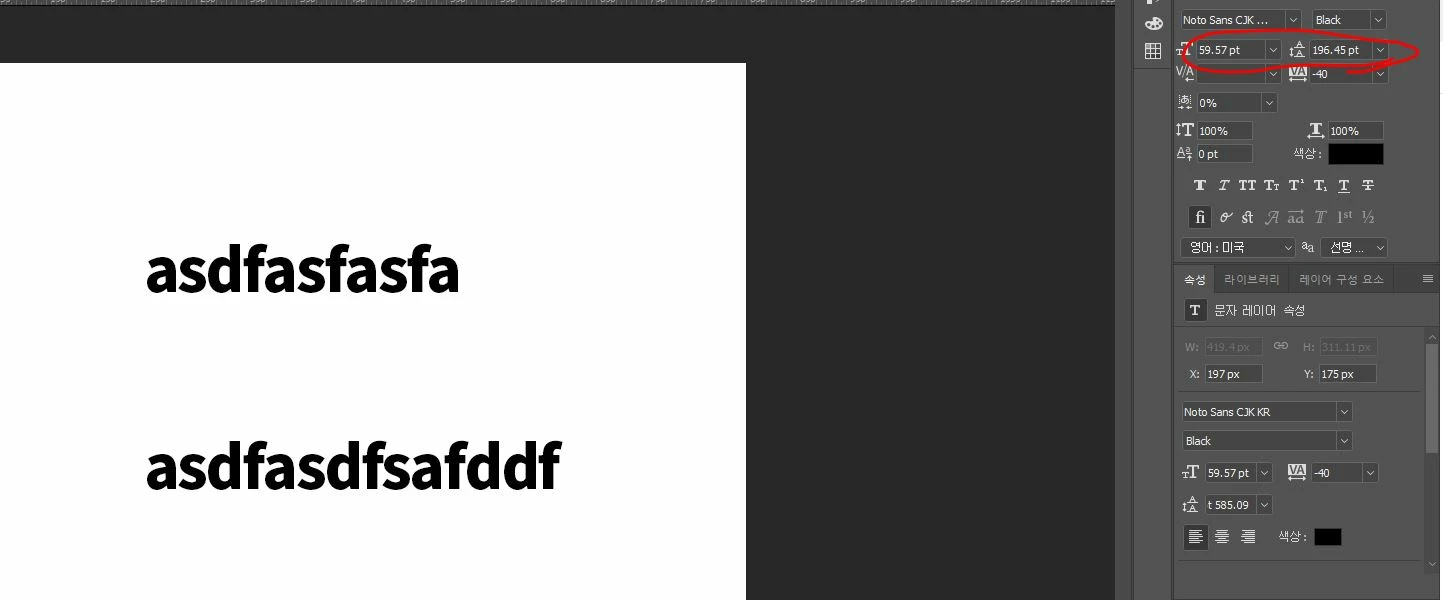
An error occurred while entering the line after the update.

If you increase the size of the text with a transform, the font size and leading size are entered to the decimal point.

If you enter a number in a line-to-line field entered as a decimal point, a number other than the entered number is entered. The same phenomenon occurs when changing the size with the mouse wheel.

I wait for an answer with this question.
    This topic has been closed for replies.
    Correct answer Sahil.Chawla

    Hi,

    We have released an update for Photoshop which is Photoshop CC (19.0.1). This update includes many (50+) bug fixes for the top customer reported issues in 19.0. To update Photoshop CC to 19.0.1, click "Update" in the Creative Cloud desktop application next to Photoshop CC. Please check this link for more info: Photoshop CC 19.0.1 now available | Photoshop Family Customer Community

    Regards,

    Sahil

    3 replies

    Sahil.Chawla
    Adobe Employee
    Sahil.ChawlaCorrect answer
    Adobe Employee
    November 14, 2017

    Hi,

    We have released an update for Photoshop which is Photoshop CC (19.0.1). This update includes many (50+) bug fixes for the top customer reported issues in 19.0. To update Photoshop CC to 19.0.1, click "Update" in the Creative Cloud desktop application next to Photoshop CC. Please check this link for more info: Photoshop CC 19.0.1 now available | Photoshop Family Customer Community

    Regards,

    Sahil

    davescm
    Community Expert
    Community Expert
    October 25, 2017

    The problem has been acknowledged by Adobe.

    As you rightly say, it occurs on text that has been transformed.  There is a workaround that allows you to enter the leading values :

    a. Enter the leading value in the Properties panel.

    b. When you hit enter, the value in the properties panel box will change to something different (that is a bug) but the value you entered will now show correctly in the Character panel

    c. The value applied to the text will be the same as you entered and now shown in the character panel

    Note : The workaround does not work backwards - you must enter in the properties box.

    Dave

    Inspiring
    October 25, 2017

    This is due to Photoshop CC 2018:Character leading broken.Refer the link given.

    Photoshop CC 2018: Character leading broken | Photoshop Family Customer Community

    the workaround for this particular issue is to use the shortcut keys to increase or decrease the line spacing rather than use the cursor.(use option+down arrow key), if you are using mac, for windows (alt+down arrow key).

    I hope it helps you!