
pigulici
Inspiring
November 28, 2016
Answered

Timeline and keyframes problem

  • November 28, 2016
  • 1 reply
  • 3140 views

I try to edit a short movie in Photoshop CC and I am a new in this part of editing(video editing): I have a little movie on who I need to remove some parts, write some words and blur some parts(plate number of cars, sometimes are 2 cars or/and are on another layer), but I get stuck at the part with blur, I used the method from this link:

Photoshop CS6: How to hide a face in a video - YouTube

You can see in my image that I did the mosaic on layer 'Layer 1copy 6' and Mask vector position keyframes are with yellow, but when I move to 'Layer 1 copy 7', and try to do same thing, I can't, like I did not ended on previous layer, so even if I try to put 'manual' a keyframe in my new position on 'Layer 1 copy 7', it will put and select on 'Layer 1 copy 6', I know it is possible because I already did it for layer 1 and 2, somehow, but now not working anymore:
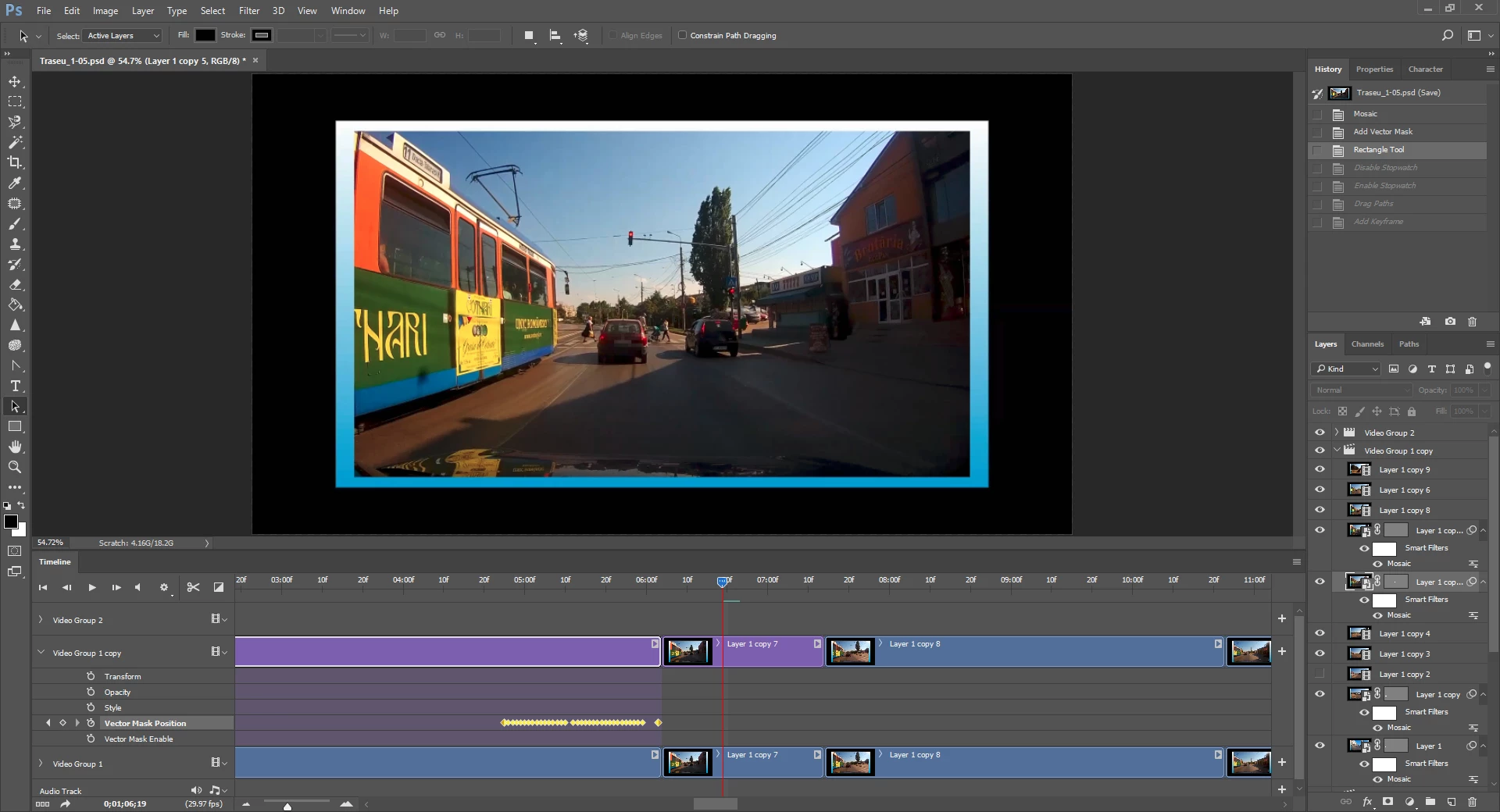
Anyone can help me? Hope make sense what I need.
This topic has been closed for replies.
Correct answer pigulici

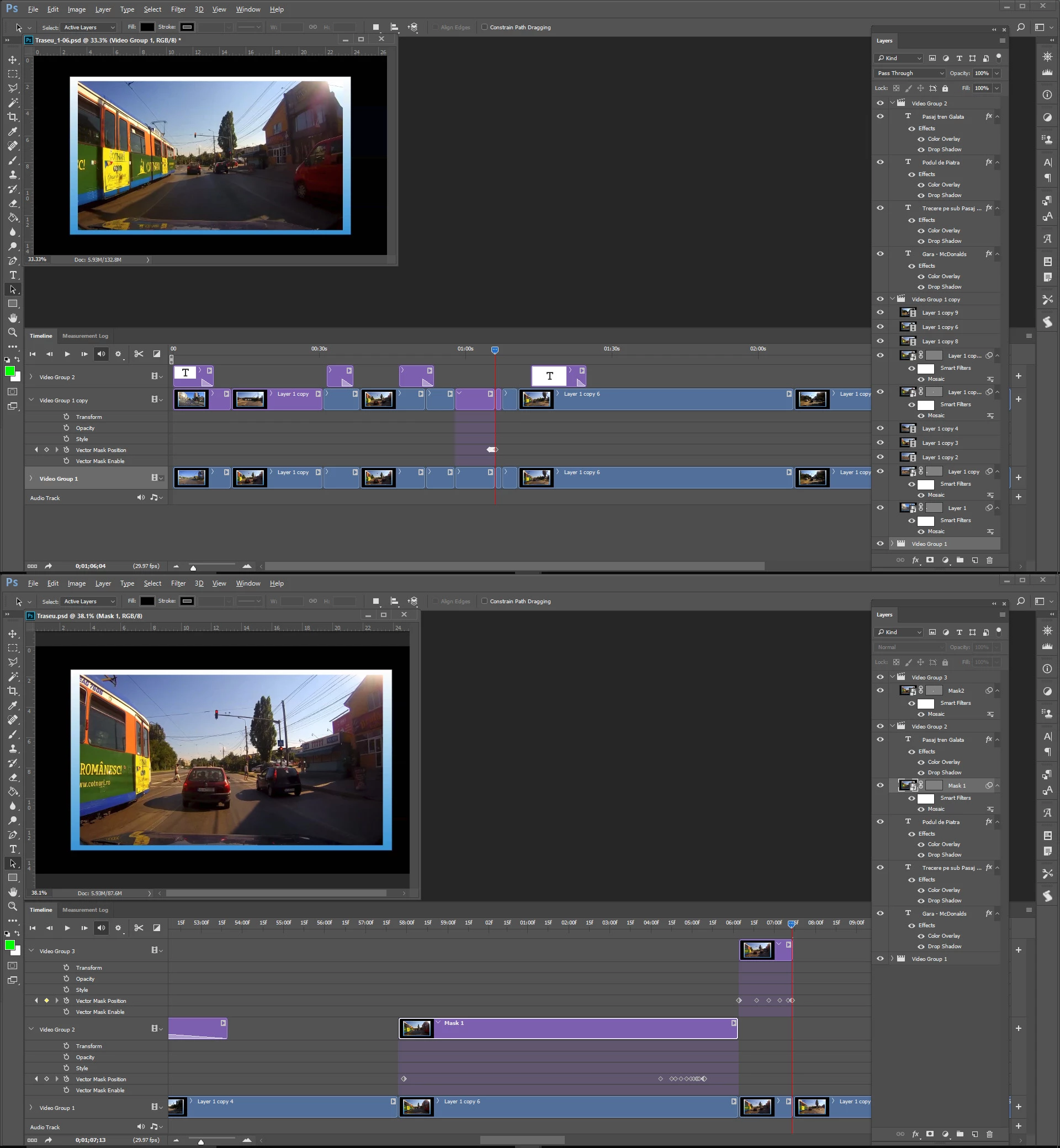
I do not do video.  What I found out was I needed to crate a new video group.  I moved the first video you masked to video group 2 and moved the second one you masked to video group 3 and I deleted the video group 1 copy.  I then redid the First mask positioning then added the position the the second mask in video group 3.   Like you I was not able to animate the position of more than one vector mask in a video group.


I get it in the end, on a group, you can define the position/size/other properties only for 1 item, so if you have to blur 2 items(like 2 faces) you must do each face on his own group...

1 reply

JJMack
Community Expert
Community Expert
November 28, 2016

We can not see the name of the video that have the vector mask or which video in the timeline that has all the key frames where the mask was moved is not visible. The position in the timeline of the current frame may or may not have a mask can not see all of the layers palette can not see copy 7 in the layer palette some copy names are truncated. The thee copies with mask names are not visible

JJMack
pigulici
piguliciAuthor
Inspiring
November 28, 2016

See now:

JJMack
Community Expert
Community Expert
November 28, 2016

The tutorial also masked a video copy moved out of the video group.  You seem to have two video groups with all video layer in one group the second group seems to be empty. And your screen capture still shows a frame in an unmasked video in  copy 7 most likely.

JJMack