Inspiring
December 8, 2020
Answered

Timeline Animation question (newbie)

  • December 8, 2020
  • 1 reply
  • 778 views

Hello. I'm making a series of 6-7 short digital videos using the Timeline (because one file was too big to handle due to my heavy layers). I am using PSB format (which I think is for larger files) but I'm going to try to keep my layers simpler and less heavy now). I duplicated video 1 in order to keep settings and use the last few layers/frames for video 2. 

ISSUE

I have about 26 layers already in my 2nd file (video 2) and want to preview the video in timeline. But when I open Timeline to Create Frame Animation (see first screenshot), only one frame (the last frame of my animation) shows up in the horizontal preview (I've tried alternately to select the first frame of my animation and also select all frames of my animation before trying this). Then when I toggle between views to the list preview (sorry don't know what it's called) (see 2nd screenshot), all the frames are there. I figure I picked up some wonky setting from the original file. Does anyone know how I can clean the slate and start new so all my layers also show up in horizontal frame animation view? I've selected Delete Timeline from the Timeline menu, but even though I then save the file and try Timeline again, the same thing happens. 

Thanks!

This topic has been closed for replies.
Correct answer JJMack

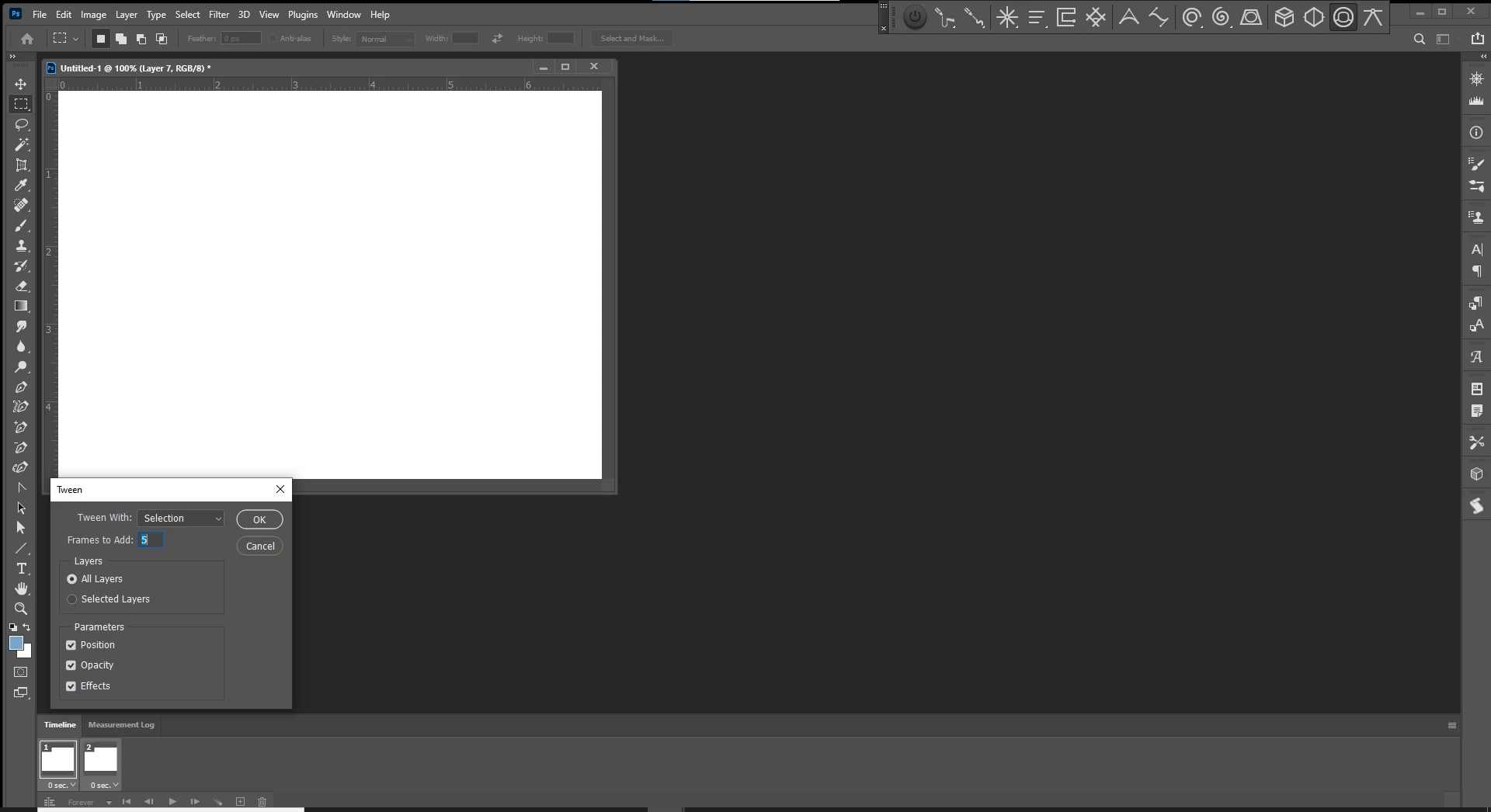
You can use the Frame Animation Panel's fly-out menu Make Frames from layer. If each layer is intended toe be user as a frame.  A frame is the composite of the visible  layers in a frame.  You can use + icon in the frame animation panel to add a frame then set layers visible in it.  You can add frames with tweem between frames and have Photoshop generate the frames. You can move  a layer's location in a frame, change its opacity, and effects.

1 reply

EimiliaAuthor
Inspiring
December 8, 2020

PS sorry I can't seem to edit my original post just now (the "...More" isn't opening for me (I've disabled ad blockers), but I wanted to add my screenshots as photos so no one has to download those attachments.

JJMack
Community Expert
JJMackCommunity ExpertCorrect answer
Community Expert
December 8, 2020

You can use the Frame Animation Panel's fly-out menu Make Frames from layer. If each layer is intended toe be user as a frame.  A frame is the composite of the visible  layers in a frame.  You can use + icon in the frame animation panel to add a frame then set layers visible in it.  You can add frames with tweem between frames and have Photoshop generate the frames. You can move  a layer's location in a frame, change its opacity, and effects.

JJMack
EimiliaAuthor
Inspiring
December 8, 2020

Thanks so much, JJ! That did it 🙂