
Question
Toggle layer mask on/off as rubylith (quick mask) changes brush colors
Version of the app: 25.0 (possibly other as well)
Platform and OS version: Windows 10, x64 (possibly: all)
Basic steps to reproduce the problem:
- Create a new document.
- Create a new color fill (green) layer with an empty mask.
- Activate the layer mask and invert the mask (Ctrl+i)
- Press D to reset to default brush colors. Press B to select the Brush tool. Set hardness, opacity, flow to max. Size to 100. Draw random strokes on the layer mask.
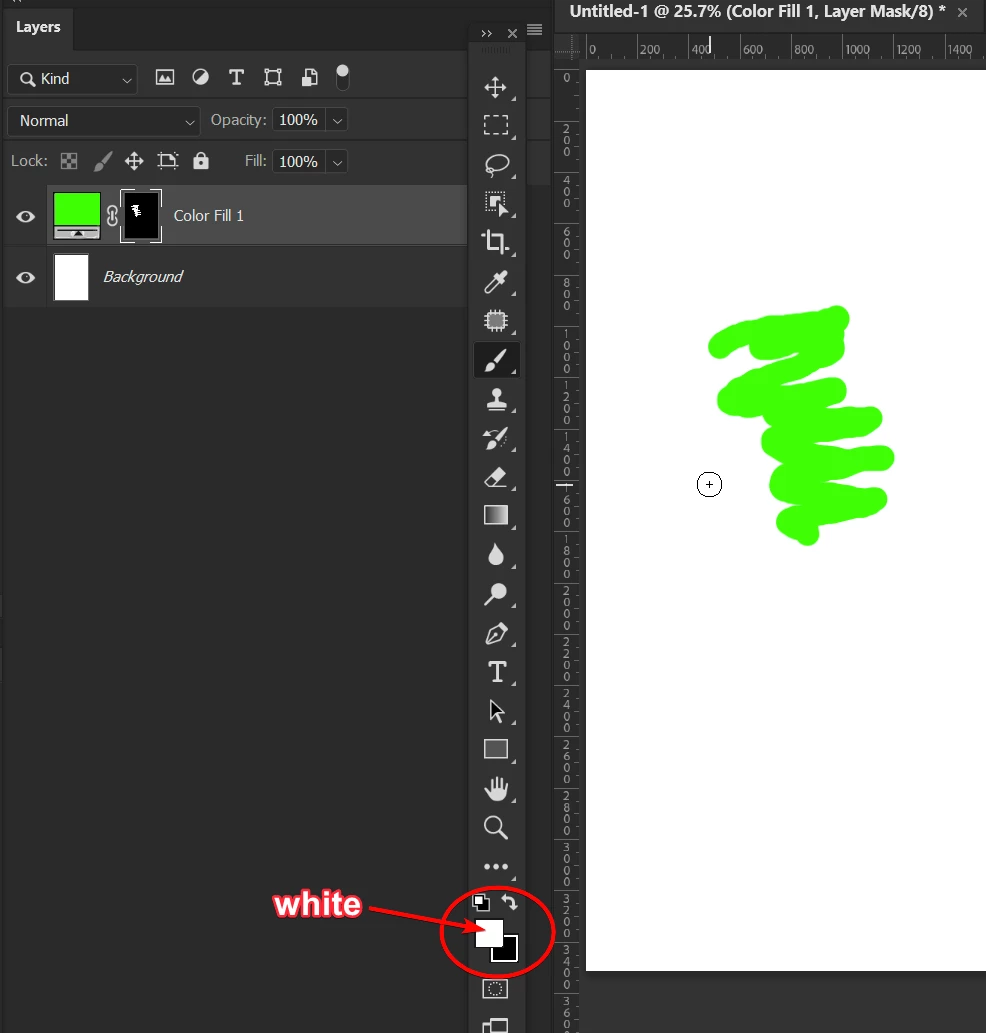
- Press \ (Backslash) to activate "layer mask as rubylith"
- Notice the brush color changed to black. Try to paint on the mask - now the brush strokes hide the layer content. (I've changed the default rubylith color to gray)
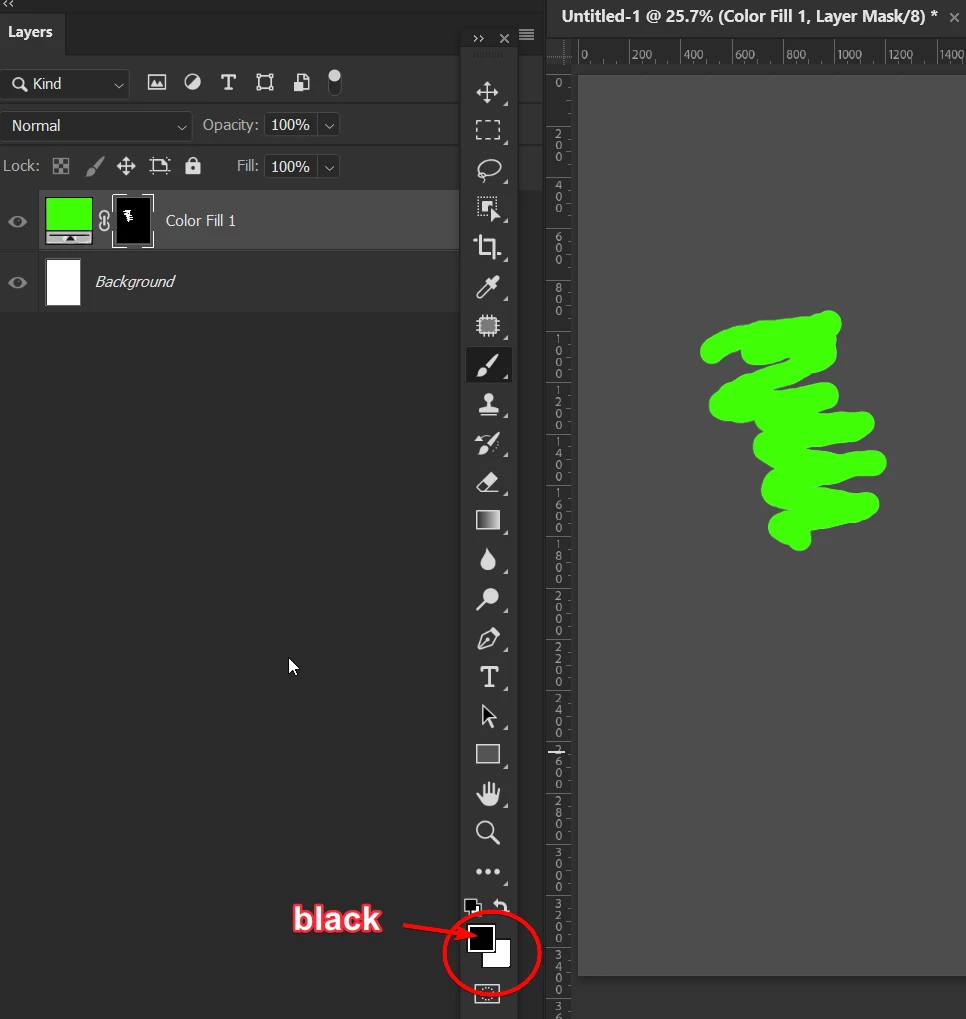
- Press \ (Backslash) again to deactivate "layer mask as rubylith". Now the foreground tool color changes back to white and brushstrokes again reveal the layer content.
Expected result and actual result:
While having a mask selected, the color of the brush should NOT change when I activate rubylith (Quick Mask). Use case: When masking I work without rubylith visible to the initial pass, then I enable rubylith to focus on edges and detail and cycle the rubylith off and on.
(Actual result) Every time I toggle rubylith I have to pay close attention to the brush color. I often have to undo a brush stroke due to an unexpected color swap.
(Expected result) I expect that brush strokes behave the same no matter if I have rubylith enabled or not.
 AdChoices