
Participating Frequently
December 3, 2021
Answered

Toolbar Issue

  • December 3, 2021
  • 2 replies
  • 1158 views

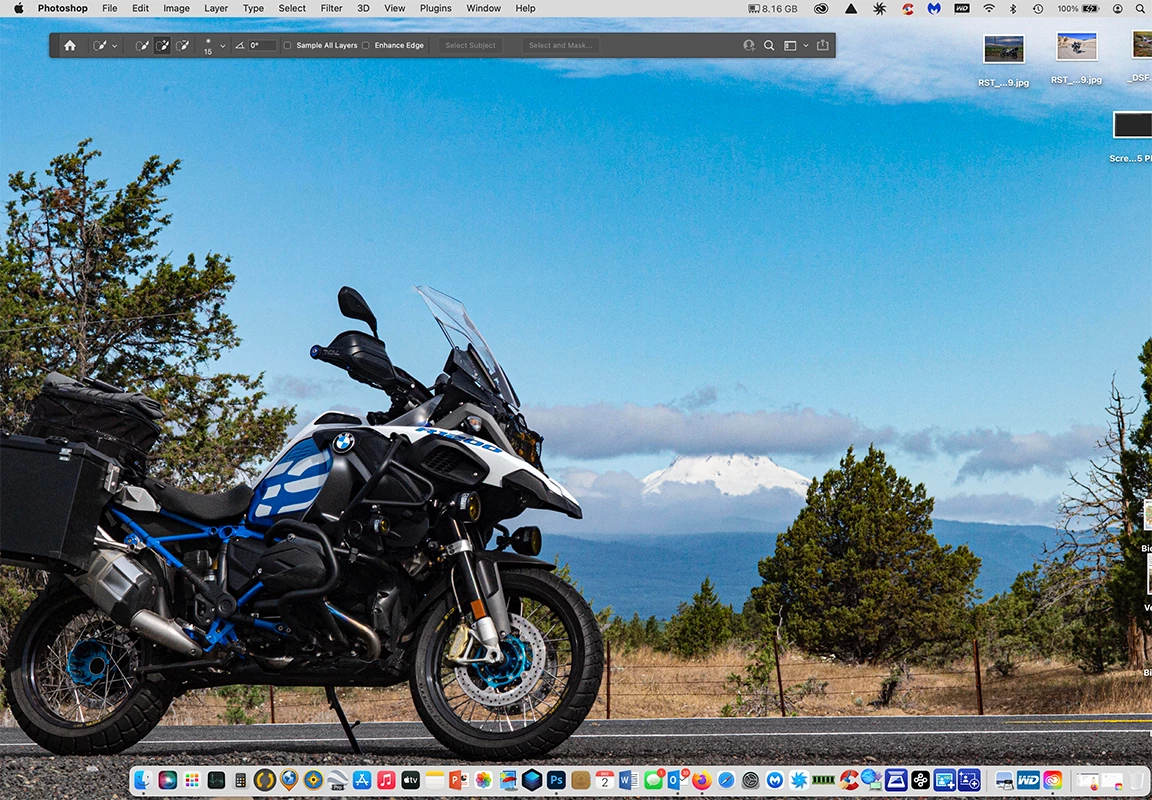
My MacBook Pro is up to date and Photoshop is, too.  Photoshop open just fine and function normally but, when I close it, the toolbar remains on my desktop.  I can double click the pad and it goes away.  It has never done this before and I was wondering how I could correct it.


Mike
This topic has been closed for replies.
Correct answer jane-e

Well, Jane, I tried that and must have done something wrong.  The Options bar is gone altogether.  It's no longer  available in Photoshop.

Mike


Hi @michaelgc 


You can bring back the options bar by:

  • Window > Options
    or
  • Window > Workspace > Essentials, followed by
    Window > Workspace > Reset Essentials

https://helpx.adobe.com/photoshop/using/workspace-basics.html


Jane

2 replies

jane-e
Community Expert
Community Expert
December 3, 2021

@michaelgc wrote:

... when I close it, the toolbar remains on my desktop


Hi

When you Quit Photoshop, the black dot in the Dock will go away and the menu bar will not say "Photoshop". Right now, Photoshop is still open.


You can quit with:

  • File > Quit
  • Cmd+Q
  • Press and hold the Dock icon


Jane


michaelgcAuthor
Participating Frequently
December 3, 2021

Thank you Jane-e.  Yes, I can quit Photoshop and the toolbar does go away.  Until very recently, though, I could simply save and close an image in Photoshop and, even though the Photoshop Icon displayed the black dot, I didn't have the toolbar remaining.

Mike

jane-e
Community Expert
Community Expert
December 3, 2021

Hi

That's a second issue, also easy to solve (fortunately). Your options bar is floating and not docked. Floating toolbars stay in front.


I use the Application Frame (Window menu). You can see here that I have floated my Toolbar.


When I close the image, the floating toolbar stays in front.


The fix is to dock the options bar. There are two ways to do that:

  • Drag in back to the Drop Zone (blue line)
    or
  • Window > Workspace > Reset [current name] Workspace


I hope this helps.

Jane


Legend
December 3, 2021

It looks like Photoshop is still active and the Options bar is showing. Hard to tell from the screen shot what is wrong.


Pehaps getting Photohop back to a default state will help. If you restore your preferences using this manual method does it work correctly?
https://helpx.adobe.com/photoshop/using/preferences.html#Manually
If that doesn't solve it, you can quit Photoshop and put the Settings folder back.

michaelgcAuthor
Participating Frequently
December 3, 2021

Thank you, Jeffery, for the fast reply.  I navigated to my computer's Library to the Preferences and found this:

It seems I have quite a few iterations of Adobe Settings.  Are all of these needed?

Mike