Inspiring
February 24, 2022
Answered

Transparency and Opacity issues in Photoshop

  • February 24, 2022
  • 15 replies
  • 2820 views

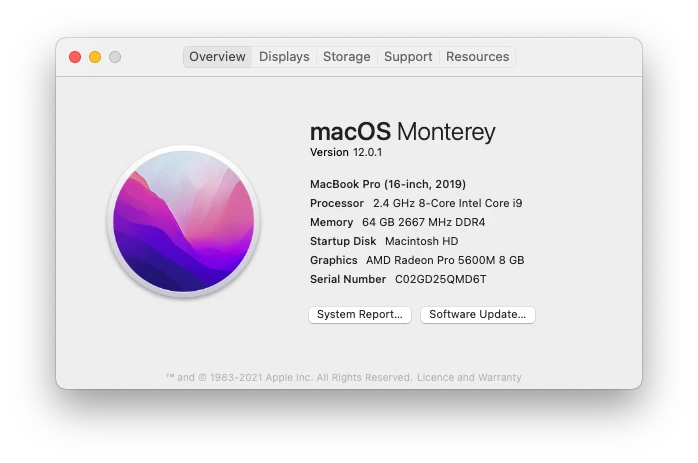
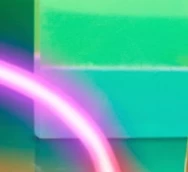
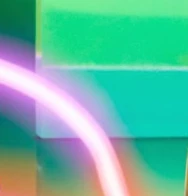
I'm having issues with any images that contains a transparant layer at a opacity or any adjustment layers with a opacity. It display and save out different from the same file from my colleagues.  My Photoshop is currently the latest version, as Creative Clouds keeps all my Adobe apps up-to-date and my Mac Pro laptop is less then 7 months old, again my system OS is the latest version.  I have checked and adjusted my settings and perferences in Photoshop to my colleagues, minus one or two short-keystrokes, but still display and save out differently to them.  I have attached an example and the spec of my Mac Pro.

Original:

How it display in my Photoshop:
  

This topic has been closed for replies.
Correct answer Wai-Ying23313175qfou

Hey @J453 @Earth Oliver I think we have resolved this now!

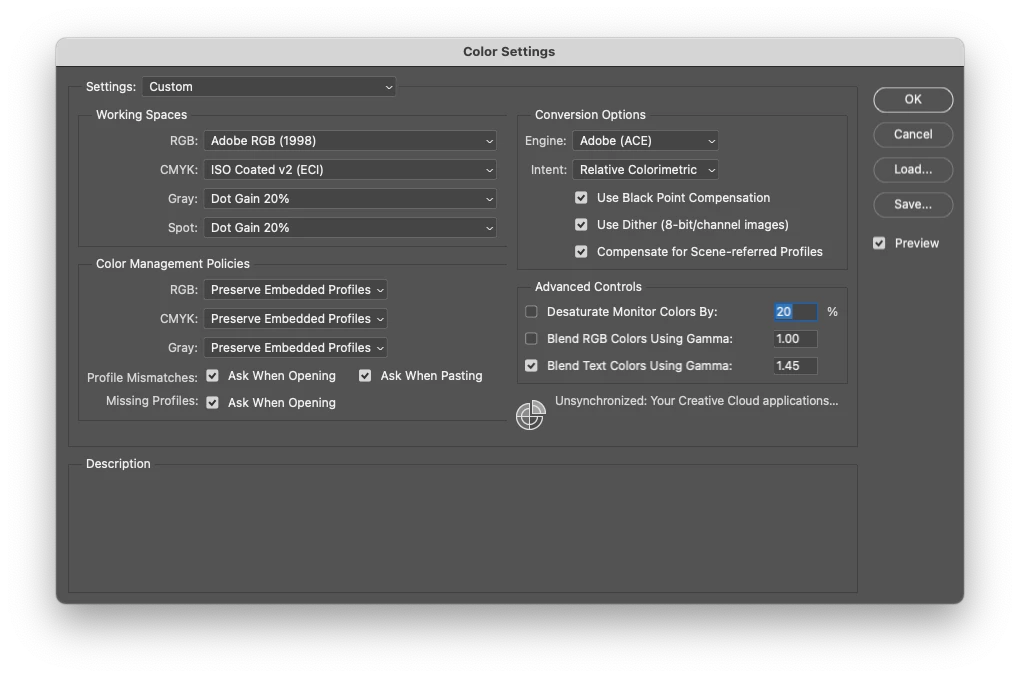
After @Earth Oliver wanting to see my Color Settings, I went away and double checked on our our internal team and our Freelancers settings as well.  We all now use this settings:

We conclude that PS default setting is to have Blend RGB Colors Using Gamma OFF, while I perfer to have this ON because colormetricly correct and more accurate, having this OFF is more compatible with all other versions of PS including on both Mac OS and Windows OS.  Some of our internal team had recently had their machine upgraded, hence why all the other Color settings are correct to mine except for the Blend RGB settings which revert back to the default OFF.

Thank-you both for your investigative work and taking the time to review this problem.

15 replies

Legend
March 1, 2022

It looks the same in all version of Photoshop that I open this PSD in and view at 100%:

2019 on the left and 2022 on the right:

In your "Original" image above, what are you viewing and what are you viewing it in? Is it a PSD? Is it in Photoshop? Or another application?

Inspiring
February 28, 2022

Hey Jeffrey,
Afraid your solution to remove the MachinePrefs.psp didn't work.
Same PSD, same outcome as before:


Thank-you for looking at this problem.

Legend
February 25, 2022

We weren't able to repro. We have other reports that MachinePrefs.psp was causing this issue.


1. Quit Photoshop

2. Navigate to Photoshop's Preferences folder.

macOS: Users/[user name]/Library/Preferences/Adobe Photoshop [version] Settings

Windows: Users/[user name]/AppData/Roaming/Adobe/Adobe Photoshop [version]/Adobe Photoshop [version] Settings

3. Remove the file called MachinePrefs.psp from inside the settings folder and move it to your desktop


If that fixes the issue, please share the MachinePrefs.psp file.

Inspiring
February 24, 2022
Legend
February 24, 2022

Can you provide the file above that exhibits the behavior? (use dropbox of CC files to share a a download link)