Participant
December 12, 2017
Resuelto

transparent background

  • December 12, 2017
  • 4 respuestas
  • 878 visualizaciones

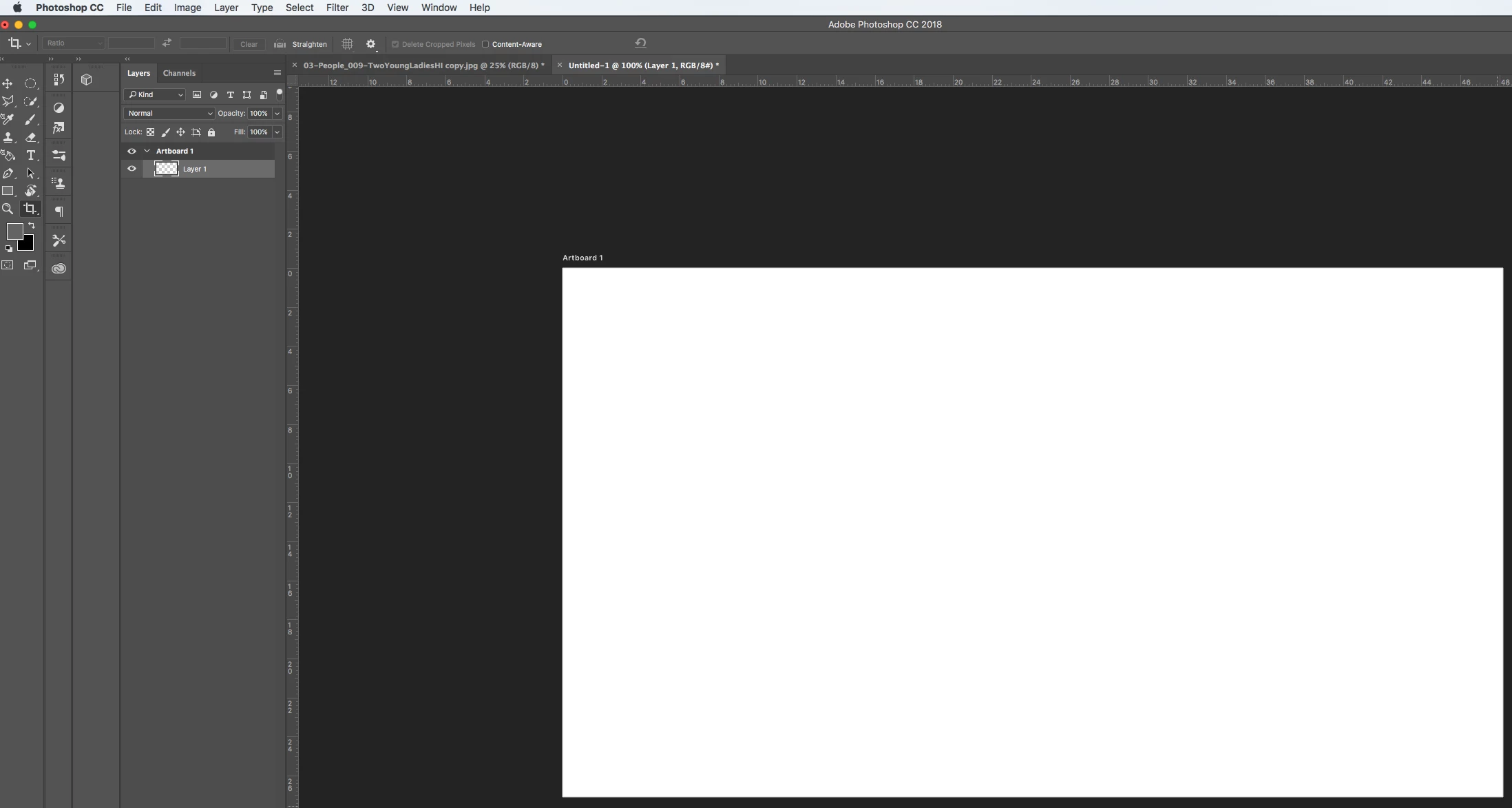
I have a transparent unlocked layer as the background layer. The second layer also shows as transparent in the layers panel. It has a white background on the art board. Not sure why but whatever.

I would normally just select the white and delete and bam! transparent.

This is not working in Photoshop CC. Eraser doesn't work either. The eraser TECHNICALLY works cause it erases my artwork. Just not the white background.

It shows as transparent in the panel. It's rasterized. It's not locked. There's got to be another setting I'm missing. I never had issues deleting a simple white background until I started using the newest photoshop version.

Someone please help. Thank you.
    Este tema ha sido cerrado para respuestas.
    Mejor respuesta de Simmer1

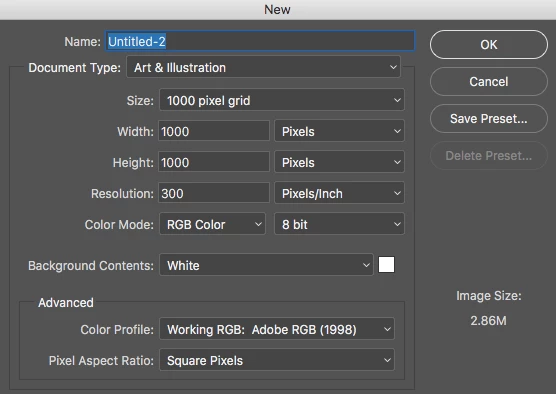
    It sounds like the document you created is a web/artboard.

    Try creating a new art and illustration document or print document (eg international paper) then drag your artwork into it.

    Hope this helps,

    Sim

    4 respuestas

    Participant
    December 12, 2017

    thank you guys, this was the problem!

    Simmer1
    Community Expert
    Community Expert
    December 12, 2017

    Glad I could help!

    Silkrooster
    Legend
    December 12, 2017

    Yeah you have an art board. If you don't need the art board, right click on the art board word and select ungroup art board. That will remove the art board then you will see the transparent background.

    I think there is a way to force the art board to be transparent, but it is escaping me at the moment.

    Simmer1
    Community Expert
    Simmer1Community ExpertRespuesta
    Community Expert
    December 12, 2017

    It sounds like the document you created is a web/artboard.

    Try creating a new art and illustration document or print document (eg international paper) then drag your artwork into it.

    Hope this helps,

    Sim

    Silkrooster
    Legend
    December 12, 2017

    Its possible you have a layer below the background layer. The background layer does not support transparency. The layer will say background and have a padlock on it. You can click the padlock or drag it to the trash can to convert the background layer to a normal layer. Then it will support transparency.

    It this does not work, capture your entire screen with the layers panel open any collapsed layers expanded so we can see them.

    Participant
    December 12, 2017

    As you can see, it appears transparent. But it's not. It's white on the art board. Also still has a white background when saved as a .png as I did check that out to be sure it wasn't just a display thing.