Participant
December 2, 2018
Question

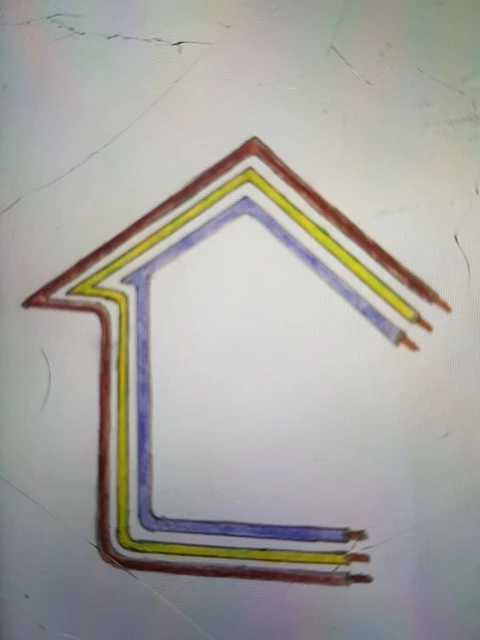
Trying to create a house outline made of 3 wires...

  • December 2, 2018
  • 3 replies
  • 1305 views

Hi, So i'm basically trying to create an outline of a house made up of three electrical wires. After hours of searching and trying i'm looking for an easier way to get the outline position right, due to the shape i can't seem to take the path to where i want it on the next lines...

The initial design is below with some of the attempts I've made. If anybody can provide any advice it'd much appreciated.
This topic has been closed for replies.

3 replies

Inspiring
December 2, 2018

My suggestion is going to follow along the same path as Trevor Dennis’s.

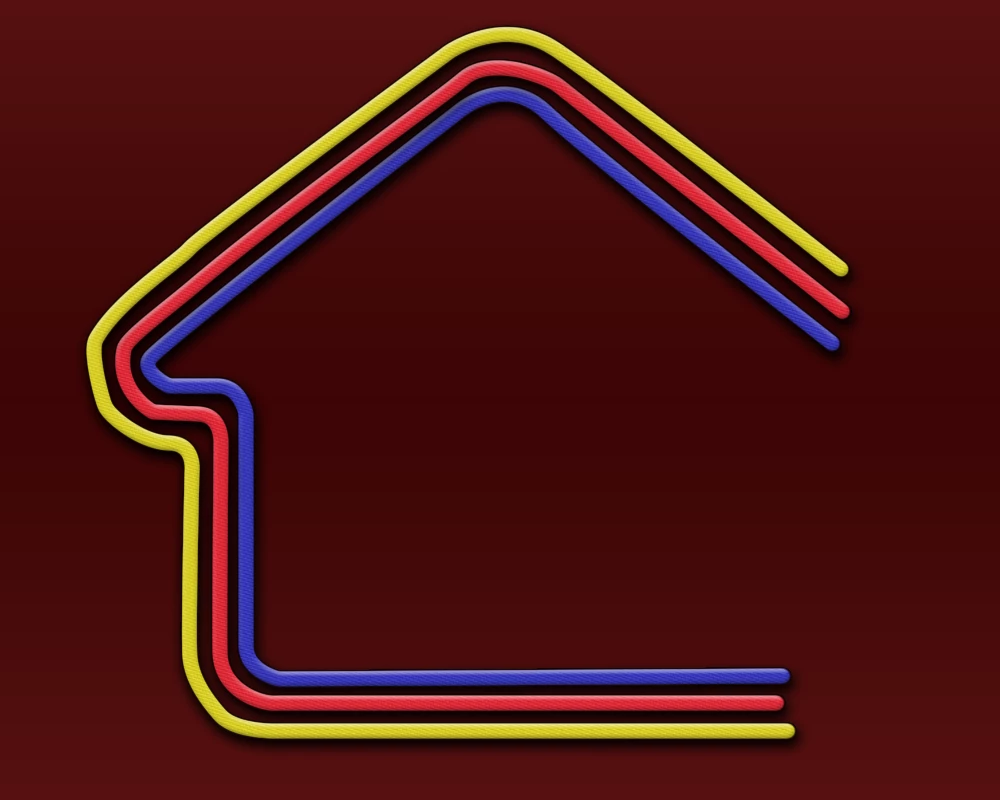
I’m a bit more of an amateur in Photoshop, but I’m going to try to go into more detail than previous posts. I wanted to see what I could do, and this is what I came up with.

I started by downloading your photo. I scaled it up and placed it into a 1920 by 1080 image.First, I applied transform ”Perspective ” to the right hand side of the image. Then, I applied “Warp” and straightened out the image so it looked pretty good overall.

Using the pen tool. I had the alignment set to center. The caps set to butt and the corners set to round.

With the opacity of the image turned down to 25 percent. I used the pen to draw strokes over the top of the existing image.

I tweaked the position of the wires using guides in the direct selection tool. I also used different diameter wires, because that’s the way the drawing was drawn. Personally, I like the less precision look. But with the pen tool, it would be easy to draw them all the exact same size. I added a small stroke to them to give them definition. I also downloaded a couple images of wire. I chose one copper wire ending, made a selection of it, saved it as image. Then placed it underneath the stroke paths to complete the image.

I enjoy playing around with stuff like this. And this image is of no use to me really. So I’m making it available to you is a PSD on MediaFire if you want it. You can tweak it more to your liking, or use it as a reference for something you want to create yourself.

https://www.mediafire.com/file/bv6dh2w1l7mpir8/Wire_House_Logo.psd/file

Regards, Terry

Trevor.Dennis
Community Expert
Community Expert
December 2, 2018

That's nicely done Terry.  It's making this corner look nice that is the issue, and retaining some sort of continuity of look and style, that is the problem with this, and you are limited to which Points you can edit because you need to avoid changing the roof line angle.  As mentioned above, this is the sort of thing that Illustrator is way better than Photoshop.

jane-e
Community Expert
Community Expert
December 2, 2018

Trevor.Dennis  wrote

As mentioned above, this is the sort of thing that Illustrator is way better than Photoshop.

I agree that Illustrator works best here, if you have it. The offset path is one way; the other is to draw one > scale it smaller (or bigger) with the shift key > create a blend to get the middle one > tweak the sizes and position.

Once happy with it, make a copy of it and expand the blend to make that middle shape a real path.

If you go this route and need better details, post back.

Mohammad.Harb
Community Expert
Community Expert
December 2, 2018

This can be done very precisely with offset path in illustrator. then you can import them back to photoshop

Trevor.Dennis
Community Expert
Community Expert
December 2, 2018

I'm going to suggest using the Pen Tool to create workpath of the first outline.  Perhaps turn on the Gris to use as a guide.

After making the first outline, drag it to the New Path icon (red arrow) to make a copy, and Free Transform while holding down the Alt (Opt) key to make the change in size concentric.

The problem is that this will not work out perfectly, and you'll need to use the Direct Selection tool (white arrow) to improve the alignment.

Repeat for the third path.

Then create a new layer for the lines, and the first colour.

Select the brush tool, and set it to the desired sized, and fully hard.

Select the first path and appropriate foreground colour.

Right click the first path, and choose Stroke Path

Now select the second path and change the colour, from now on you only need to click on the Stroke Path icon at the bottom of the Paths panel.

Note, I am sure someone will suggest stroking using Layer styles, but trust me, the alignment and corners will be horrible.

Semaphoric
Community Expert
Community Expert
December 2, 2018

>Note, I am sure someone will suggest stroking using Layer styles, but trust me, the alignment and corners will be horrible.

Just tried it, and it was even worse than I'd have thought!

davescm
Community Expert
Community Expert
December 2, 2018

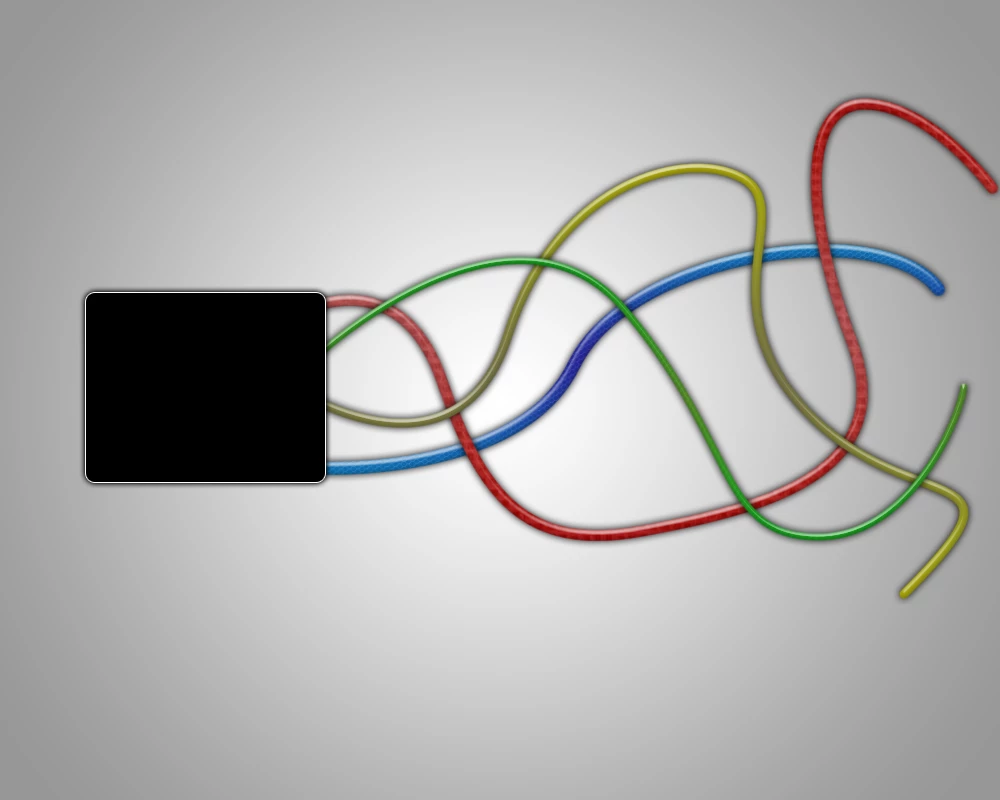
I agree with the others I would do it in Illustrator or using stroked paths as shown by Trevor. The wire house was an intruiging idea though so I made one in 3D using using Bezier curves in Blender.

Dave