
Known Participant
October 9, 2018
Question

Trying to create a picture frame template for populating automatically
  • October 9, 2018
  • 2 replies
  • 1586 views

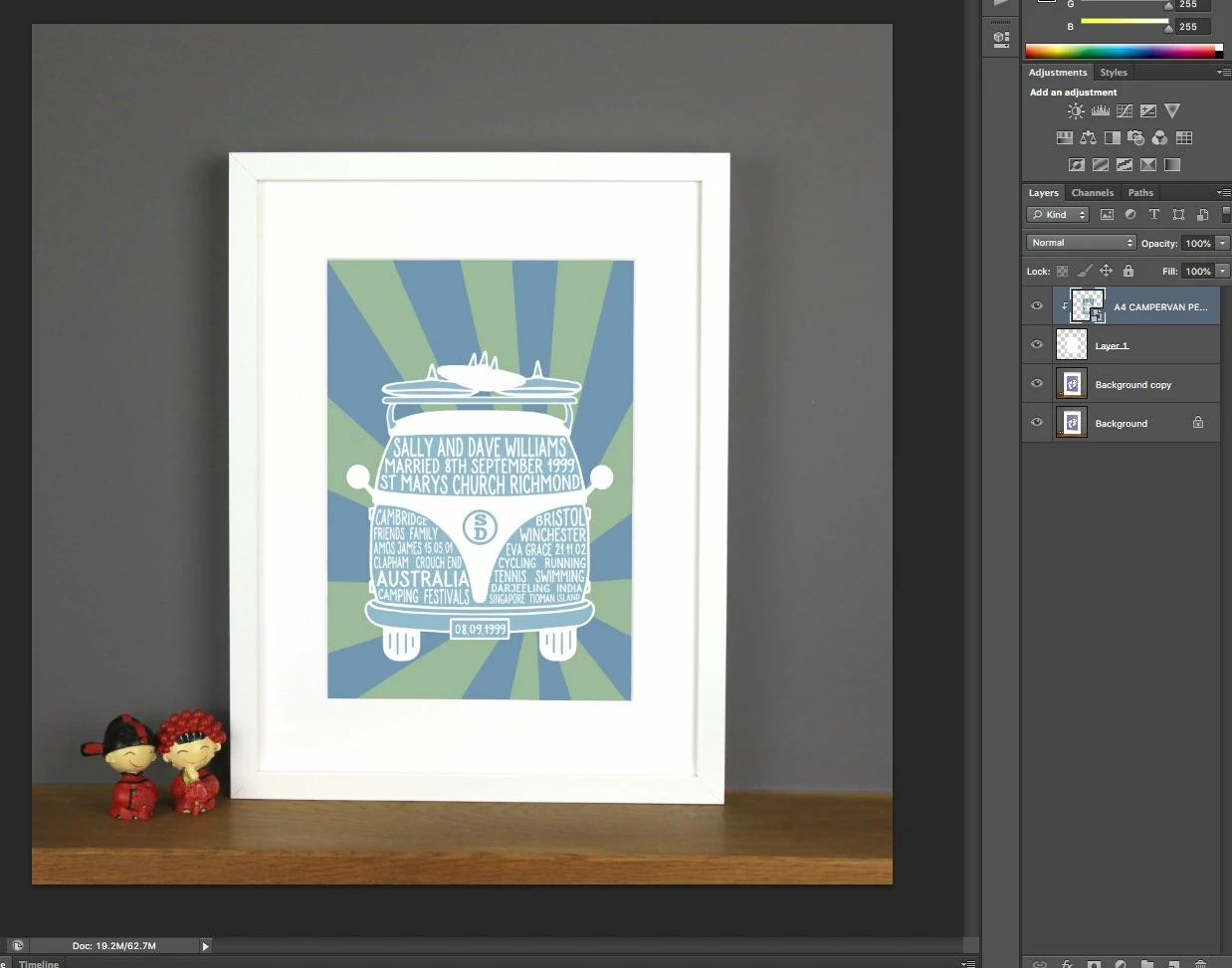
Hi there. I have managed to create my own 'mock up' template which has a picture frame on it that I can use to put in my own image. I just did this by selecting the inner image area, creating a clipping mask and then converting to smart object. However what I ideally would like is to create a template that I could use to automate for batch processing. ie. I have over 100 images that I would like to insert into the picture frame and then save these as individual files, named individually as per the inserted image. Here is an example of my picture frame file:

My query is a little like this one I think How to fit image in particular frame?

Which I understand that Bojan Živković helped with. Except I have a picture frame rather than a games box.

I have also tried to use .JJMack's PhotoCollageToolkit which looks as if may solve the problem but I am getting various error messages. When I try to use the Collage Template Builder I get this error message:

and when I just take the plunge and test the template with the TestCollageTemplate script I get this error message:

I am using PS CS6 only version 13.0 x64. I appreciate that it must have taken hours and hours to create something like this ToolKit and I am sure many many people have benefited from it.

Please excuse my extremely basic PS knowledge as I am new to this. I am sure there must be an easier way! If anyone can advise I'd really appreciate it as it would save me hours and hours of work. Thanks!

This topic has been closed for replies.

2 replies

JJMack
Community Expert
October 9, 2018

As I wrote is is very easy to create Templates that are comparable with my scripts. To do what you want to do all your template would need is a PSD file with your background image and an Alpha channel that maps your single image Size Location and Shape. Any size image can be populated into your template.  But for good image composition your images should have a portrait aspect ratio near the aspect ration of your template's Alpha channel image map.  Your image has an aspect ratio near a 2:3 Portrait. I created a template using your screen capture.  The template is therefore for web size output images 865px by 856px.  Any size image can be populated.  Image layers will be placed smart object layers that are sized to fill you image area positioned via the smart object layers associated transform  and masked to you image area to mask off any excess image content because for any image with a aspect ration mismatch.

I do not understand what you can not follow.  It does not take much to create a template.   Replacing a smart object layer object requires two batch processes one to size you image like the templates object and a second batch process to  replace the smart  object layers.   My scripts will not replace smart object layer objects.  My scripts place in new smart object layers and uses the Associated layer transform to do most of the work.  My scripts only place images in squares to the canvas not rotation id distortion will be added by mat scripts. Those tweaks need be added by manually done by editing populated templates that need this type of distortion

JJMack
JJMack
Community Expert
October 9, 2018

Four Simple Rules you need to adhere to for Creating Template to be use with my scripts.

  1. Size the photo collage templates for the print size you want - width, height and print DPI resolution.
  2. Photo collage templates must have a Photoshop background layer. The contents of this layer can be anything.
  3. Photo collage templates must have alpha channels named "Image 1", "Image 2", ... "Image n". These map your images Location Position, Shape and size.
  4. Photo collage templates layers above the background layers must provide transparent areas to let the images that will be placed below them show through.

A template to what you want to do requires the following.

1 A  PSD Sized for want your populated image composite to have.

2 Your Background Layer

3 An Alpha Channel named "Image 1" the that maps the image placement size and shape.

A Very simple template to crreate.

JJMack
Known Participant
October 9, 2018

Thanks so much! You are a genius. I will try again tomorrow and make it happen. In the meantime, I have managed to work something out with Bojan's video and actions using Image Processor Pro but I am determined to make yours work too. The only fault there is, is my ignorance of Photoshop. But I am learning thanks to you!

Bojan Živković11378569
Community Expert
October 9, 2018

Something similar can be done for your template as in this thread How to fit image in particular frame? The difference between box and picture frame does not change anything. Exactly the same approach can work for your mockup. The only difference is that you will need to use (probably) Reveal All command in action after copying and pasting composition in the file which is open and used to substitute image in Smart Object layer (image open by Image Processor Pro in batch).

If you have any further question do not hesitate to ask. I gave you my opinion and insight without to actually test and check anything and pulling things from my memory but I am pretty sure that action provided for Claudio can work for you. It will need your time and effort to watch video and understand how to prepare template (one that you have posted above, I guess).

Known Participant
October 9, 2018

Hi Bojan. Apologies I had not noticed the video that you had posted. I was just looking at the top answer on the thread. I scrawled down to find your video and watched that. I have uploaded your Action, downloaded Image Processor Pro and ..... success! It has all worked. There was white space on the bottom of my jpegs but I reread your instructions and ticked the trim box in replace SO content action and bingo it worked! Thanks SO much you have saved me. Apologies for not having realised that the answer was staring me in the face!

Tomorrow I will have a go with JJmack's Collage Tool as I am determined to managed that too!

Again, thanks SO MUCH and have a great rest of day!

JJMack
Community Expert
October 9, 2018

Image Processor Pro is a great Plug-ins script. And it can use your Axctions.  

Hoewver Actions can not use logic to deals with different size images the has different Aspect ratios and Print resolution.  This the main reason I stopped recording Actions to populate Photocollage templates.

Actions can not determine  many image need to be populate into a template  where the images should be position what size they need be or what shape the should.

All step in an action are hard coded steps every thing is fixed except fot Script steps and Plug-in steps. Even Plug-in steps have settings recorded into the Action step by the Plug-in.

You may be able to record an action to Batch populate a single image into a template.  I do not think the more than a single image could be populated by an action unless the additional images after the first one are always the same.  To me those additional images should have been in the template from the start.

So when it come down to it  Image Processor Pro can not populate multiple images into a template using user supplied  actions.  Actions also need to be recorded for each template you want to populate.  I do not believe an action can be recorder to populate more than one template unless the template PSd files  have the same layers name, same layer structure and deal with the same fixed size images.

JJMack