Trying to paint with an adjustment layer selected creates a new pixel layer
Trying to paint on an adjustment layer creates a new pixel layer in a hard to predict place in the layer stack.
Steps to reproduce:
- Create a new document
- Add several layers and layer groups. Add a red fill layer as the bottommost layer. Add a blue fill layer as a middle layer in the topmost group.
- Add a layer mask to the blue fill layer showing approximately half of the layer. Set the visibility as follows:
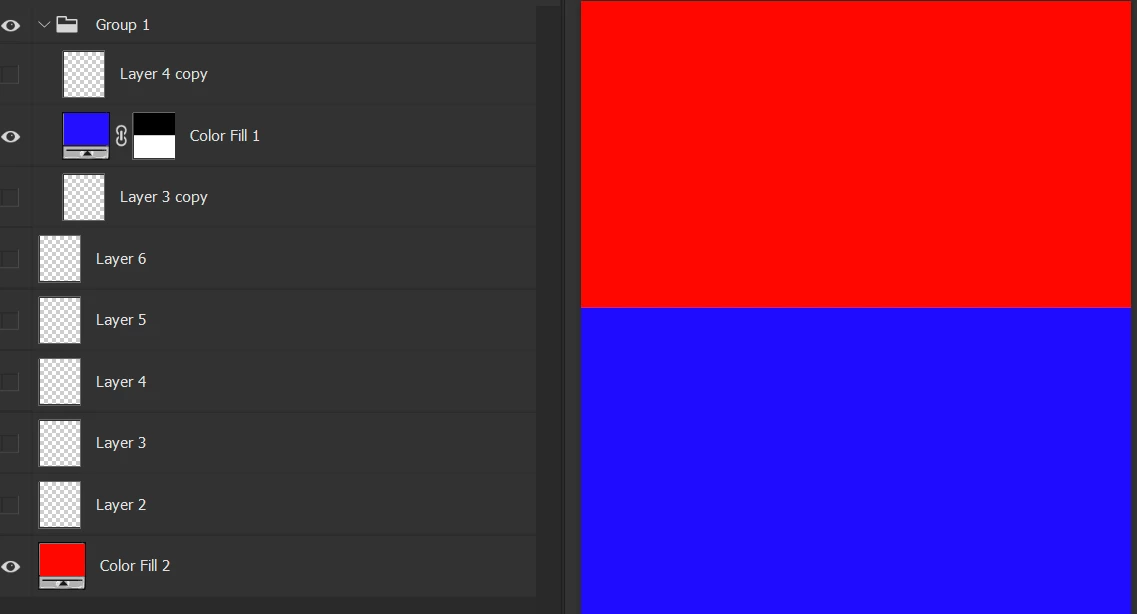
- Select the blue fill layer (click on the blue color swatch, not on the mask).
- Select the brush tool. Set brush color to green.
- Paint a line on the red background - a new pixel layer is created down the layer stack, just above the red fill layer.

- Again, select the blue fill layer (click on the blue color swatch, not on the mask).
- Change the brush color to magenta and pain a line on the blue background - a new pixel layer is created just above the blue fill layer.

- Turn off the visibility of the "Group 1" group.
- Again, select the blue fill layer (click on the blue color swatch, not on the mask).
- Change the brush color to yellow pain a line anywhere so that it crosses the green line - a new pixel layer is created down the layer stack, just above the red fill layer BELOW the pixel layer with the green line.
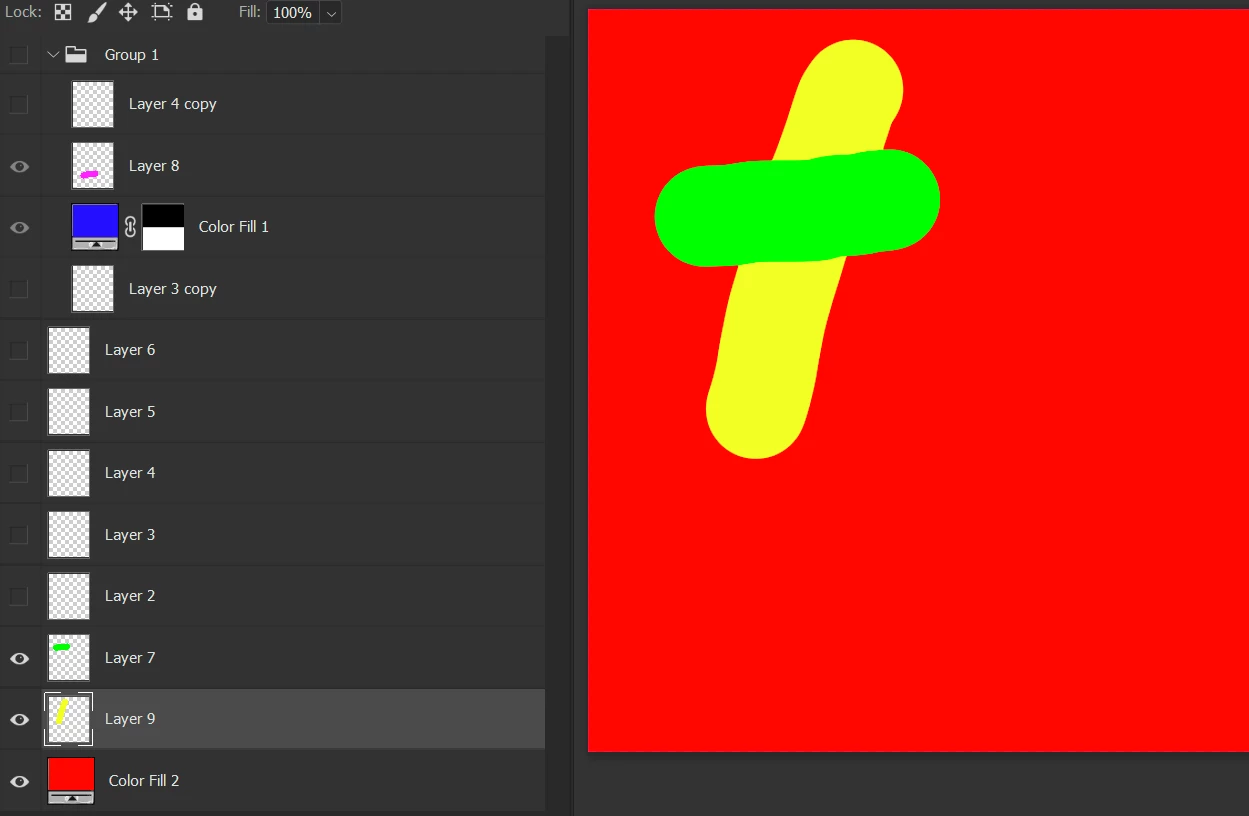
Expected result:
I expect to be unable to paint on an adjustment layer, when the layer itself is selected. I expect to see the "crossed circle" mouse pointer (the same as I see when trying to paint while a layer group is selected).
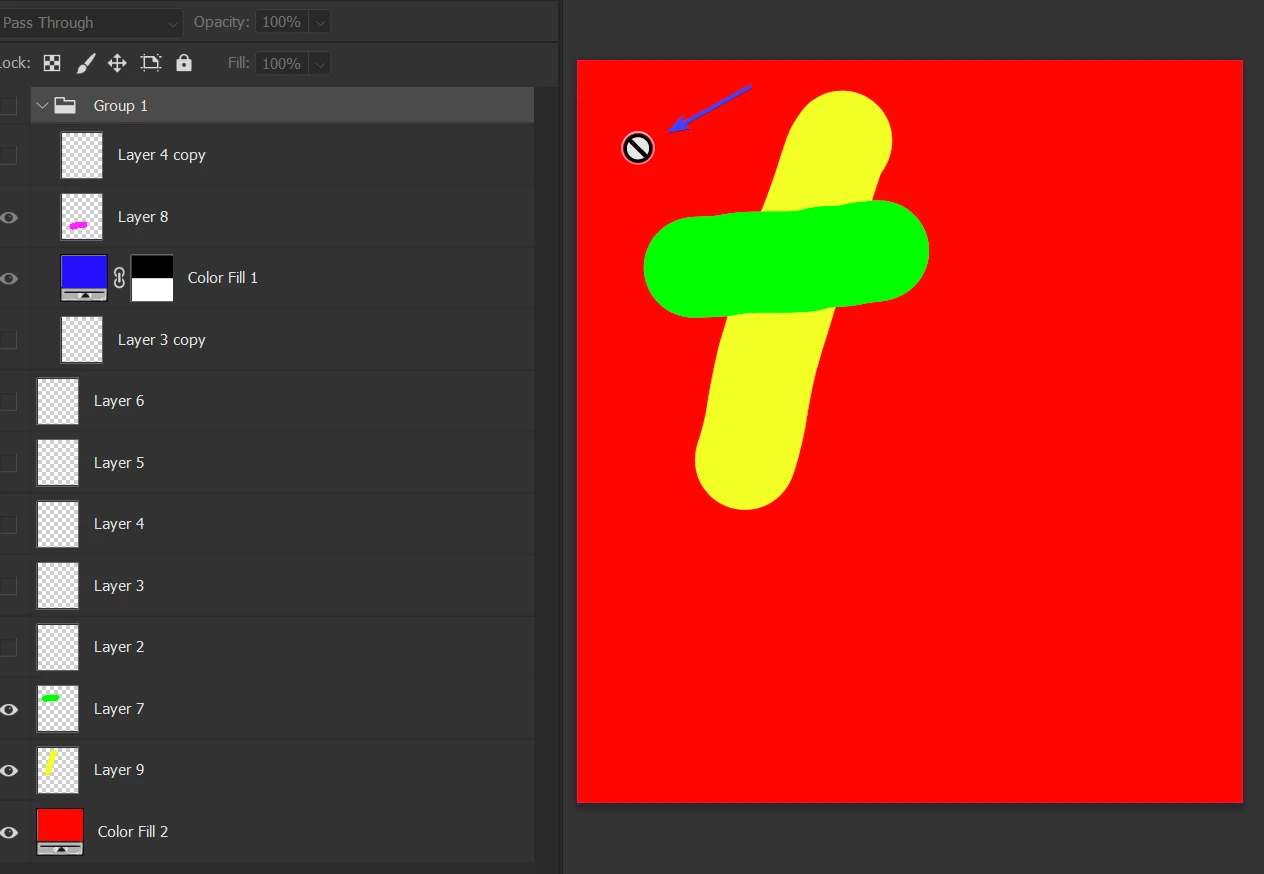
Issues with the current solution:
[A] It disrupts my workflow. I often work with adjustment layers with layer masks. When I change a setting in an adjustment layer and then try to paint on the mask Photoshop very often creates a new pixel layer which I had to delete (or undo the operation), reselect the adjustment layer's mask, and paint again. This is especially problematic, when I have a long stack of hidden layer. I often have to scroll up to find the right adjustment layer.
[B] The pixel layer placement depends on the mask value of the adjustment layer. If you paint on the invisible part (covered by the black color on the mask) the layer is created down the stack, even below other visible layers (the case with yellow and green lines crossing). If you paint on the visible portion (covered by the white color on the mask) - it is created above the layer.
Proposed solutions:
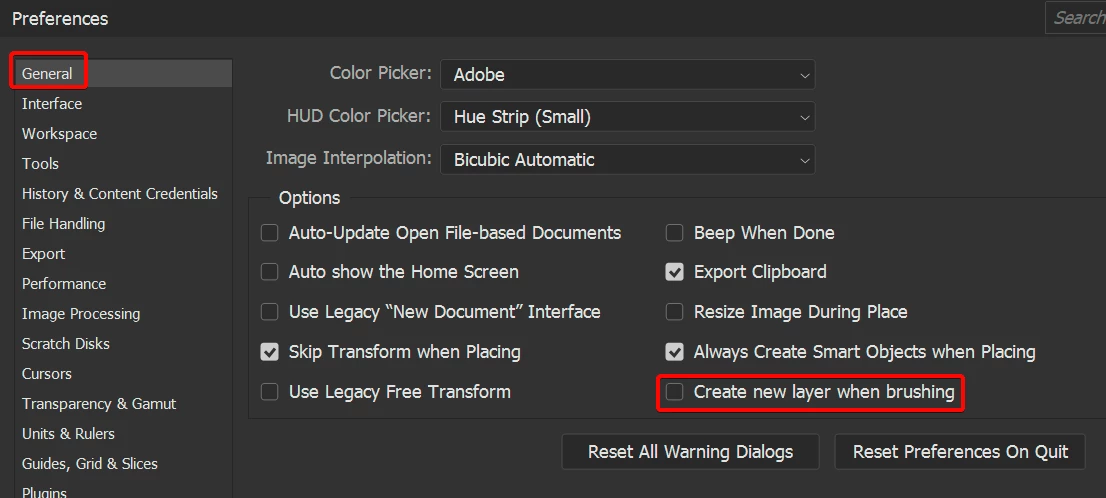
[S1] Add an option to disable this automatic pixel layer creation.
[S2] When the user selects an adjustment layer show the "mask colors" (grayscale) in the color swatches (foreground/background colors). When trying to paint on an adjustment layer (with the adjustment layer itself selected) default to painting on the mask of that layer instead of creating a new pixel layer.
Photoshop version: 25.0.0, Windows

 AdChoices