Answered
Turn on mask option on an adjustment layer
How to get back masking option on an adjustment layer? I suddenly turned off this marked option and i dont know how to get it back?
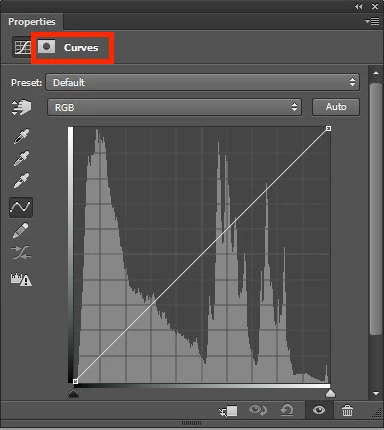

How to get back masking option on an adjustment layer? I suddenly turned off this marked option and i dont know how to get it back?
Thanks, but this wasnt caused the problem. I had the problem that when i double click mask linked with a adjustment layer (for example curve) i got Select and Mask dialog, instead this box...
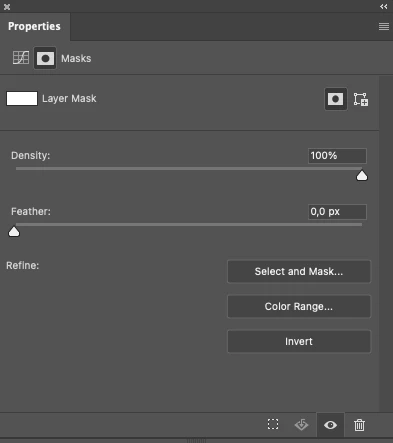
I reset the PS settings to default and now everything works properly.
I'm glad you got it sorted, but I'd be interested if you were referring to double clicking the mask icon in the Properties panel, or double clicking a layer mask in the layers panel? There's a Preference setting that controls double clicking a layer mask, but I am noit aware of any way to change what happens to the mask icon in the Properties panel. We love learning new behaviours though, but I suspect you are right and that Photoshop got its knickers in a twist.
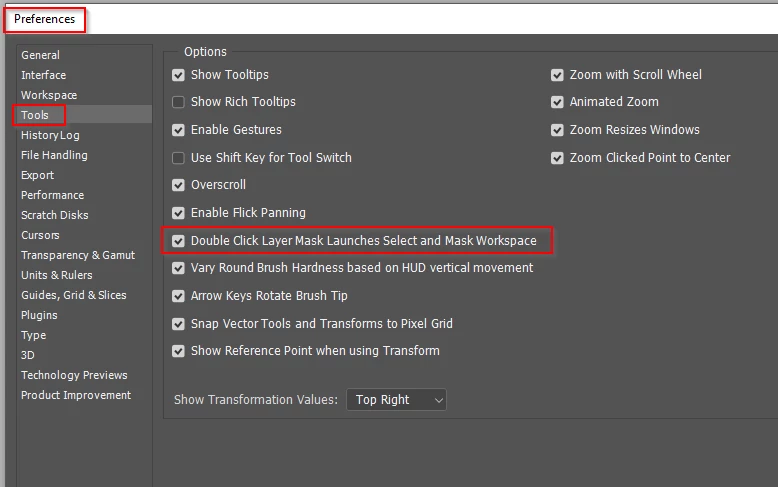
Already have an account? Login
Enter your E-mail address. We'll send you an e-mail with instructions to reset your password.
 AdChoices