
patrickh27764550
Inspiring
September 10, 2021
Question

Turn Shades of a color into one color

  • September 10, 2021
  • 2 replies
  • 392 views

I have a photo of my kids on a plane and I didn't realize that there was a dirty napkin on the table until later on.  I tried to remove the napkin with various tools, including the clone tool, but given the lighting in the room, the table has various shades of the same color from shadows, etc.  I'm trying to either make the whole table one color, or at least smooth the lines.


I've attached both the original table, and a screenshot of just the newly constructed table top in its own layer.

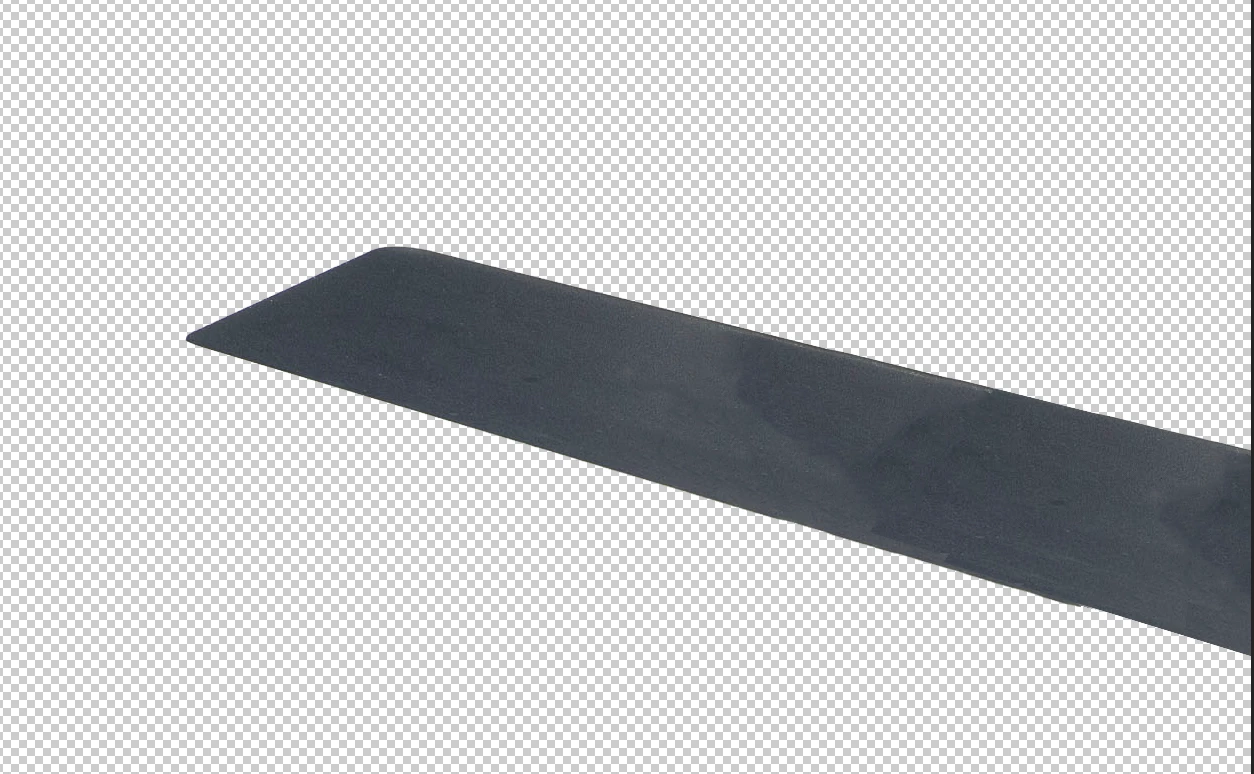
 

As you can see, there is a clear transition where I started to paint.  I tried using the spot-healing tool but that didn't do enough, although I believe it did some.

This topic has been closed for replies.

2 replies

Michael Bullo
Community Expert
Community Expert
September 10, 2021

Click on the black and white circular icon at the bottom of the Layers panel and add a Solid Color. Make it whatever color you like.


Next, you want to clip this new Solid Color layer (Color Fill 1) to your retouched table layer below it. Note that the final result will be a combination of the color from the top layer and the transparency of the bottom layer. Basically all of your hard retouching work will be just defining the boundary.


You could also change the Blending Mode and the Opacity of the Solid Color layer to have it better blend with your retouching layer.


Create Clipping Mask: Method 1
Select the Solid Color layer in the Layers panel and from the Layer menu choose "Create Clipping Mask".


Create Clipping Mask: Method 2
Hold down Alt/Option and position the mouse between the two layers within the Layers panel. When the cursor changes to include the downward pointing arrow, click once.


PECourtejoie
Community Expert
Community Expert
September 10, 2021

Hello, you could try filter> Blur>average, then fade it.. It is the brute force attack.

A better option would be using frequency separation: https://www.adobe.com/max/2020/sessions/frequency-separation-20-part-1-photoshop-fs20-reto-l6153a.html