

Hedgey
Participant
November 19, 2017
Answered

Unable to properly run Photoshop on graphic tablet after latest Windows Update

  • November 19, 2017
  • 1 reply
  • 1475 views

Following the most recent Windows update, I haven't been able to get Photoshop to work properly on my graphic tablet. Whenever I move the he box beneath the status bar stretches up to the bottom of the canvas, and the main part of the screen won't show anything that I draw. The layer preview will, however, so I know that the screen isn't frozen. Clicking on anything else will work too, it just doesn't show anything that I draw. I also tried experimenting in a different program, so as far as I can tell this is a Photoshop-specific issue.
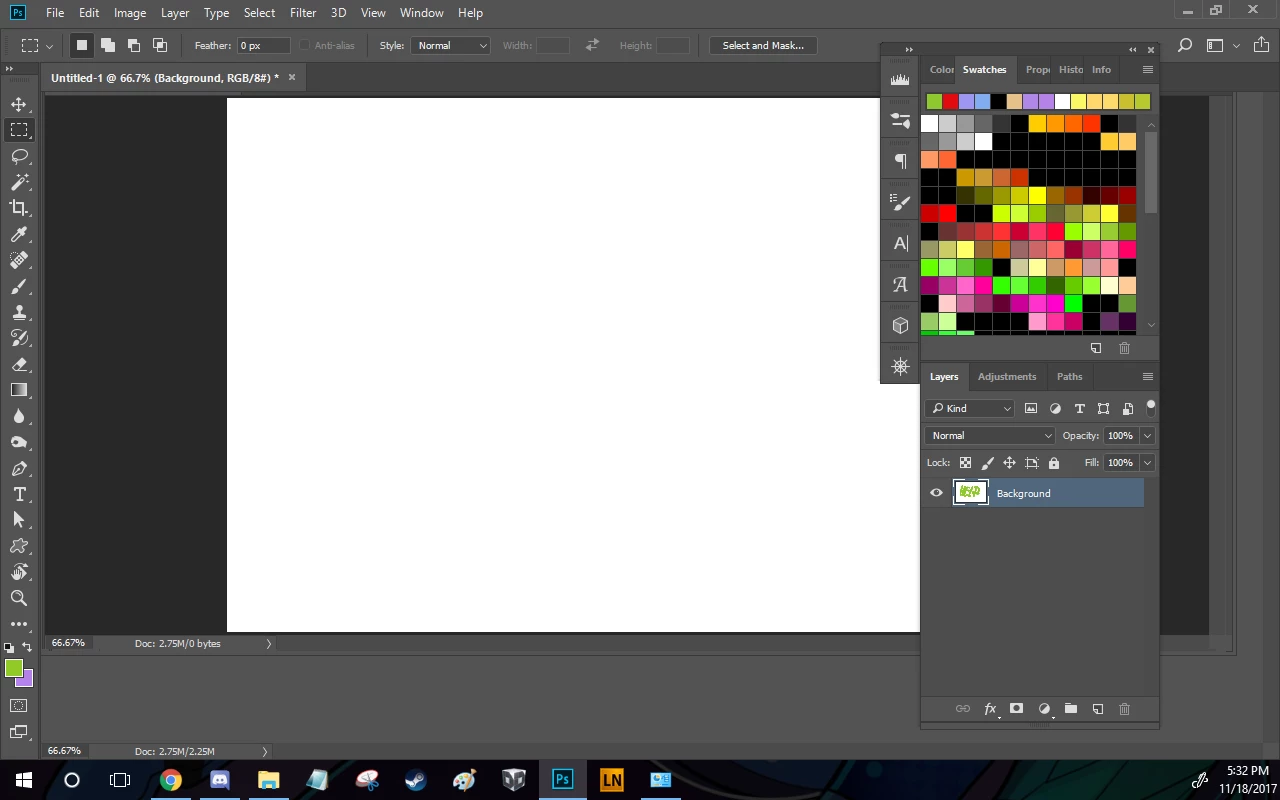
Over the past 3-4 hours, I have tried:

  • Updating Photoshop
  • Uninstalling and reinstalling Photoshop
  • Running Photoshop in compatibility mode
  • Running tablet settings application in compatibility mode
  • Uninstalling and reinstalling tablet drivers
  • Adjusting tablet display settings
  • Updating USB drivers
  • Uninstalling and reinstalling the latest version of Windows 10
  • Attempting to revert to an earlier version of Windows 10
  • Countless Restarts

I'm really not even sure what else to try at this point. The tablet itself (a Parblo Coast10) seems to be in working order, so as far as I can tell the problem is with either Photoshop itself or the latest Windows update.

Has anyone else had this problem, and if so were you able to fix it? Is it more likely to be an issue with Photoshop, or with the Windows update?

This topic has been closed for replies.
Correct answer Benjamin Root

You might try a preference reset (not always cleared during uninstall).

Win: Press and hold Ctrl+Alt+Shift immediately after initiating Photoshop's startup. A box will appear asking if you want to continue with the reset, select "yes." If you don't see this, you weren't fast enough...Try again.

Mac: Press and hold Cmd+Opt+Shift then start Photoshop. A box will appear, asking if you want to continue with the reset, select "yes."

Also go to Edit>Preferences>Performance and uncheck “Use Grapics Processor”...Restart Photoshop

1 reply

Benjamin Root
Benjamin RootCorrect answer
Legend
November 19, 2017

You might try a preference reset (not always cleared during uninstall).

Win: Press and hold Ctrl+Alt+Shift immediately after initiating Photoshop's startup. A box will appear asking if you want to continue with the reset, select "yes." If you don't see this, you weren't fast enough...Try again.

Mac: Press and hold Cmd+Opt+Shift then start Photoshop. A box will appear, asking if you want to continue with the reset, select "yes."

Also go to Edit>Preferences>Performance and uncheck “Use Grapics Processor”...Restart Photoshop

Hedgey
HedgeyAuthor
Participant
November 20, 2017

Yes, I think that fixed it! I do have to go re-do my settings now, but it appears to be working perfectly now!

Benjamin Root
Legend
November 20, 2017

That’s great!