


Inspiring
May 10, 2018
Answered

Update to PS CC 2018, now all adjustment layers are clipped to layer below

  • May 10, 2018
  • 3 replies
  • 627 views

Photoshop CC 19.0 release (latest).

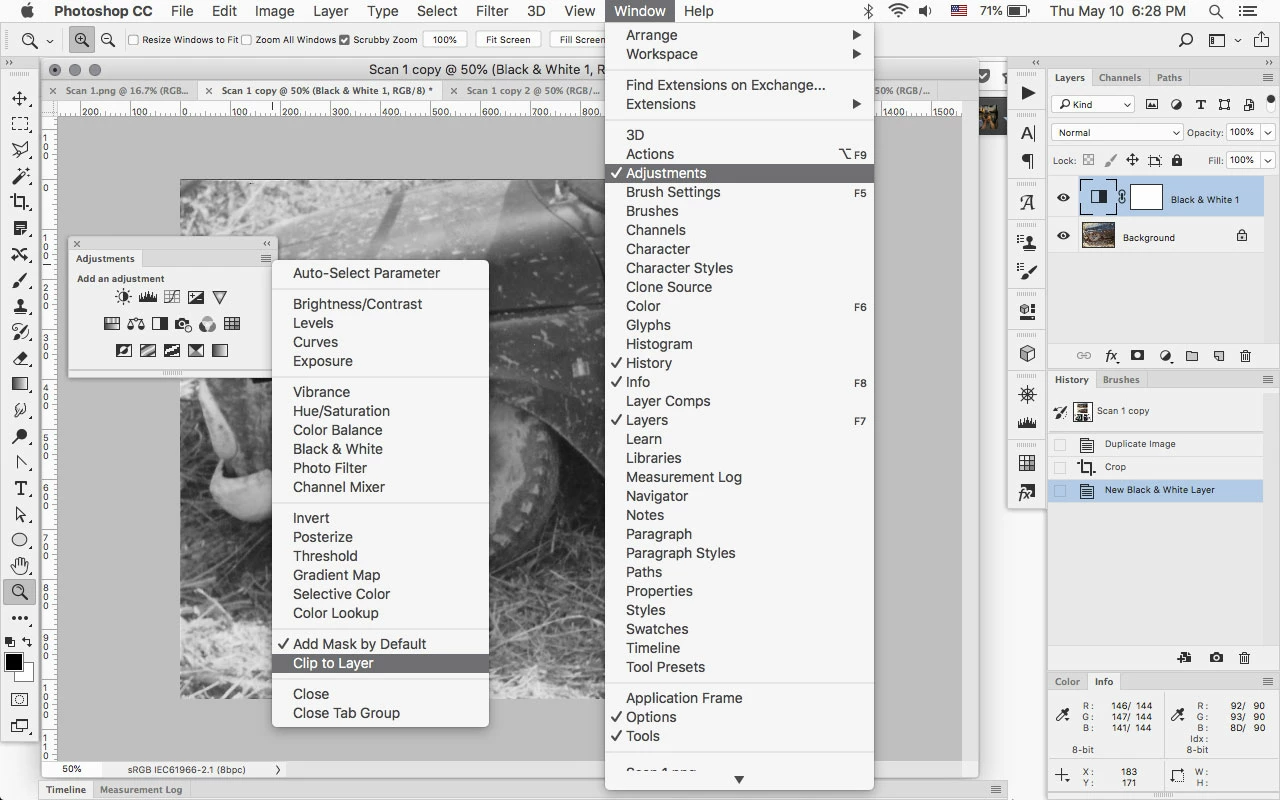
Since the update, any time I create a new adjustment layer, including when I run an action, all the adjustment layers are clipped to the layer below.  They only effect that one layer below.

How do I switch that off so adjustments layers globally effect all layers below.

Thanks!
This topic has been closed for replies.
Correct answer Jeff Arola

Go to Window>Adjustments, then in the Adjustments panel flyout menu uncheck Clip to Layer.

3 replies

Jeff Arola
Community Expert
Jeff ArolaCommunity ExpertCorrect answer
Community Expert
May 10, 2018

Go to Window>Adjustments, then in the Adjustments panel flyout menu uncheck Clip to Layer.

El_JeffeAuthor
Inspiring
May 10, 2018

Thanks Jeff!!!

Wonder if Adobe changed it or if I simply checked the setting accidentally? Anyway, thanks for solving my frustration!

PECourtejoie
Community Expert
Community Expert
May 10, 2018

Hello, Dag speaks about the burger menu of the Adjustments panel.

D Fosse
Community Expert
Community Expert
May 11, 2018

The Burger menu! Yes! That's so much more descriptive than "flyout menu". That's what I'll call it in the future

D Fosse
Community Expert
Community Expert
May 10, 2018

Uncheck "clip to layer" in the Adjustments panel flyout menu.

El_JeffeAuthor
Inspiring
May 10, 2018

What I'm looking to do is set a preference so any new adjustment layers I create are NOT clipped. That's how it was before CC 2018. Now any time I create a layer adjustment, it's clipped, so I have to go back and unclip each layer individually. I'm not sure if this was an "upgrade" Adobe put in for the new version, or if a preference has changed, but it's annoying.

D Fosse
Community Expert
Community Expert
May 10, 2018

That's a sticky setting. That's where you set the default behaviour.