Participant
June 12, 2020
Question

Using Color Range: Selecting 'Color' rather than 'Sampled Colors'

  • June 12, 2020
  • 1 reply
  • 273 views

Hello,

Some advise, help, or explantion would be much appreciated:

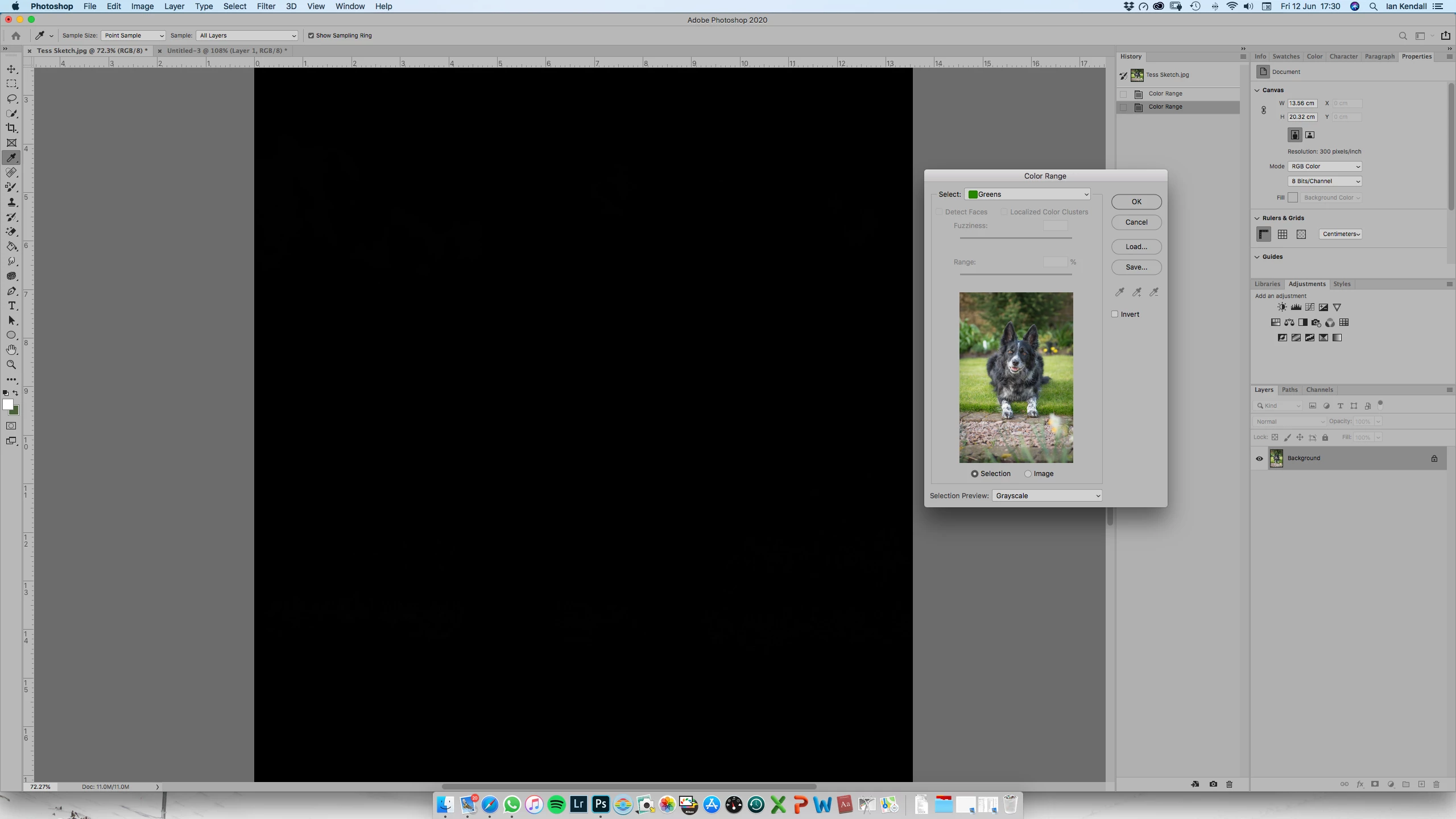
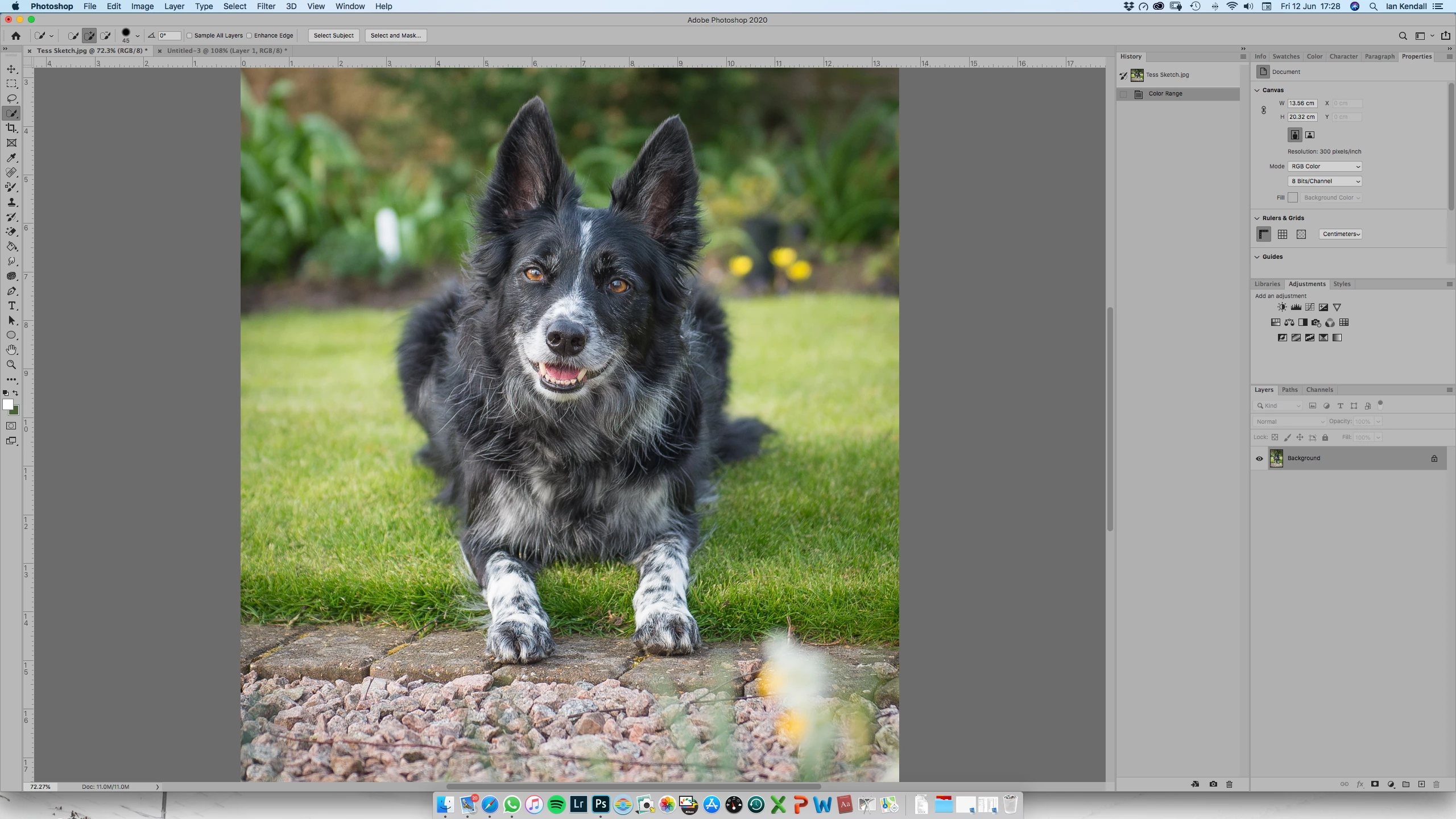
I have a photo of a black and white dog against green foliage (below). I'm trying to use Colour Range to select the green to remove it. In the Color Range window I select Greens rather than Sampled Colors, but I get the message: 

Warning: No pixels are more than 50% selected. The selection edges will not be visible.

How is this so, when clearly there is a lot of green in the image?


Thanks,

Ian.
This topic has been closed for replies.

1 reply

c.pfaffenbichler
Community Expert
Community Expert
June 12, 2020

What you call »green« is not necessatily the same as what is defined as »green« in Photoshop. 


Why don’t you start with the Sampled Color and then shift-click (and alt-click) to define the area? 


And have you tried Select > Subject? 


Participant
June 14, 2020

Thanks.


You're right... it turns out the 'apparent' green is more yellow! I wsa able to select most that way.


Select > Subject did a resonable job, but there's a lot of 'apparent' green in the fur as it blends to the foliage background. This meant the selection had a horrible green fringe that didn't convert well when using subsequent filters. The green seemed to take priority over the blacks and greys.


I'm not sure I understand what you mean by the Alt-Click to define the area. Could you elaborate?

c.pfaffenbichler
Community Expert
Community Expert
June 15, 2020

alt-clicking can be used to subtract from the selected color region in Color Range, just thought to mention it for completeness’ sake.