Using Color Sample Tool/Curves to Match Skin Tone?
I want to use Curves to match the skin tone from one layer to another using the specific tools listed below:
- I use the Color Sample Tool with a sample size of 31 x 31
- I select the Portrait layer (see attached)
- I sample THREE points; #1 on the cheek, something that I consider midtone, #2 underneath his right eye in the highlights, and #3 on his chin in a darker area for the shadows
- I create a Curves adjustment layer and clip it to the New Nose Layer
- I switch to the Red channel in Curves
- I select the Hand/Finger tool to click directly on the New Nose layer on an area of the nose that has highlights
- I press Shift + Command + Click where I want to place an identical point on the R, G ,B curves
- I now change the output value for the R channel to match sample #2 from the highlights to match the value of 251, I switch to Green and change the value to match 233 from sample #2, I switch to blue and I enter 231 for the output to match the output value from sample #2
1). Am I doing this correctly? When doing this, should I be entering the input values from the sample points (the ones on the left side) for each of the R,G,B values for each sample point?
2.) Do I just do the same thing for the midtones and the dark values afterwards by repeating the same steps?
3.) Is there anything I am missing?
Thanks!!!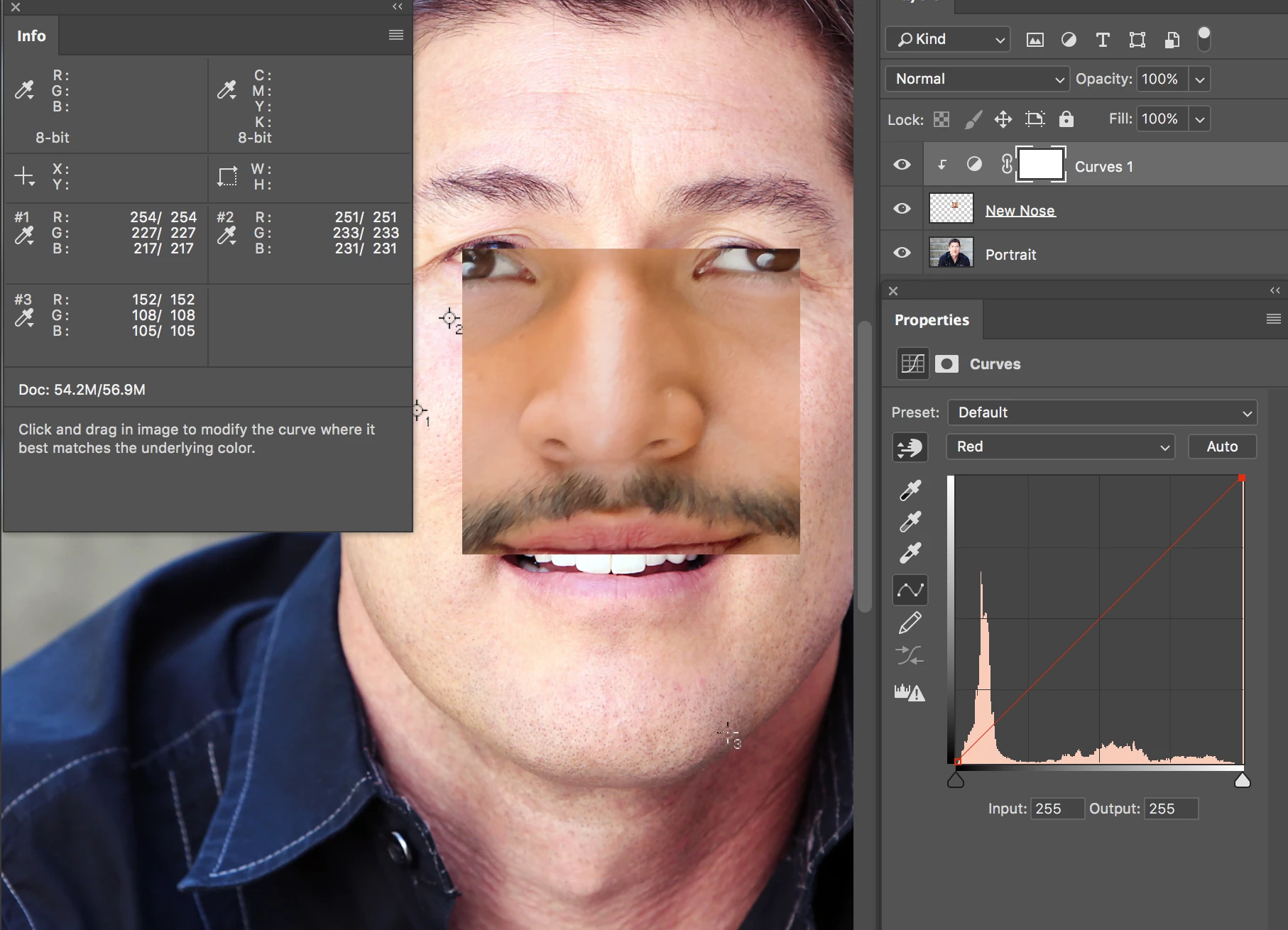
 AdChoices