zimmer.designs
Participating Frequently
December 2, 2016
Answered

Vector Mask Issue

  • December 2, 2016
  • 3 replies
  • 3994 views

I am trying to just take a photo and give it rounded corners.  So I have the image on a layer.  I added a Layer Mask.  I added a Vector Mask.  So then I select the Vector Mask thumbnail and use the rectangle shape tool.  But when I drag it across the photo, it just creates a new layer with a black rectangle shape.

Am I missing something?  How do I select the vector mask?  I checked some tutorials online, but the versions of Photoshop are not current.  I just updated to 2017 today.

I've been using Photoshop for over 15 years, so I know my way around the software.  Can't figure this one out.

Correct answer Terri Stevens

I think I would do this differently to Michael although that method is completely sound.

1) Start with a picture in this case some publicity shy vagrant masquerading  as a pending POTUS. Select the custom shape tool.

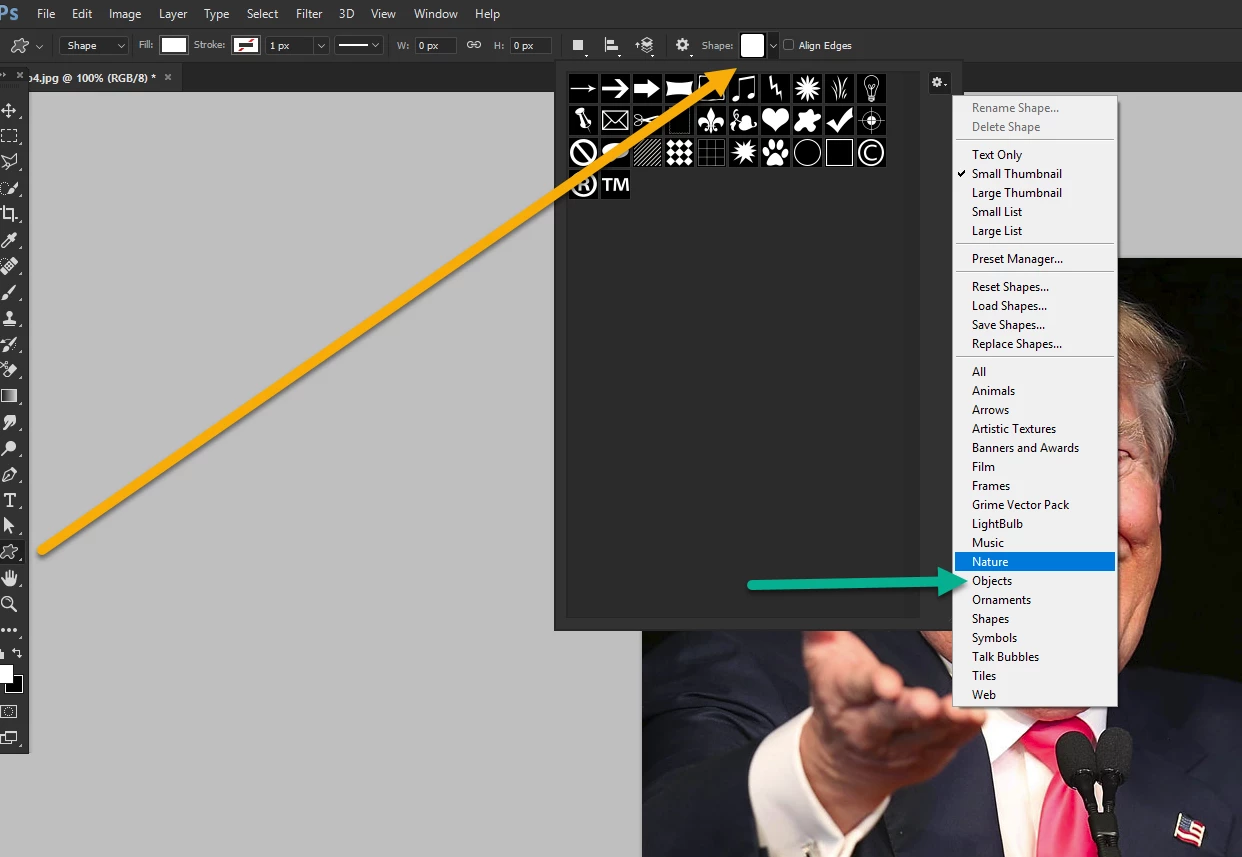
2) Go to the tool bar  and click on the gear icon on the right and on then the 'Shapes' category -not objects as I've highlighted here for some bizarre reason.

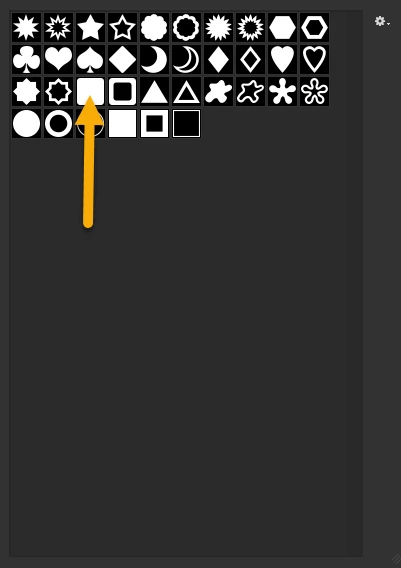
3) Choose the shape you want to frame the image with. I just chose a rounded corner rectangle

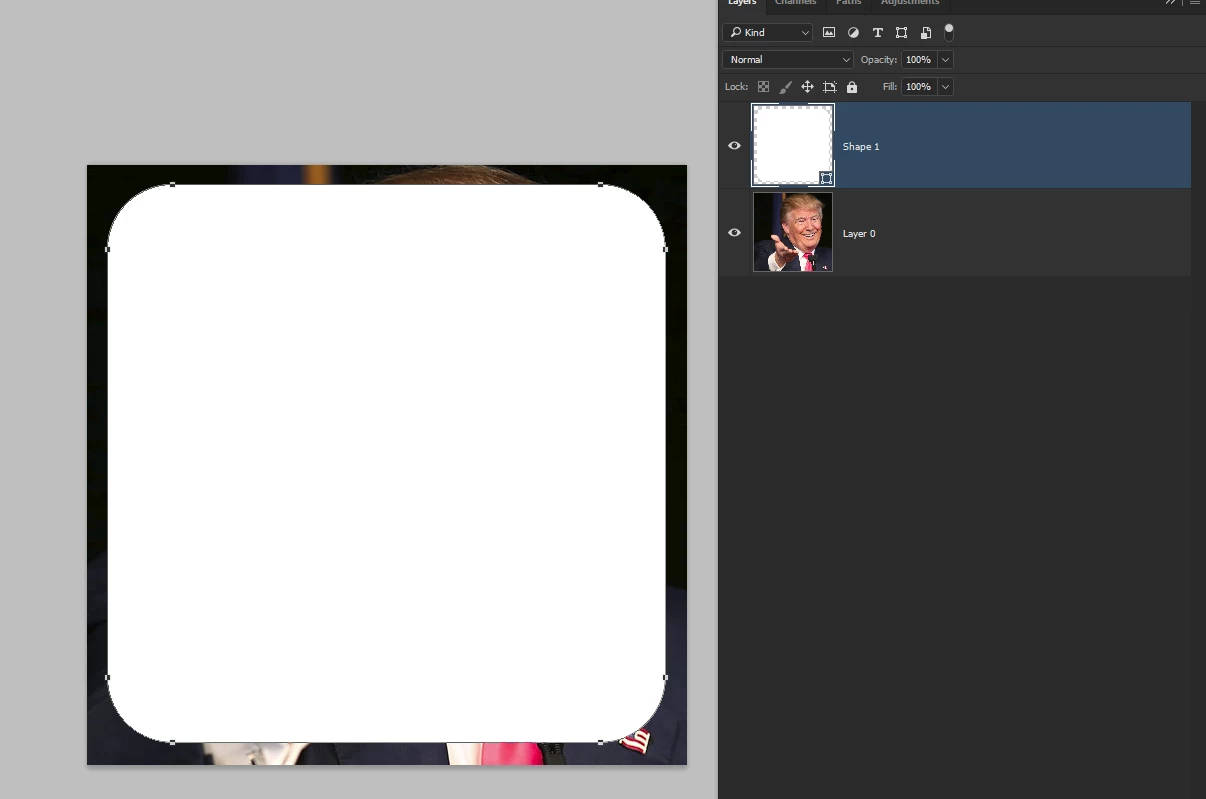
4) Draw on your image. You can constrain the dimensions should you want to

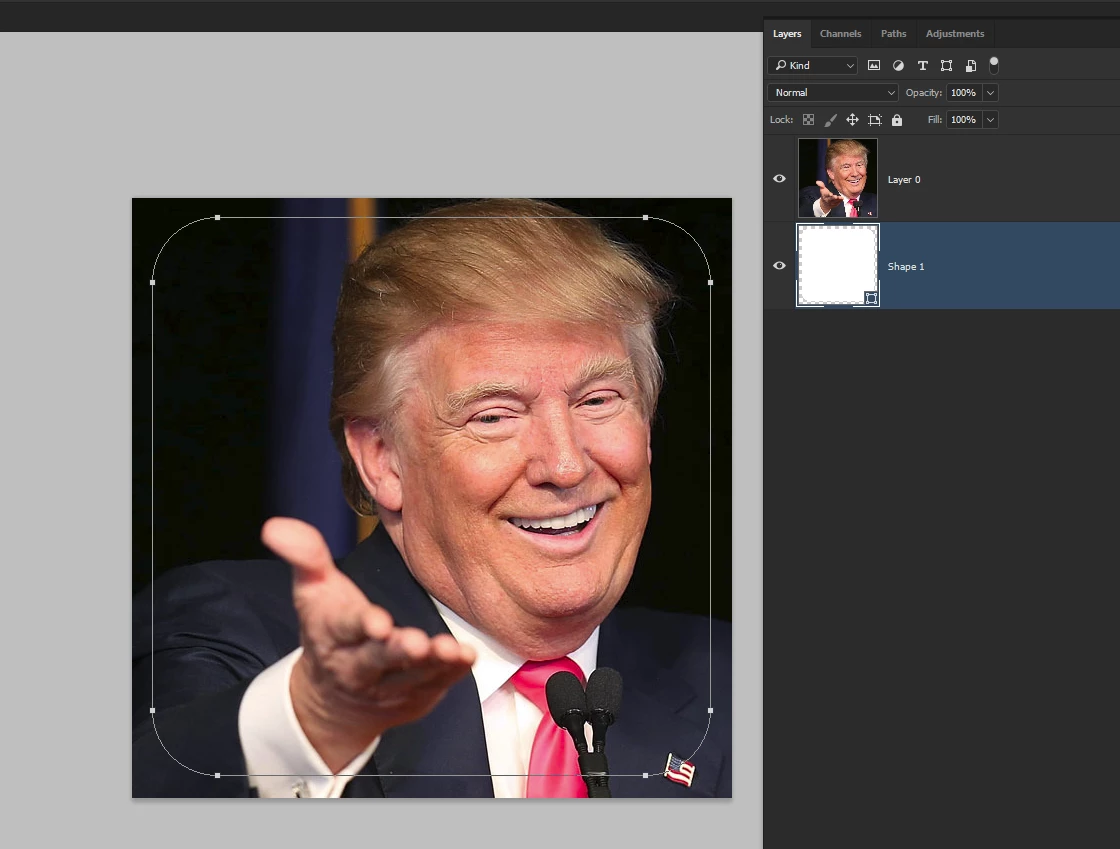
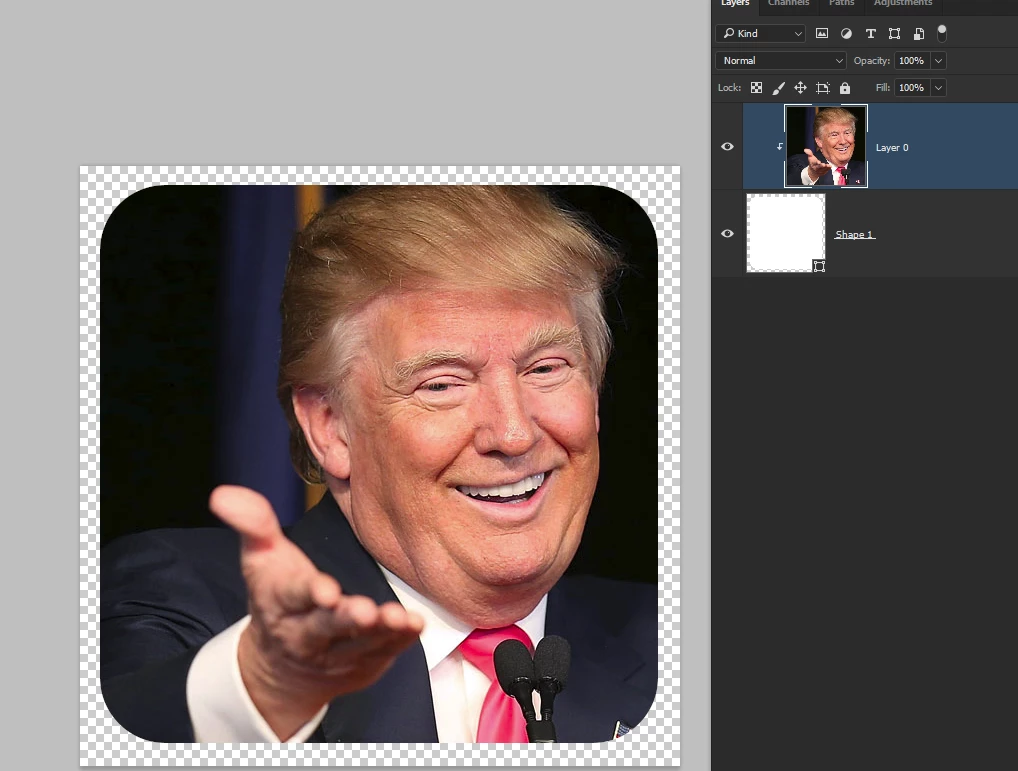
5)Now just reverse the layers -You may need to unlock the image layer if it is the background. You can see the vector path below

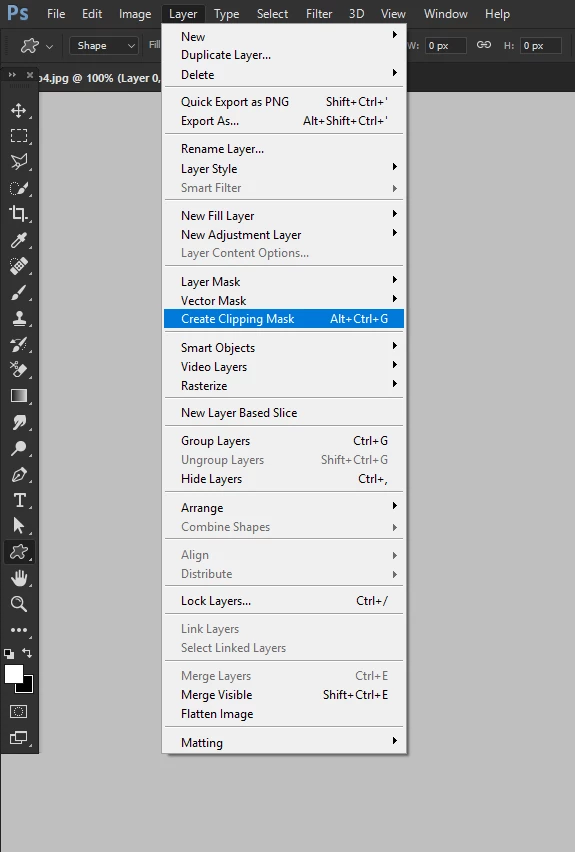
6) Now the clever part go to the layer menu and with the upper layer in this case Mr Trump selected, click on Create Clipping Mask.

7) This will place the image inside the vector frame. You can't actually make the corners rounded but you can make it look that way.

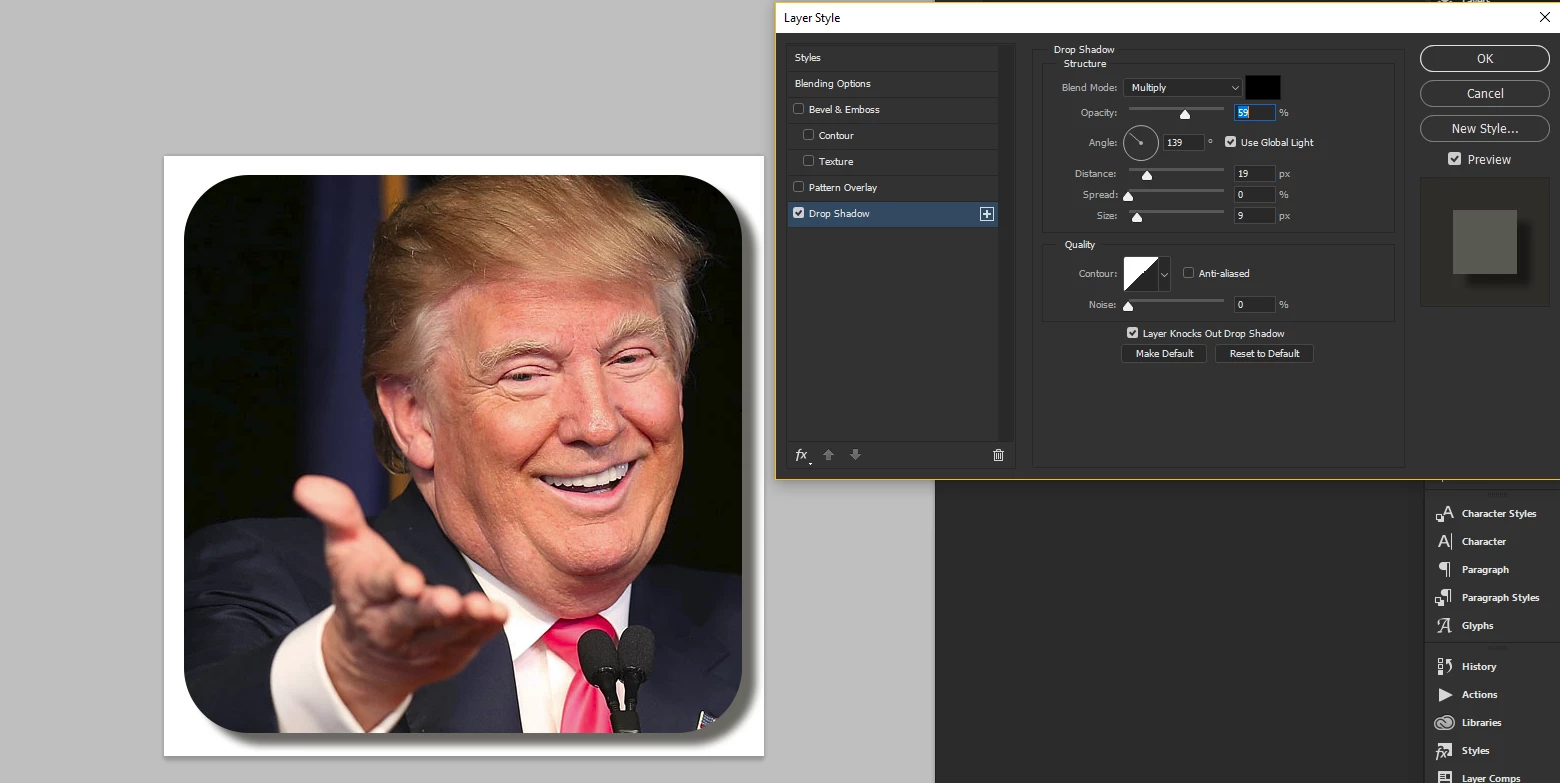
8) If you want to get fancy you can add a new layer filled with a color so the checkerboard transparency disappears and then by selecting the shape layer you can apply a Layer Effect. Below I just added as drop shadow.

You will end up with something like below. Hope that helps.

3 replies

zimmer.designs
Participating Frequently
December 2, 2016

Thank you for the tips.  Both work.  I have found Photoshop to be buggy recently.  Last night I was changing the shape to "Path" and it was not clipping the image.  Another issue I've had is that I choose "Filter Gallery" and use a filter.  When, I try to return to "Filter Gallery" again to add a different filter  the Gallery doesn't open.  It just repeats the last filter I used. The only work around I've found is to apply the first filter and then quit the program and restart.  Is this normal, or should I have the ability to put two different filters on a single image.  Thanks for the quick replies!  Very helpful.

Michael Riordan
Inspiring
December 15, 2016

"When, I try to return to "Filter Gallery" again to add a different filter  the Gallery doesn't open.  It just repeats the last filter I used."

Just checking, but are you using the shortcut that Photoshop generates in the filters menu for the last filter used (up at the top of the menu, after you've already applied the filter once) or are you going all of the way back to the actual Filter Gallery menu item? The shortcut is designed to do exactly as you described, allowing a user to quickly reapply a filter with the exact same settings without going through the dialog box again. It's a timesaver. If you want to re-choose the settings you have to dig further down the menu to the actual Filter Gallery option.  You probably know this but on the offhand chance you overlooked it I thought I'd mention it.

Terri Stevens
Terri StevensCorrect answer
Legend
December 2, 2016

I think I would do this differently to Michael although that method is completely sound.

1) Start with a picture in this case some publicity shy vagrant masquerading  as a pending POTUS. Select the custom shape tool.

2) Go to the tool bar  and click on the gear icon on the right and on then the 'Shapes' category -not objects as I've highlighted here for some bizarre reason.

3) Choose the shape you want to frame the image with. I just chose a rounded corner rectangle

4) Draw on your image. You can constrain the dimensions should you want to

5)Now just reverse the layers -You may need to unlock the image layer if it is the background. You can see the vector path below

6) Now the clever part go to the layer menu and with the upper layer in this case Mr Trump selected, click on Create Clipping Mask.

7) This will place the image inside the vector frame. You can't actually make the corners rounded but you can make it look that way.

8) If you want to get fancy you can add a new layer filled with a color so the checkerboard transparency disappears and then by selecting the shape layer you can apply a Layer Effect. Below I just added as drop shadow.

You will end up with something like below. Hope that helps.

Michael Riordan
Inspiring
December 2, 2016

Hi Megan

Check the options panel at the top of the screen. have you got it set to shape or path? you need path. Then make sure the vector mask is active in your layers panel and draw directly on it.

Let us know if that works

Michael Riordan

Owner/Adobe Certified Instructor

Digital DesignLab

Oak Park, IL

http://www.learnadobesoftware.com