Roger Breton
Legend
November 21, 2020
Answered

Wacom Intuos BT M pressure does not work?

  • November 21, 2020
  • 2 replies
  • 739 views

Got a used Wacom tablet. Looks brand new to me. Plug it in, works great with Photoshop 2021 on Windows 10. Only problem is that I can't seem to have it create varying brush strokes when I paint (for which I purchased it in the first place)? Regardless of how much I try to press harder or softer on the tip, I always get uniform size brush strokes? This is how I have the Paintbrush options set :


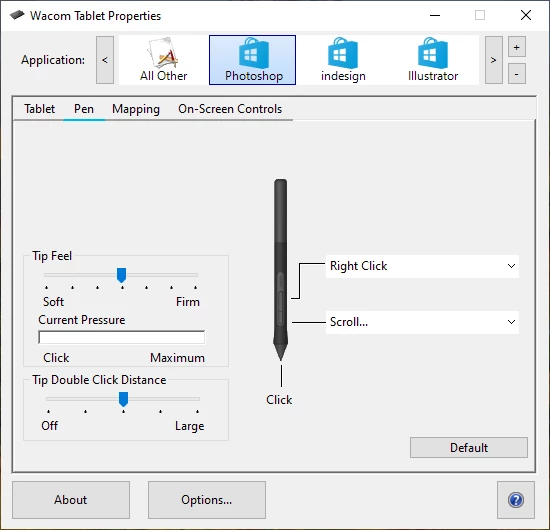
I looked at Wacom Control Panel and I don't see anything "wrong" :


This topic has been closed for replies.
Correct answer Roger Breton

I updated to Wacom 3.6.41-1 driver and I got Pressure sensitivity back!
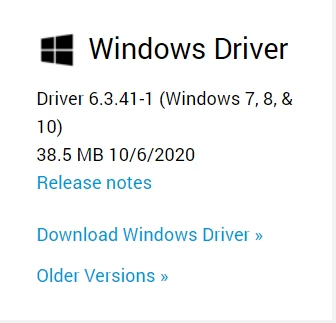
I had to "fight" my way a little, though? I should have first uninstall the existing version: when I rebooted, the Wacom Tablet Properties app complained that it could not find the tablet? So I unstalled 6.3.41-1, rebooted, reinstalled and then it worked. 


You have extensive experience with the Wacom tablet and Pen as I can see! Thank you so much for your generous help...


FWIW-1, I'm preparing for my Photoshop's Monday night class at UQAM (french university in Monréal) and I wanted to demonstrate students how different brushing is with a pen as opposed to brushing with the mouse. I picked up this used Wacom tablet off eBay, earlier this summer, but I had not used it with my PC for a while... 


FWIW-2, in my testing this summer, I was kind of "turned off" by the disconnect between the tablet and the screen? Somehow, the contact between the tablet surface and the corresponding effect on the screen is not instantaneous? As soon as I lift the Pen off the tablet ever so slitgtly, the contact is lost -- nothing I can do about that. I wondered whether I should have gotten a Cintiq tablet instead or one of those models where we paint directly on the screen? 

So, out of curiosity, I installed Photoshop 2021 on my old Microsoft SurfacePro3 tablet and it works like a charm with the Windows Pen, pressure sensitiviy and all. I plan to demonstrate the two environments to my students Monday night but I suspect it is best to directly work off the screen than off a "remote area" like a tablet....


Thanks again for your kind and prompt help!

Roger Breton

www.graxx.ca

2 replies

davescm
Community Expert
Community Expert
November 21, 2020

In Photoshop brush settings click on shape dynamics and set Size Jitter control to Pen Pressure


Dave

Roger Breton
Legend
November 21, 2020

Dave,


Thanks for coming to my rescue too! I noticed how the Shape Dynamics option kept coming on of its own during my testing efforts? Now that you mention it, I watched it closely and noticed that, as soon as I click Button A, to activate "Pen pressure determines Size" in the Control bar, Button B in the Shape palette "Shape Dynamics" is automatically checked :

JJMack
Community Expert
Community Expert
November 21, 2020

If you use windows you need to configure things to work correctly together. Note: in PS 22.0.1 the Red brush Preview for hardness and size is broken. You will not see it. PS 21/2/4 is a better version of Photoshop Adobe need to work on  version 22.

JJMack
Roger Breton
Roger BretonAuthorCorrect answer
Legend
November 21, 2020

I updated to Wacom 3.6.41-1 driver and I got Pressure sensitivity back!

I had to "fight" my way a little, though? I should have first uninstall the existing version: when I rebooted, the Wacom Tablet Properties app complained that it could not find the tablet? So I unstalled 6.3.41-1, rebooted, reinstalled and then it worked. 


You have extensive experience with the Wacom tablet and Pen as I can see! Thank you so much for your generous help...


FWIW-1, I'm preparing for my Photoshop's Monday night class at UQAM (french university in Monréal) and I wanted to demonstrate students how different brushing is with a pen as opposed to brushing with the mouse. I picked up this used Wacom tablet off eBay, earlier this summer, but I had not used it with my PC for a while... 


FWIW-2, in my testing this summer, I was kind of "turned off" by the disconnect between the tablet and the screen? Somehow, the contact between the tablet surface and the corresponding effect on the screen is not instantaneous? As soon as I lift the Pen off the tablet ever so slitgtly, the contact is lost -- nothing I can do about that. I wondered whether I should have gotten a Cintiq tablet instead or one of those models where we paint directly on the screen? 

So, out of curiosity, I installed Photoshop 2021 on my old Microsoft SurfacePro3 tablet and it works like a charm with the Windows Pen, pressure sensitiviy and all. I plan to demonstrate the two environments to my students Monday night but I suspect it is best to directly work off the screen than off a "remote area" like a tablet....


Thanks again for your kind and prompt help!

Roger Breton

www.graxx.ca