
Known Participant
March 28, 2016
Answered

wacom tablet jittery with graphic's processing enabled

  • March 28, 2016
  • 2 replies
  • 18154 views

Hi all,

I've had the wacom intuos pro for some time and mainly do photo editing

I use liquify a lot and if I have the graphics processing enabled my pen tip gets quite jittery and the tablet become quite useless.

I did some googling and went to services to restart the wacom tablet driver but no luck

the only solution I could find is to disable graphic's processing on photoshop

Using Windows 10 and GTX750Ti


graphic's driver version is 364.51 according to nvidia control panel

Wacom driver is 6.3.15-3

Does anyone have any tip to resolving the issue other than to disabling graphic's processing support?
    This topic has been closed for replies.
    Correct answer Trevor.Dennis

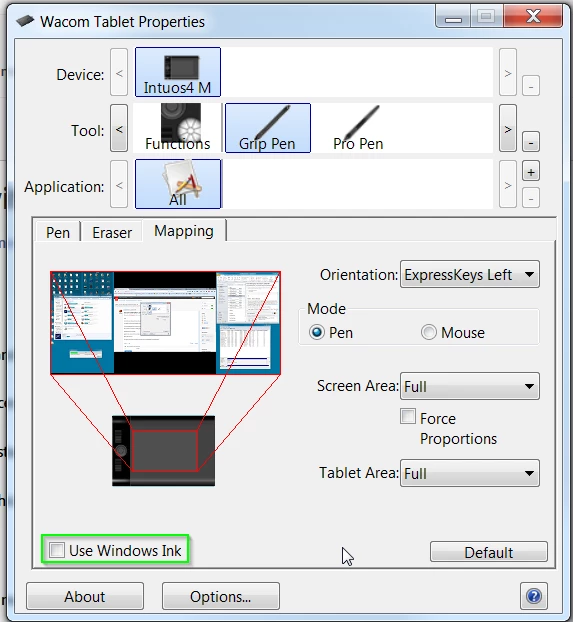
    If Windows Ink is disabled

    Create a file that contains instructions to revert to the WinTab functionality.

    Create a text file in a text editor such as Notepad.

    Type in the following lines:

    # Use WinTab

    UseSystemStylus 0

    Save the file as a plain text file named PSUserConfig.txt

    Put (copy) the file into the Photoshop settings folder: C:\Users\[User Name]\AppData\Roaming\Adobe\Adobe Photoshop CC 2015\Adobe Photoshop CC 2015 Settings\

    Restart Photoshop and check the pen pressure and overall performance.

    2 replies

    Participating Frequently
    February 13, 2019

    The Solution:

    Mostly people suggest turn off GPU Acceleration, but GPU Acc helps with the speed of Liquify. The better way: Open Nvidia Control Panel by right click on desktop,  go to 3D Management to the left and select Programs and then find Photoshop, and turned OFF vertical sync for photoshop, click APPLY at the bottom. Restart Photoshop. Done

    Trevor.Dennis
    Community Expert
    Community Expert
    March 28, 2016

    Are you using WinTab or Windows Ink?

    Trevor.Dennis
    Community Expert
    Trevor.DennisCommunity ExpertCorrect answer
    Community Expert
    March 28, 2016

    If Windows Ink is disabled

    Create a file that contains instructions to revert to the WinTab functionality.

    Create a text file in a text editor such as Notepad.

    Type in the following lines:

    # Use WinTab

    UseSystemStylus 0

    Save the file as a plain text file named PSUserConfig.txt

    Put (copy) the file into the Photoshop settings folder: C:\Users\[User Name]\AppData\Roaming\Adobe\Adobe Photoshop CC 2015\Adobe Photoshop CC 2015 Settings\

    Restart Photoshop and check the pen pressure and overall performance.

    JSP8475Author
    Known Participant
    March 28, 2016

    hi, Trevor

    Big Thanks first!


    I've turned off Windows Ink by un-checking the check box (highlighted in green rect.) on your screenshot

    It has alleviated the symptom tremendously but still feel jittery in liquify with the graphics support on.

    Not sure if the unchecking the checkbox does the same thing or not, but copying the txt file in "Adobe Photoshop CC 2015 Settings" folder has helped further smooth the operation....

    still a ted bit jittery but a huge advance compared to previous performance

    Thanks again!